Getting Paid Online with Stripe
Get paid faster by letting your clients pay invoices online. When you connect your Stripe account, your invoices can carry a Pay Online button. Your client clicks it, pays by card or bank transfer, and the payment is recorded on the invoice for you. No checks to chase, no payments to type in.
Before You Start
You need your own Stripe account. Elevation Advisor connects to it, but the money never passes through us. Client payments land in your Stripe balance, and Stripe deposits them into the bank account you choose. You're the merchant, so Stripe's processing fees, refunds, and disputes are handled in your Stripe account, not in Elevation Advisor. Elevation Advisor doesn't add any fee of its own.
Step 1: Connect Stripe
Before you connect
If you don't have a Stripe account yet, you'll create one during the connection, and Stripe will ask you to verify your business before it can pay you. Have these ready:
- Your business's legal name, address, and phone number
- Your EIN, or the owner's Social Security number if you're a sole proprietor
- Details for the business owner, such as date of birth and home address
- A short description of what you do, and your website if you have one
- The bank account you want your money deposited into
Stripe explains why it needs this in Set up your account.
Connect your account
- In Elevation Advisor, go to Settings, then Account & Profile, and open Integrations.
- In the Stripe section, click Connect with Stripe. You're taken to Stripe's website.
- If you already have a Stripe account, sign in. If you have more than one, pick the one for this business.
- If you don't have one, create it right there. Stripe's sign-up is built into the same screen.
- Approve the connection when Stripe asks whether to allow Elevation Advisor to connect.
- You're sent back to Elevation Advisor, and the Stripe section shows Connected to Stripe with your business name.

Finish setting up in Stripe
If the Stripe section says Stripe hasn't finished verifying your account, your invoices can't take payments yet. Click Open Stripe dashboard, then finish Stripe's account setup checklist. Once Stripe verifies you, the message goes away.
While you're in Stripe, two more settings are worth a minute:
- Public details: set your business name, support phone, and the statement descriptor your clients see on their card or bank statement. Pick a name they'll recognize, so nobody disputes a charge they don't recognize. Open Public details.
- Two-step sign-in: Stripe recommends turning on two-step authentication for your login, since this account holds your money. Open your user settings.
To use a different Stripe account later, click Disconnect Stripe, then Connect with Stripe again and pick the other account.
Where your money goes
In your Stripe dashboard, Payout settings is where you pick the bank account for deposits and how often Stripe sends them: daily, weekly, monthly, or only when you ask. You can change the account any time.
- Your first payout usually arrives 7 to 14 days after your first live payment, while Stripe gets to know your account.
- After that, card payments are ready to pay out in about 2 business days, and bank transfers in up to 4.
- Instant Payouts send money to your bank or debit card within about 30 minutes, for an extra fee. New Stripe accounts aren't eligible right away.
Step 2: Choose How Clients Can Pay
Your invoices offer whatever you have enabled in your own Stripe account. Elevation Advisor reads your settings each time it makes a payment link, so there's nothing to change on our side.
Open your payment method settings
- In Elevation Advisor, go to Settings, Account & Profile, Integrations, and click Open Stripe dashboard. It opens Stripe's Payment methods settings. Sign in to Stripe if it asks.
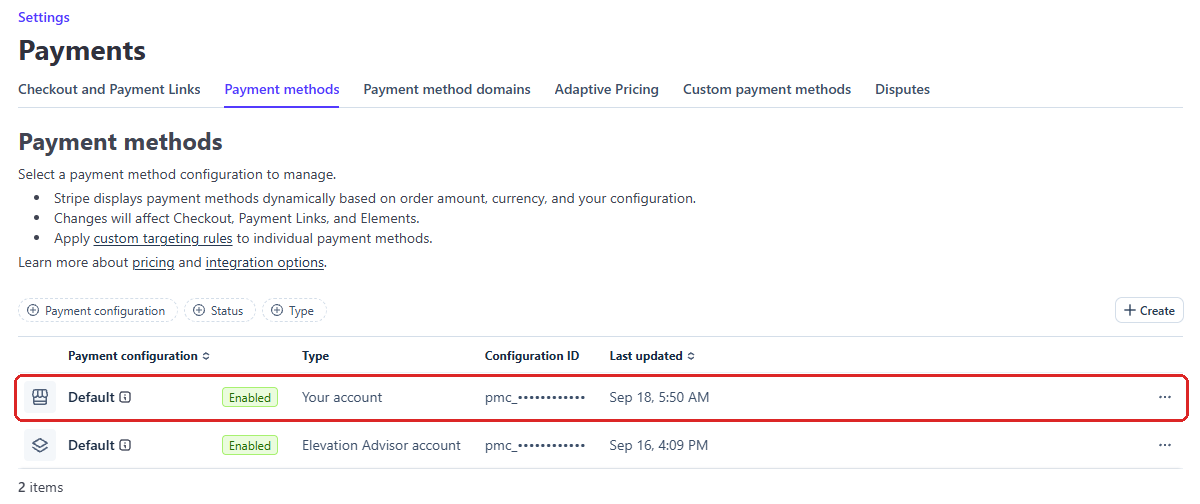
- You'll see a list of Payment configurations, usually two rows both named Default. Click the one whose Type is Your account. That's the one your invoices follow.
The other Default row is named after Elevation Advisor. It's managed by us, so Stripe won't let you change it, and your invoices don't use it.
Enable or disable a payment method
Each payment method in the list shows Enabled or Disabled. The filters across the top (All, Enabled, Disabled, Requires action) help you find them.
- To add one: find it in the list and click Enable.
- To remove one: click its name to open it, and turn it off.
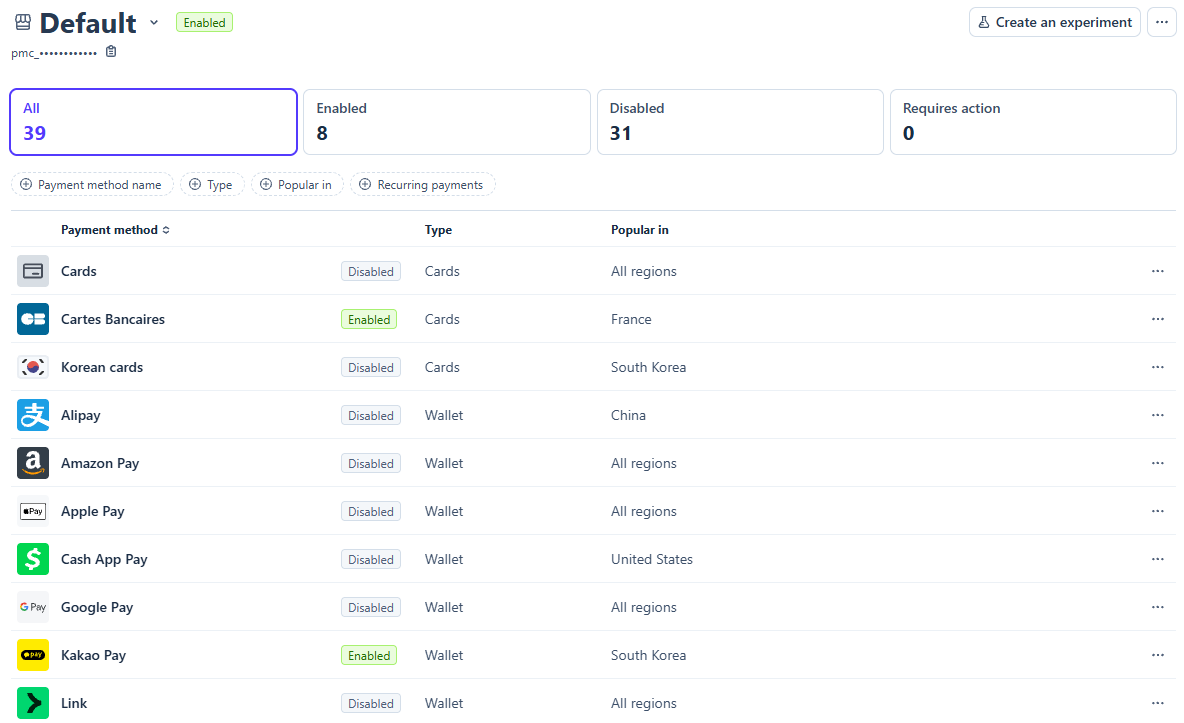
Changes apply to the next invoice you send. See Stripe's How do I turn off payment methods?
Which ones to use
Invoices can take three kinds of payment. Anything else you enable in Stripe, such as Klarna or Cash App Pay, isn't offered on invoices.
- Cards (listed under type Cards): credit and debit cards. Apple Pay and Google Pay (type Wallet) also pay by card and only work when Cards is enabled.
- Link (type Wallet): Stripe's saved-payment wallet. Your client's invoice treats it as a card payment.
- ACH Direct Debit (type Bank debit): bank transfer from a US checking account. It's only offered on invoices in US dollars. See Stripe's ACH Direct Debit guide.
You want | Enable | Disable |
|---|---|---|
Bank transfer only | ACH Direct Debit | Cards and Link |
Cards only | Cards | ACH Direct Debit |
Both (your client chooses) | Cards and ACH Direct Debit | Nothing |
Enable at least one. If nothing an invoice can take is enabled, the invoice can't get a payment link. The line under your client's Pay Online button changes to match what you allow.
What It Costs
Stripe charges a processing fee on each payment, taken out before the money reaches you. Your client pays the invoice amount. Stripe sets the fees and can change them, so check their pricing pages for the current rates:
- Card fees: stripe.com/pricing
- ACH bank transfer fees: stripe.com/pricing/local-payment-methods
Our point of view: ACH bank transfer costs substantially less than a credit card, especially on large invoices. The trade-off is time. A bank transfer takes up to 4 business days to clear, while a card payment is confirmed right away, so you get paid sooner with a card. You can also allow both and let your client choose.
Step 3: Send Invoices With a Payment Link
With Stripe connected, every invoice on the Invoice Client page has a Payment link section with a Send a Pay Online link with this invoice checkbox. It's ticked by default.
- Ticked: a payment link is made when you click Send Invoice. The link charges what's still owed on that invoice.
- Unticked: the invoice goes out without a Pay Online button. Unticking it on an invoice you already sent switches the live link off, so your client can no longer pay with it.
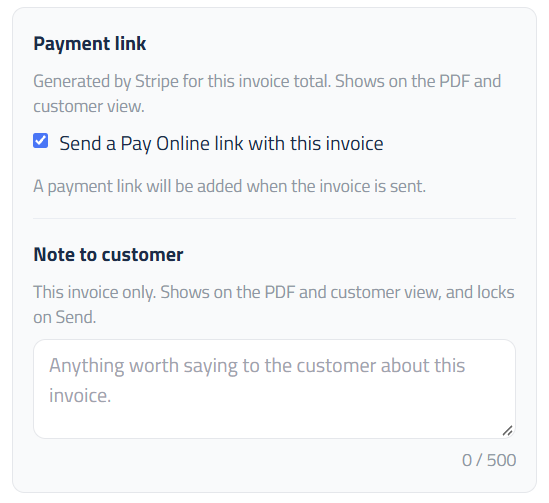
After the invoice is sent, the section also shows the link and a Pay Online button, so you can open it and see exactly what your client will see.
If Stripe can't be reached when you send (for example, Stripe is still verifying your account), the invoice still goes out without a link, and the invoice says so. Click Resend Invoice to try again. For the rest of sending, see the invoicing guide.
Already sent an invoice without a link?
Tick the box, then click Resend Invoice. The link charges only what's still owed on that invoice (the invoice amount minus anything already paid), so a client who paid part of it is never charged twice.
If the invoice changes
If the amount owed changes after a link was made, for example after a change order or a payment, a new link is made the next time you send or resend the invoice. The old link is switched off, and a client who opens it is asked to pay from their most recent invoice.
What Your Client Sees
At the bottom of the invoice, your client sees a green Pay Online button with one line under it that matches what you accept:
- Card and bank transfer: "Pay your company securely by credit card or bank transfer."
- Bank transfer only: "Pay your company securely by bank transfer from your checking account."
- Card only: "Pay your company securely by credit card."
The button appears on the invoice page your client opens from their email and on the PDF, where it's a link they can click.
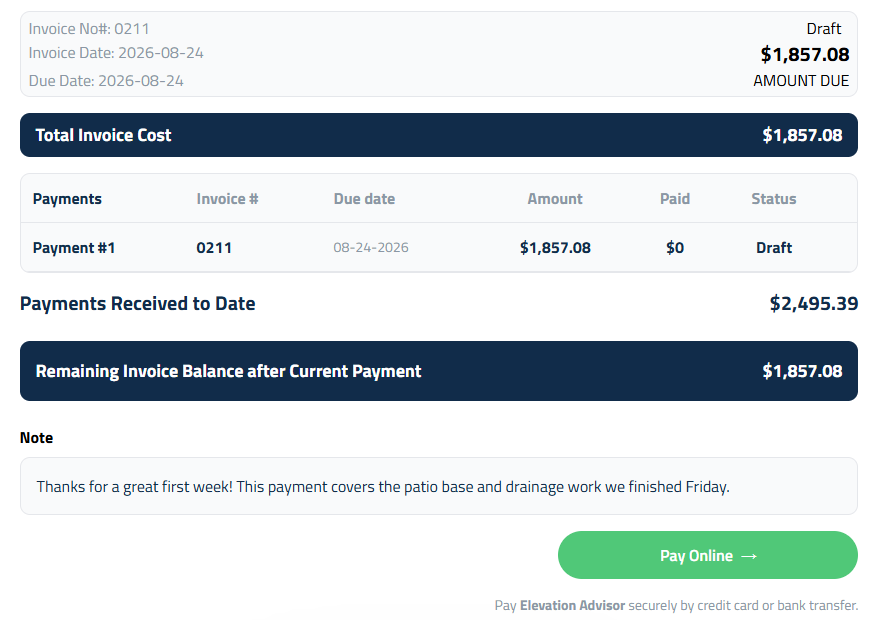
The button opens Stripe's secure checkout page. A client paying by bank transfer usually signs in to their bank to connect the account. If they type in the account and routing numbers instead, Stripe confirms the account with two small test deposits, and the client has 10 days to verify them before the payment can go through. Either way, the client agrees to the debit on the checkout page, and Stripe emails them a copy of that authorization.
The payment shows on your client's card or bank statement under your Stripe statement descriptor. Set it to a name your clients will recognize in your Stripe Public details settings, so nobody disputes a charge they don't recognize.
When Your Client Pays
Card payments are recorded on the invoice right away, with the card used (for example, "Card, Visa •••• 4242"). The invoice status updates to Partially Paid or Fully Paid.
Bank transfers can take up to 4 business days to clear. The invoice shows the payment as pending until the bank confirms it, then records it.
Once an invoice is paid online, the button is replaced with Paid online and the date, and the link is closed.
If you use QuickBooks, online payments sync just like the ones you record yourself.
Each link can be used for one payment. If your client needs to pay in parts, record the other payments yourself with Add Payment, then click Resend Invoice so they get a new link for what's left.
Refunds and Disputes
Refunds are made in your Stripe dashboard: open the payment and click Refund. A card refund can be for part or all of the payment and takes 5 to 10 business days to reach your client's card. A bank transfer can only be refunded in full, within 180 days, and takes up to 3 business days. The refund shows on your client's bank statement as a credit, not labeled as a refund, so let them know it's coming.
Card disputes: a client can dispute a card payment with their card company for up to 120 days. Stripe takes the disputed amount and a dispute fee from your balance right away, and emails you. You usually have 7 to 21 days to answer in your Stripe dashboard. Your signed proposal, the invoice, and photos of the finished work are good evidence. The card company's decision can take 2 to 3 months.
Bank transfer disputes: a homeowner can dispute a bank debit with their bank for up to 60 days. These can't be fought through Stripe, so reach out to your client directly.
Disconnecting Stripe
To stop taking online payments, click Disconnect Stripe in Settings, Account & Profile, Integrations. New invoices won't get a Pay Online button. Payouts, refunds, and your payment history stay in your Stripe account.
Updated on: 09/18/2026
Thank you!