Client Hub: From First Call to Repeat Client
Title: Client Hub: From First Call to Repeat Client
Keywords: client hub, pipeline, today, to-do list, leads, new lead, claim, follow-up, contacted, lost, convert to client, proposal out, sold, job in progress, wrap up, review, review link, referral, check back, lifetime value, LTV, open balance, timeline, emails, CRM, owner, mine, everyone, undo
Client Hub: From First Call to Repeat Client
Here's an uncomfortable truth about landscape sales: most jobs aren't lost on price. They're lost because nobody called back. The lead was written on a sticky note, the sticky note went into the truck, and three weeks later the homeowner signed with someone who returned the call.
The Client Hub fixes that. It's one place for everyone you're working on and everyone you've sold to, and every one of them has a next step. A lead comes in, you work it, you send the proposal, it gets signed, the job gets built, and when it's done you ask for the review and the referral and set a date to check back. The same record carries the person through all of it, so nothing gets retyped and nothing falls through the cracks.
This guide starts with the screen you'll open every morning, then follows one lead, Dana Whitaker, from the first phone call to a finished job. The steps are the same for every client you'll ever add.
To open it, click Client Hub in the menu, right under Command Center. The red number is how many of your follow-ups are due today or overdue. If that number is anything but zero, that's your first job of the day.
Who Sees What
Client Hub | Owner/Admin | Manager | Estimator | Sales | Accounting | Foreman/PM | Field |
|---|---|---|---|---|---|---|---|
Open the Client Hub | ✅ | ✅ | ✅ | ✅ | ✅ | ✅ | |
Add leads, log notes, set follow-ups, use the Today buttons | ✅ | ✅ | ✅ | ✅ | ✅ | ||
Lifetime value, open balance, overdue invoices | ✅ | ✅ | ✅ | ✅ | ✅ | ||
Create proposal | ✅ | ✅ | ✅ | ||||
Mine / Everyone switch | ✅ | ✅ | ✅ | ✅ | |||
Claim an unassigned lead | ✅ | ✅ | ✅ | ✅ | |||
Unassigned follow-ups in your badge and in Mine | ✅ | ✅ | |||||
Add or change the review link | ✅ | ✅ |
Accounting always sees everyone's work, because nothing is ever assigned to them. Foreman/PM can look things up in the Hub but can't change anything, and never sees the money. Field doesn't see the Hub at all. For everything else each role can do, see Users and Roles.
Your Day Starts on the Pipeline
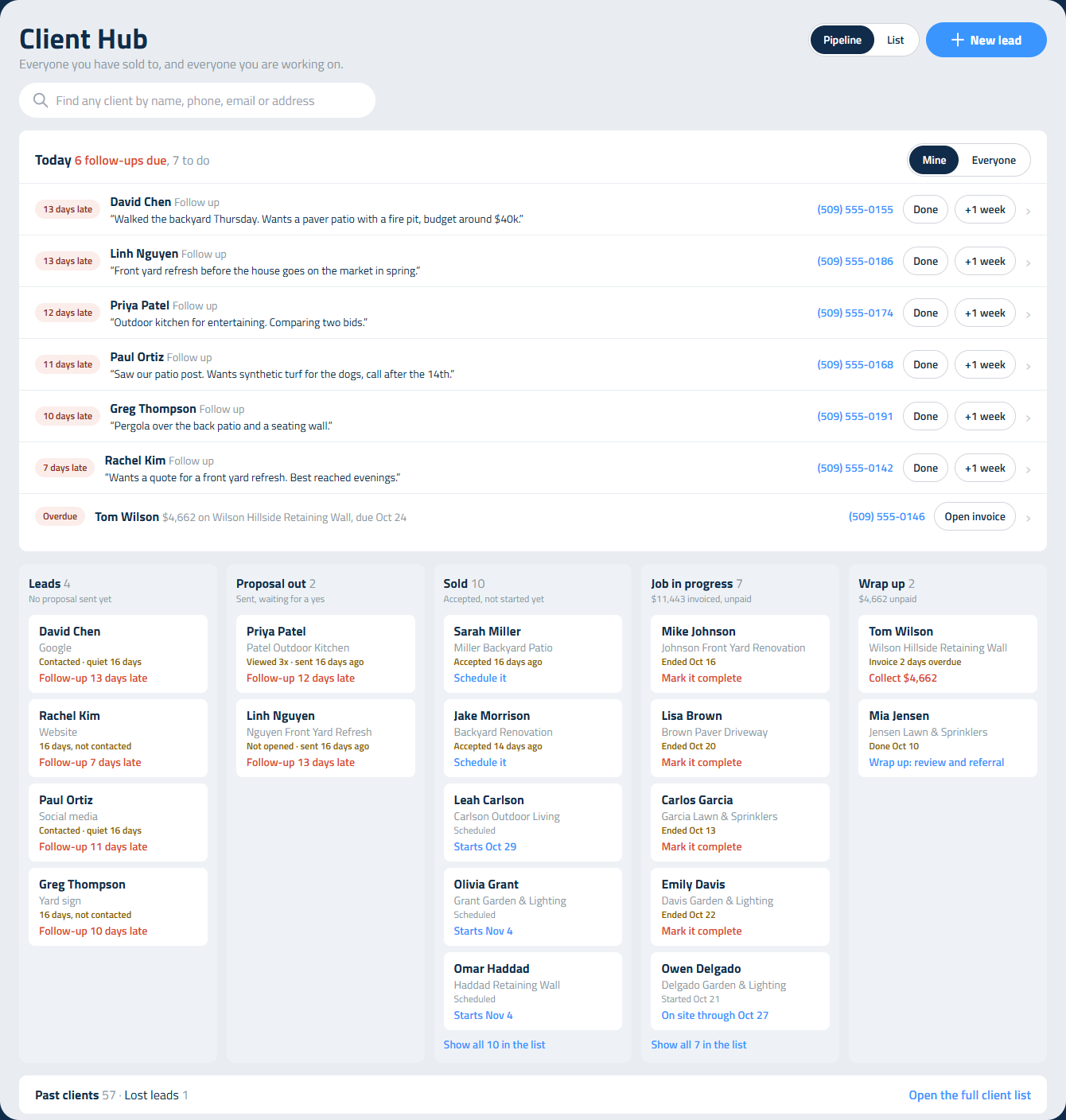
The Hub opens on the Pipeline. Instead of a long list of names, it shows what needs you today, and where every project you're working on stands.
At the top right, Pipeline | List switches between this view and the full client list (more on the List below). The Hub remembers which one you used last.
Today
Today is your to-do list. The heading tells you how many follow-ups are due and how much is on the list in total, for example "2 follow-ups due, 10 to do."
Your follow-ups always come first, late ones on top. Those are the same follow-ups the red number on the menu counts, so the badge and the page always agree. After them comes everything else, oldest first:
- Follow-ups and check-backs that are due today or late, with the last note you wrote about that person, so you know why you're calling before you dial.
- New leads nobody has called yet.
- Proposals going quiet: sent and unanswered for a week, not opened after three days, or opened over and over (Viewed 3x) with no reply. Someone who keeps opening your proposal is thinking about it. Call them. Once you set a follow-up for that client, the proposal leaves Today.
- Jobs to wrap up: jobs completed in the last 14 days that still need a review request and a referral ask.
- Overdue invoices: one line per job, with what's still owed.
Every line has the phone number (tap it on your phone to call) and buttons, so you can clear the list without opening a single page:
- Done clears a follow-up. On a lead, Done asks when to call next: Tomorrow, 3 days, 1 week or No follow-up. A lead should never fall off your list without a next date.
- +1 week moves the follow-up a week out.
- Called marks a new lead Contacted and sets a follow-up three days out.
- Claim makes an unassigned lead yours. Whoever claims it first owns it, and it leaves everyone else's list.
- Wrap up opens the client's page with that job's wrap-up ready (see Step 5).
- Open invoice takes you straight to the invoice.
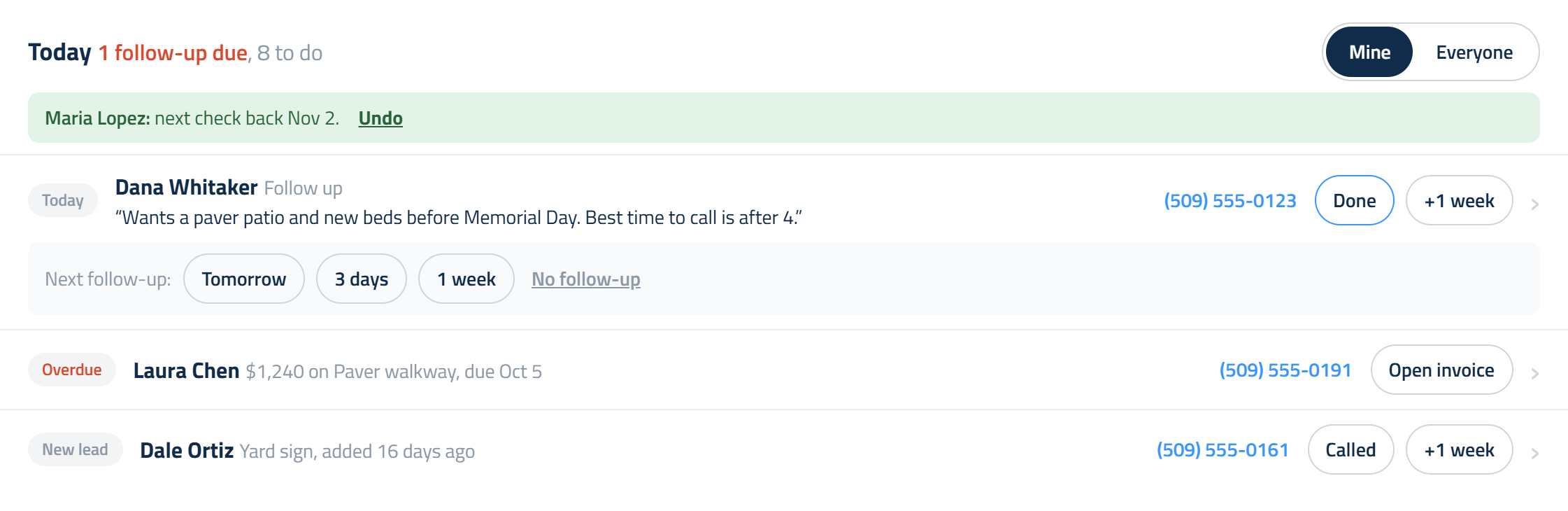
Every change is logged on the client's timeline. Clicked the wrong button? A green bar shows what you did with an Undo link. It stays until your next click on the list, or 30 seconds, and Undo puts everything back, timeline note included.
The list shows the first eight items; Show more opens the rest. When it's empty, you'll see "All caught up for today."
Mine and Everyone
The Mine | Everyone switch beside Today decides whose work you see, on the list and in the columns below it.
- Mine is the default: clients you own, plus new leads nobody owns yet (so they get claimed). Owners/Admins and Managers also see unassigned follow-ups in Mine, because handing out work is their job.
- Everyone shows the whole team. Each line and card shows the owner's initials, or Unassigned.
The Hub remembers your choice. A client's owner is the person set as Owner on their page; if nobody is, the Hub uses whoever wrote the proposal.
The Five Columns
Under Today, every active project sits in one of five columns. A card is a project, not a person, so a client with a job underway and a second proposal out shows up in both columns.
- Leads: leads with no proposal sent yet. A lead that's gone 14 days without being contacted turns amber.
- Proposal out: proposals sent in the last 90 days that haven't been accepted. Each card shows whether the client opened it and how often (Viewed 3x, Not opened). There's no dollar total on this column, because a proposal doesn't have a price until the client picks a package.
- Sold: accepted jobs that haven't started. A job that isn't scheduled yet says Schedule it, oldest first; a scheduled one shows its start date. The header shows any deposit invoiced and not yet paid.
- Job in progress: jobs whose first scheduled day has come and that aren't marked complete. A job moves here from Sold on its own, on its start date. Once the end date passes, the card says Mark it complete. The header shows what's been invoiced and not yet paid on these jobs.
- Wrap up: jobs completed in the last 90 days that haven't been wrapped up, and finished jobs that still have money owed. The header shows the total unpaid.
Every card ends with its next step in blue, like Make first call, Call, they're reading it, Schedule it, Mark it complete (the job's end date has passed) or Collect $1,240. Steps that are running late turn red, and anything that's waited 14 days or more turns amber. Each header's dollar figure adds up only the cards you're looking at, so Mine shows your money and Everyone shows the company's. The ones that have waited longest are on top.
Click a card to open the client. Each column shows five cards; Show all in the list opens the List with just that column's clients.
Below the columns you'll find counts for Past clients (no open work), Lost leads, and Older open jobs: jobs that ended, or were accepted and never scheduled, more than 90 days ago and were never marked complete. Click Lost leads or Older open jobs to see who they are, or Open the full client list for everyone. Most older open jobs are finished work that just needs Mark complete.
To find anyone, active or not, type in the search box at the top. The Hub switches to the List and shows the matches.
The List
Click List for every client and lead in one table. Use it to look someone up, sort, or scroll back through history.
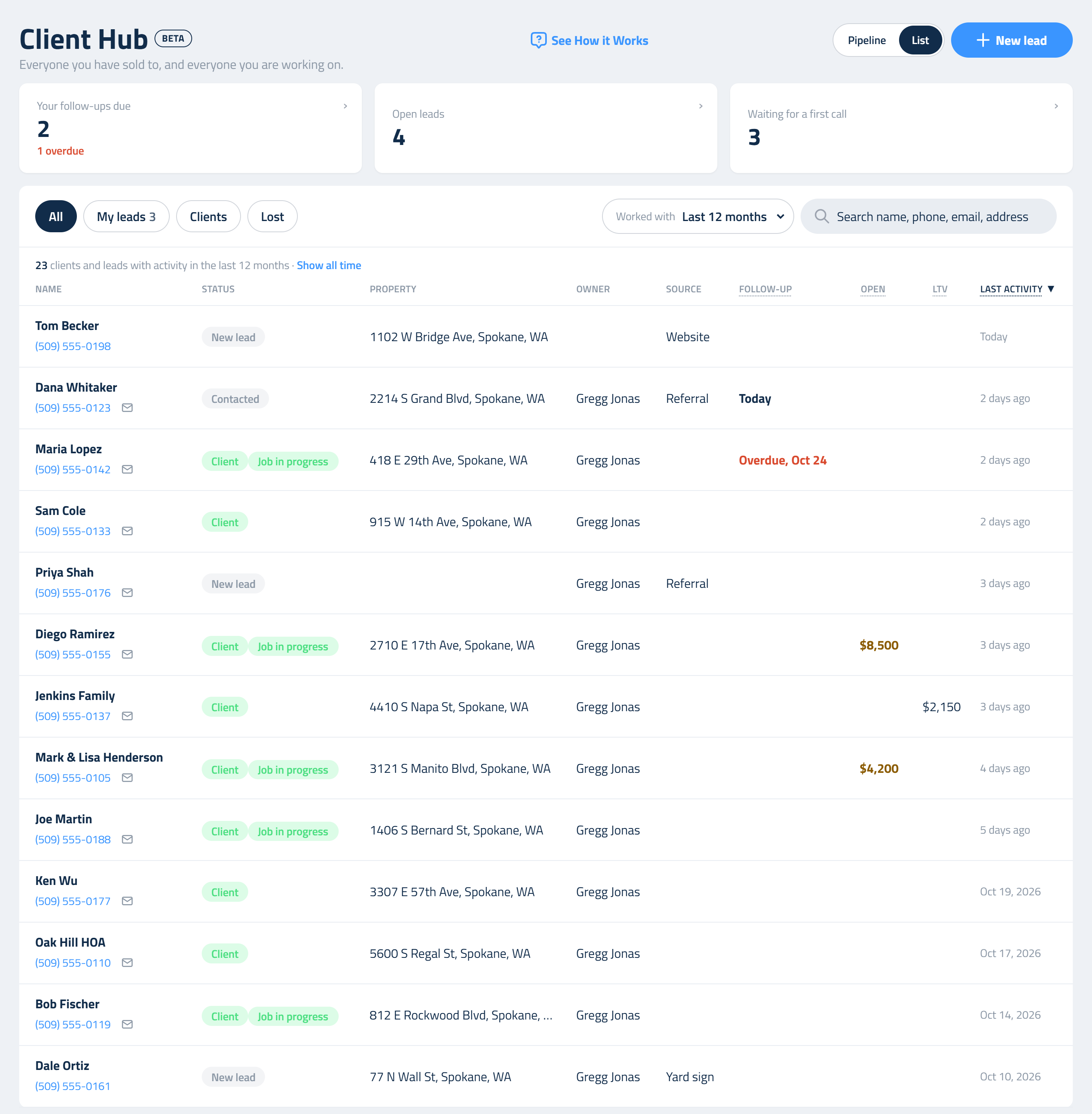
Across the top are three numbers, and each one is also a filter. Click a box to see exactly what it's counting; click it again to go back to everyone.
- Your follow-ups due: leads and clients assigned to you with a follow-up date of today or earlier. Owners/Admins and Managers also see unassigned ones.
- Open leads: everyone who's a New lead or Contacted.
- Waiting for a first call: leads still sitting at New lead. Speed wins here. The contractor who calls back first usually gets the visit.
Under those, the buttons filter the list: All, My leads (open leads assigned to you), Clients and Lost. Keep your lost leads; some of them will call again next spring.
Worked with sets how far back the list goes. It starts at Last 12 months, meaning everyone with any activity in the last year. Pick a year to look back, or All time for everyone you've ever had. Search always looks across every year.
Each row shows the status, the property, the owner, the source, the next follow-up, the open balance, the lifetime value and the last activity. Clients with an open project, sold or underway, have a green Job in progress tag. Hover over a column heading with a dotted underline to see what it means:
- Follow-up: the next date set to check in with this client.
- Open: invoices sent and not yet paid.
- LTV: lifetime value, everything this client has paid you to date.
- Last activity: the last time the client's details, notes or follow-up changed. Recent ones read Today, Yesterday or "3 days ago."
The list starts with the most recent activity on top. Click any column heading to sort by it, and again to reverse it. The phone under each name calls it, and the envelope opens a new email, without leaving the list.
Step 1: Add the Lead While You're Still on the Phone
Dana calls on a Friday afternoon. The Hendersons sent her; you did their patio last spring. Don't wait until you have the full picture, and don't write her on a sticky note. Click New lead and get her in before you hang up.
You only need a first name and a phone number or an email. Everything else can wait. Leads usually start as a phone call, and a phone number is plenty to get started.
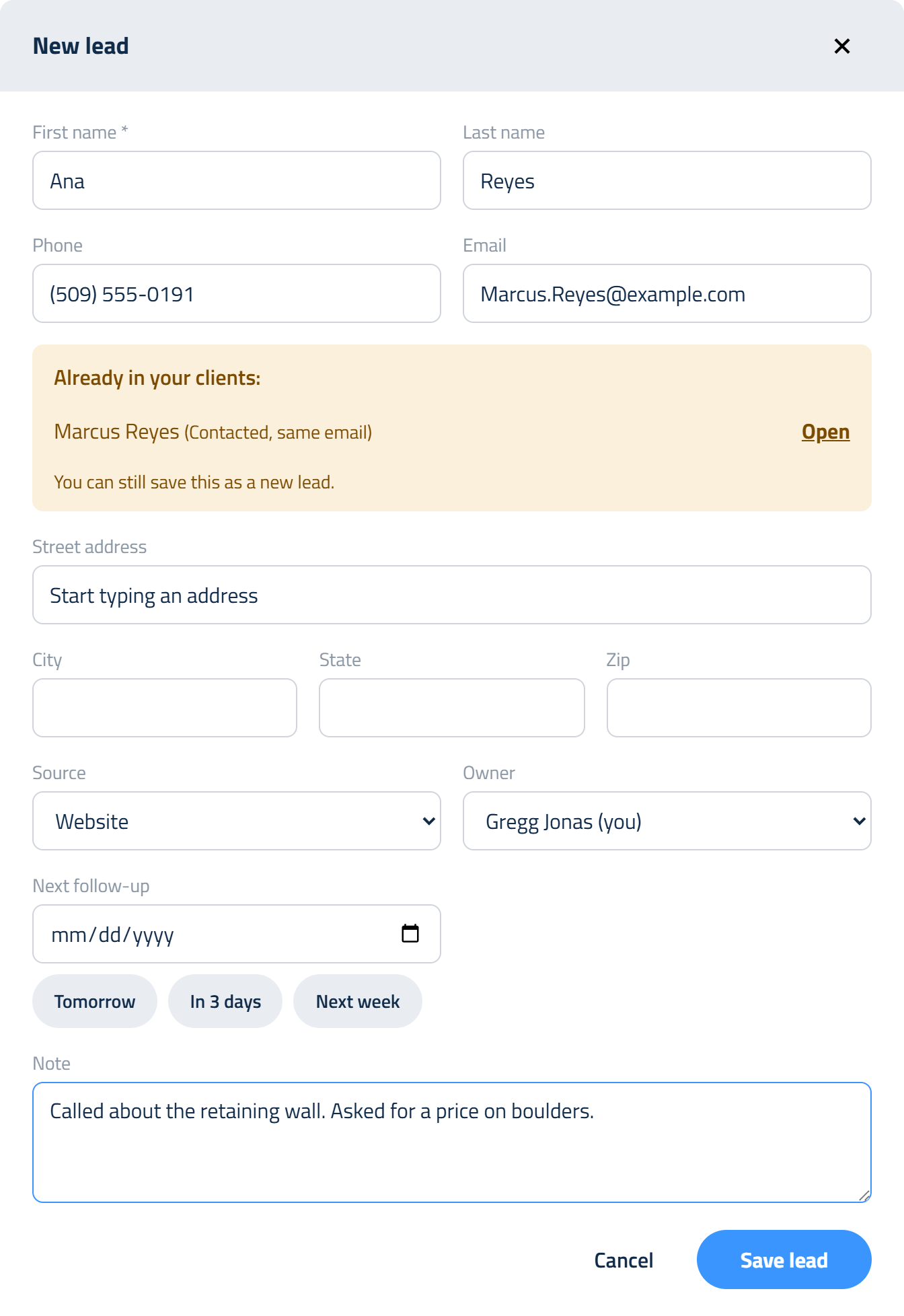
Fill in what you have:
- Name, phone and email. If the phone or email matches someone already in your clients, a yellow box tells you who, with an Open link. It's a warning, not a wall. Sometimes it's the spouse calling about the same project (open the existing record and add a note). Sometimes it really is a different person who shares a phone; save the new lead and move on.
- Street address. Start typing and pick the address from the suggestions; city, state and zip fill in on their own.
- Source: Referral, Website, Google, Yard sign, Repeat, Social media or Other. Fill this in every time. In six months it's how you'll know whether the yard signs are paying for themselves.
- Referred by: when the source is Referral, search for the client who sent them. Their page will show everyone they've referred and what those clients have paid you. That's who gets the thank-you card.
- Owner: who's responsible for this lead. It defaults to you. Leave it Unassigned and anyone can claim it from Today.
- Next follow-up: type a date or pick one from the calendar, or use Tomorrow, In 3 days or Next week.
- Note: what they want and when to call. "Wants a paver patio and new beds before Memorial Day. Best time to call is after 4."
Click Save lead.
Step 2: Work the Lead
Most days you'll work leads right from Today: call, then Done with the next date, or +1 week if they asked you to call back. Open the lead's page when you need the whole story; click their name anywhere in the Hub.
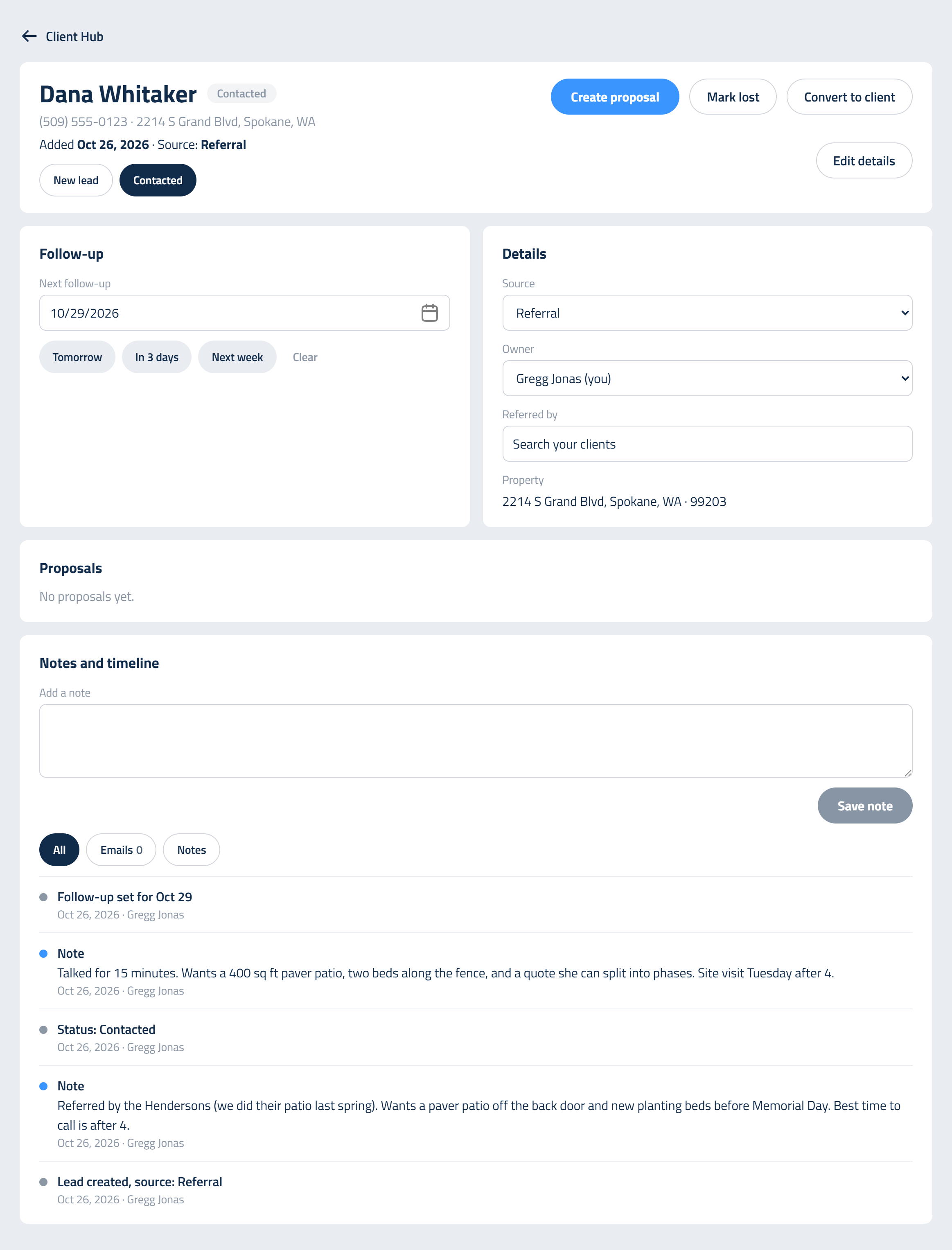
- New lead and Contacted at the top track where you are. Switch to Contacted once you've actually talked to them. A voicemail doesn't count.
- Follow-up holds the next date. When you call back, set the next one before you close the page. Clear removes it.
- Notes and timeline is the history of the relationship. Log every call, even the short ones: what they said, what they want, what they're worried about. When someone else on your team picks up the lead, they shouldn't have to ask Dana the same questions twice. Your latest note is what shows on her line in Today.
- Details holds the source, the owner, the properties and any gate code.
Got a name wrong, or did Dana give you her cell? Click Edit details at the top of the page. You can change the name, email and phone numbers, add or remove properties, and update the gate code, then Save changes. The change is noted on the timeline.
Every status change, follow-up and note is stamped on the timeline with the date and who did it.
About the badge. The number on the menu counts follow-ups due today or overdue on leads and clients assigned to you. Owners/Admins and Managers also see unassigned ones, because handing out work is their job. Everyone else only sees their own, because a shared number is a number nobody feels responsible for.
Step 3: Create the Proposal
Dana's ready for a price. Click Create proposal on her page. A new proposal opens with Dana already picked as the client. If the proposal's Sales rep is empty, it's filled with the lead's owner, so your sales reporting gives credit to the right person.
A proposal is emailed to the client and shows the job address, so it needs a last name, an email and a full address. Leads don't always have those yet. If something's missing, the Hub asks for just the missing pieces first:
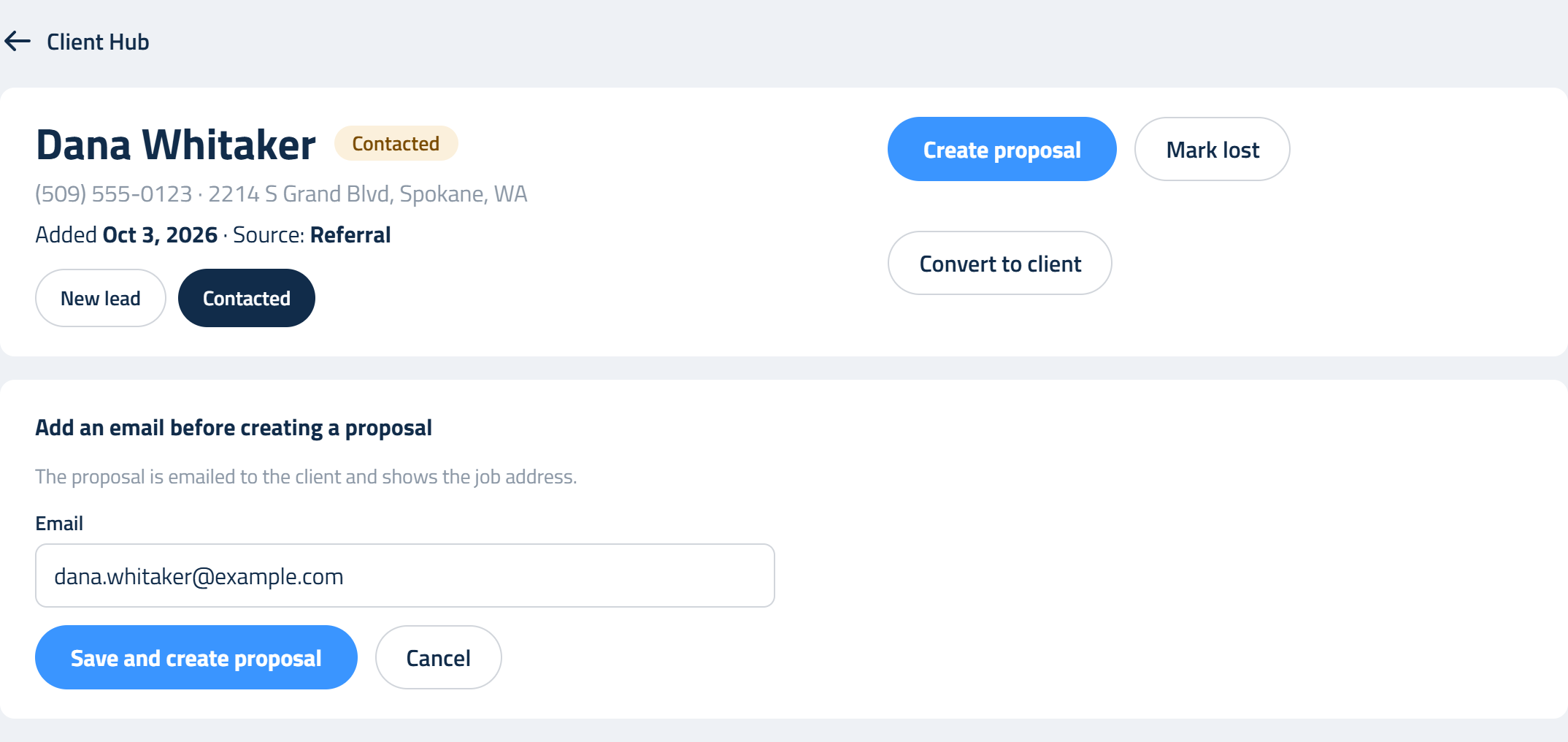
Fill them in and click Save and create proposal. If you start a proposal from the Proposals page instead, a client who's missing any of them is marked in the client list, and you can add the details from their Hub page.
From here, build and send the proposal the way you always do. Once it's sent, Dana moves from Leads to Proposal out on the Pipeline, and her card shows whether she's opened it. If it sits unanswered, it shows up in Today so it doesn't get forgotten.
Step 4: Won, Lost, or Paid in Cash
Won. When Dana accepts her proposal, she becomes a Client on her own. You don't have to do anything. Her follow-up date clears (the lead work is done), her owner stays on as her account owner, "Became a client" lands on her timeline, and her project moves to Sold. On its first scheduled day it moves to Job in progress.
Sold without a proposal. For a cash job or work you sold another way, click Convert to client.
Lost. Click Mark lost and pick a reason: Price, Timing, Went with someone else, No response or Other.
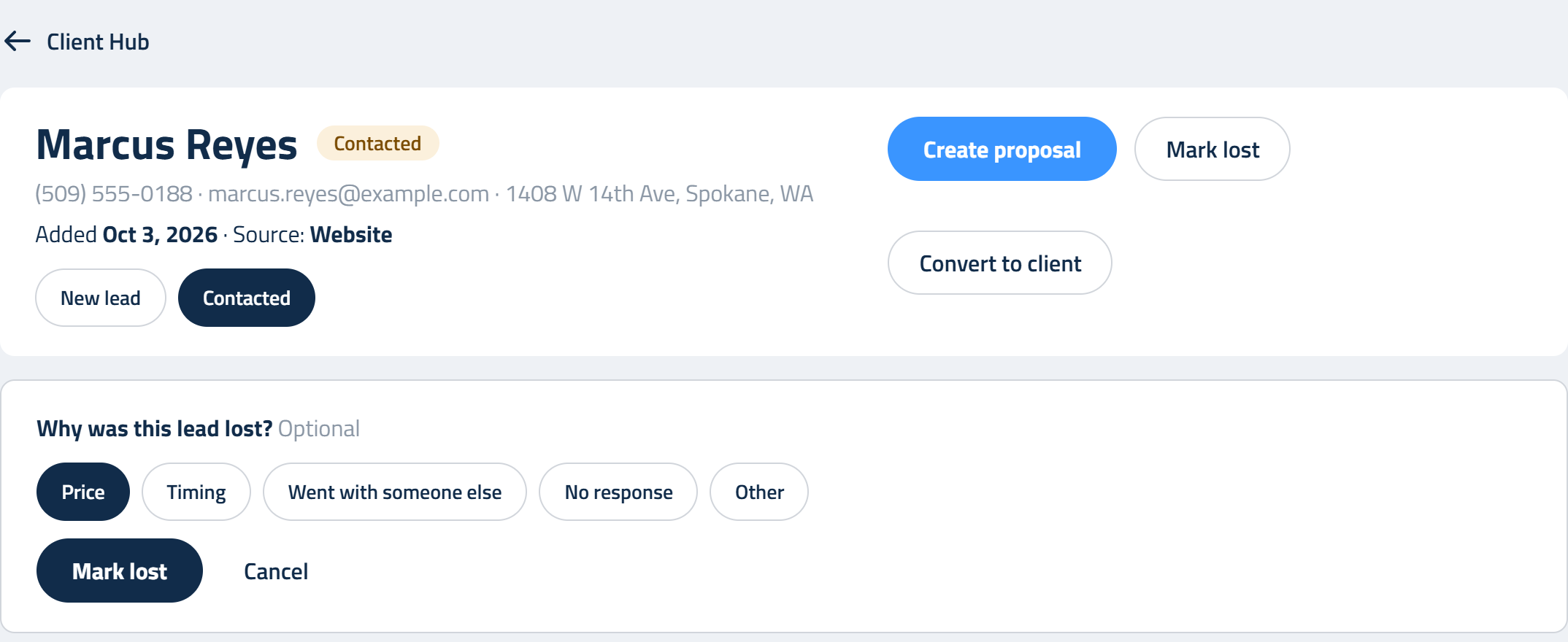
Be honest with the reason. It's optional, but it's the most useful thing on the page six months from now. If Price keeps coming up, the answer usually isn't to cut your price. It's to show more value and give clients real options; see The Power of ISPS. If No response keeps coming up, look at how fast you're calling back. You can change the reason later with Edit details.
Lost isn't forever. Reopen as lead puts them back at Contacted when they call again.
The Client Page
Once someone's a client, their page becomes the one place to see the whole relationship. A green Job in progress next to their name means a project is underway.
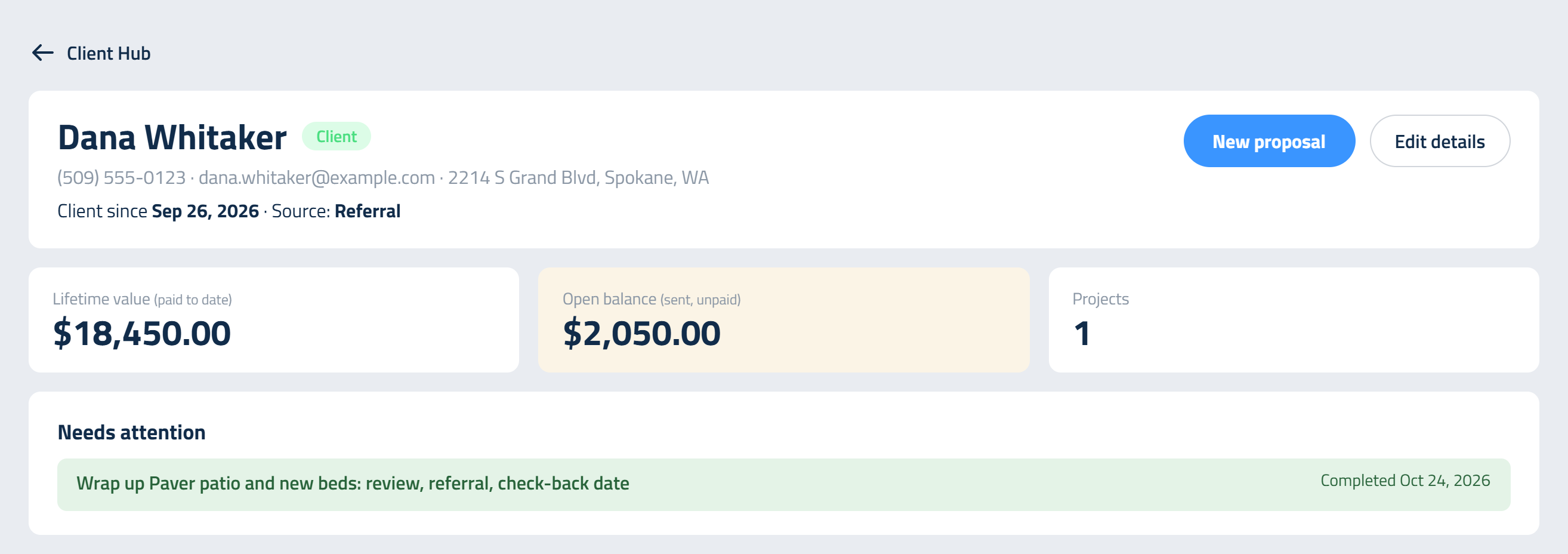
Lifetime value (paid to date) Everything this client has actually paid you, across every project. Cancelled invoices don't count. This is money in the bank, not money promised.
Open balance (sent, unpaid) What they owe on invoices you've already sent, less what they've paid. Drafts don't count, because the client hasn't seen them yet. A few cents left over from rounding counts as paid, so an invoice that's 1 cent short never shows as owed.
Projects How many projects they've had and how many are active right now.
Needs attention The short list of things waiting on you:
- Wrap up a job that was completed in the last 90 days (see Step 5).
- Invoice overdue: the three oldest overdue invoices, then a count of the rest. Click one to open it.
- A proposal waiting for a signature, or a change order waiting for approval.
- The next scheduled work on their calendar.
Under that you'll find their Proposals, with links to each project's Folder, Budget and Invoice. If your role can update projects, Mark complete finishes a job right from here (and Make active reopens it). Their check-back date, details, properties and timeline are on the same page.
Every Email, in One Place
The timeline also shows every email that went to the client with their proposals and change orders: the first send, every resend, and the acceptance email. Click Emails to see just those.
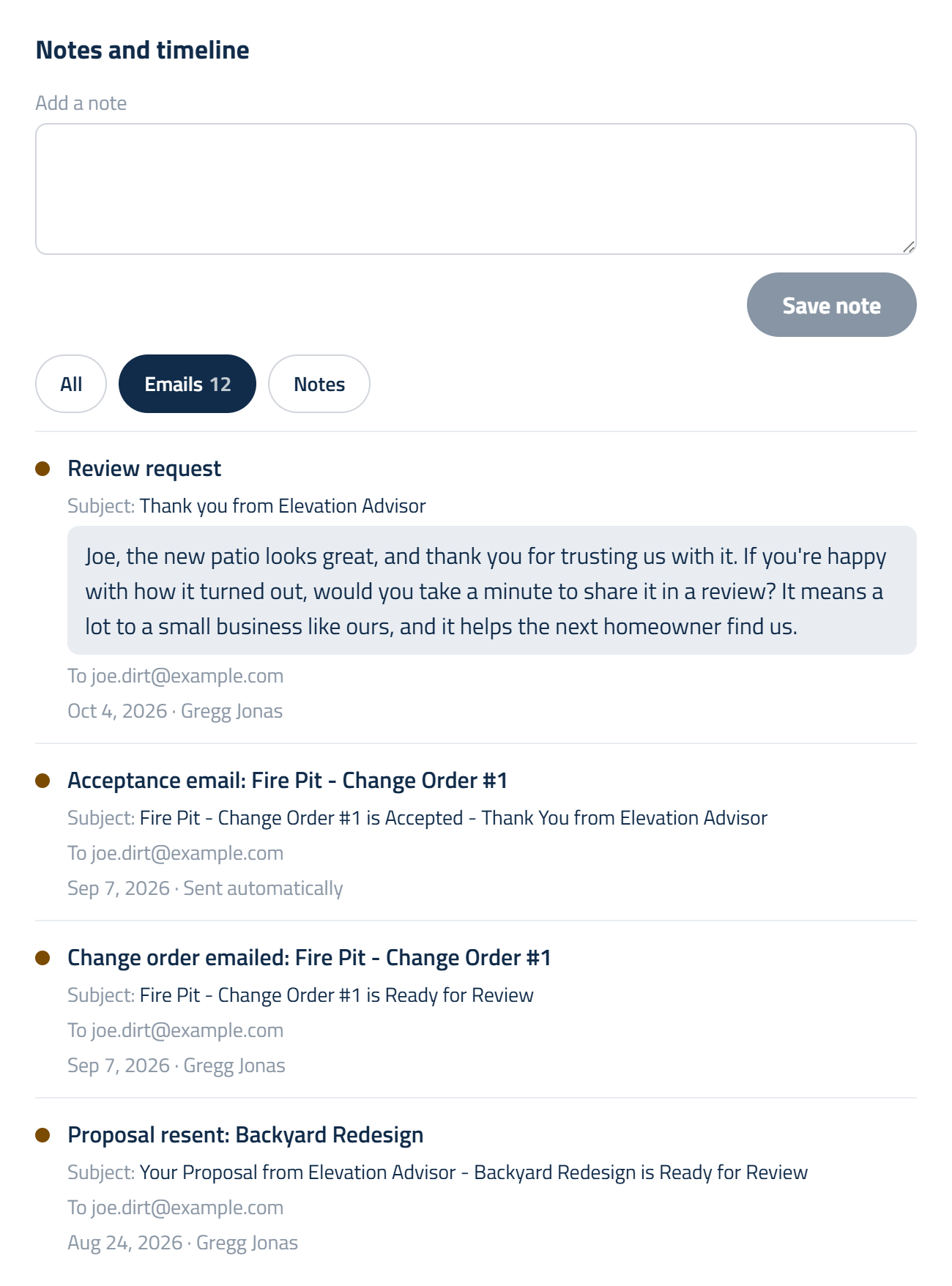
Each one shows what was sent, the subject, who it went to (and any BCC), when, and who sent it. If you typed a personal message when you sent it, that message shows word for word in a grey box under the subject, so you can see exactly what the client read. Acceptance emails say Sent automatically. When a client says "I never got it," this is where you check.
Step 5: Wrap Up the Job
Here's where most contractors leave money on the table. The job's done, the client is thrilled, and nobody asks for anything.
When a job is marked complete, its wrap-up opens on the client's page, beside their proposals. If a client has more than one finished job, click the project in their Proposals list to wrap that one up; the selected project is highlighted green. Clicking a Wrap up card on the Pipeline, or Wrap up in Today, opens the client with that job's wrap-up ready.
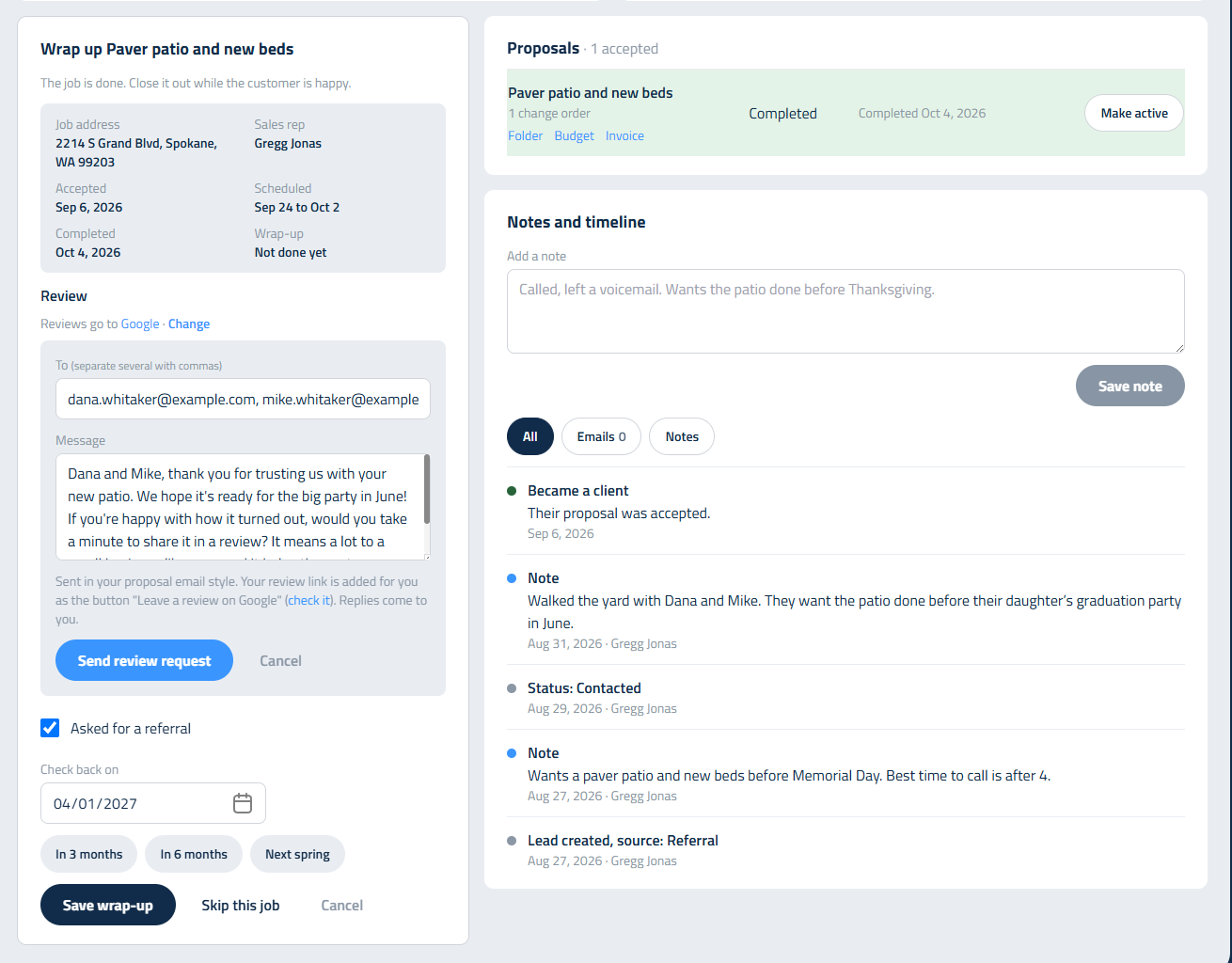
The top of the wrap-up shows the project's facts: job address, sales rep, when it was accepted, scheduled and completed, and whether it's been wrapped up before. Then:
- Review. Click Email a review request to send your client a thank-you with one button to your review page, in the same style as your proposal emails. The To line starts with the client's email; add more addresses separated by commas (up to five), say for a spouse. Your review link is added to the email for you. Edit the message first; personal beats generic every time, so add a line about their project. Replies come straight to you. If you asked in person instead, check Asked in person. The best day to ask is the day the job is done, while they're standing on the new patio. Not three weeks later.
- Asked for a referral. Happy clients know people who need the same thing; Dana came from the Hendersons. Ask in person, then check the box.
- Check back on. Pick a date, or use In 3 months, In 6 months or Next spring. That date becomes a follow-up for the account owner, so it shows in their Today and their badge when it comes due. Phase two of the backyard, a spring cleanup, the lighting they couldn't afford this year: the next sale starts here.
Click Save wrap-up. If a job doesn't need one, click Skip this job and it leaves the list. Cancel closes it for now; it'll be there next time you open the page.
The review request shows on the client's timeline under Emails, message and all. If you try to ask the same client again within 30 days, the Hub tells you when the last one went out, so nobody gets nagged.
Setting up review requests
Your review link is saved once for your company, right in the wrap-up. The first time, an Owner/Admin or Manager clicks Add your review link, pastes the link, and adds the site name if they want it on the button (for example, Google). For Google, open your Google Business Profile, choose Ask for reviews, and copy the link. Click Save link. From then on, every review request includes it, and the wrap-up shows where reviews go with a Change link if you ever need to update it.
Leads in Your Client Catalog
Leads also show up in your Client Catalog, and anywhere else you pick a client. You can edit a lead there; it only needs a first name and a phone number or email, and its Hub details stay as they are. Day to day, though, work your leads from the Hub. That's where the follow-ups and the history live.
Getting the Most Out of the Hub
- Start every morning on Today, and clear your follow-ups before you start quoting.
- Add every lead the same day it comes in, even the ones you doubt. Unassigned leads get claimed fast.
- Never leave a lead without a follow-up date. Done asks for the next one; answer it.
- Log the call before you put the phone down.
- Fill in the source every time.
- Call the proposals that say Viewed 3x. They're thinking about it.
- Wrap up every finished job, review and referral included.
- Schedule every job in Sold, and mark jobs complete when they're done, so they move to Wrap up instead of sitting in Job in progress.
That's the whole loop. Dana went from a Friday phone call to a signed proposal, a finished patio, a review, a referral and a date in the spring to talk about phase two. Every one of your clients can get the same treatment, and none of it depends on anyone's memory.
Updated on: 10/26/2026
Thank you!