Custom Section
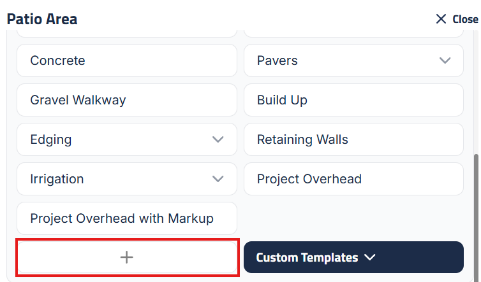
Start in the Proposal Editor:
*
Click the Edit button on the appropriate Landscape Work Area.
*
Click the ➕ icon to add a new section.
*
Type the section name (e.g., “Fire Pit”), press Enter, and your section will be added.
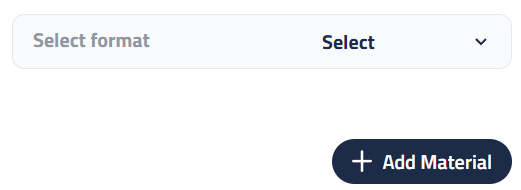
Optional: Select a Preset Format
- If your section resembles an existing template (e.g., Concrete or Beds), use the
Select Formatbox in the top-right to apply a structured layout with measurements and presets.
Assign Materials:
- Click + Add Materials to add material from your catalog (e.g., gas burner, fittings, concrete).
To remove unused lines, click the blue edit icon and select Delete.
*
To add new items, click + Add Material and choose from your catalog.
Labor Summary Overview
This section provides key staffing and scheduling insights:
- Crew Size - Double-click to edit. Use a larger crew for labor-intensive items.
- Crew Hours - Total hours to complete the section, independent of crew size.
- Total Man Hours - Combined labor effort across all crew members.
- Installation Days - Auto-calculated by dividing Crew Hours by billable daily hours.
Adding Equipment
If the section involves equipment:
- Click
+ Add Equipmentand select from your catalog.
- By default, equipment is billed daily and tied to the section’s install days.
- To bill hourly, select
Hourfrom the unit dropdown and enter a custom quantity.
- Click
Saveto confirm your equipment setup.
Save as Template (Optional)
To reuse this section in future proposals:
- Click
Save As Template, name the section, and clickSave.
- This custom configuration will be available under the
Custom Templatesdropdown next time you build a proposal.
Updated on: 06/27/2026
Thank you!