Navigating the Proposals Page
The Proposal Page in Elevation Advisor is your central hub for managing every proposal you've created. As you begin building and sending proposals, it will populate with a running list of every job you've quoted. This view helps you quickly find, sort, and take action on proposals at every stage of the sales process.
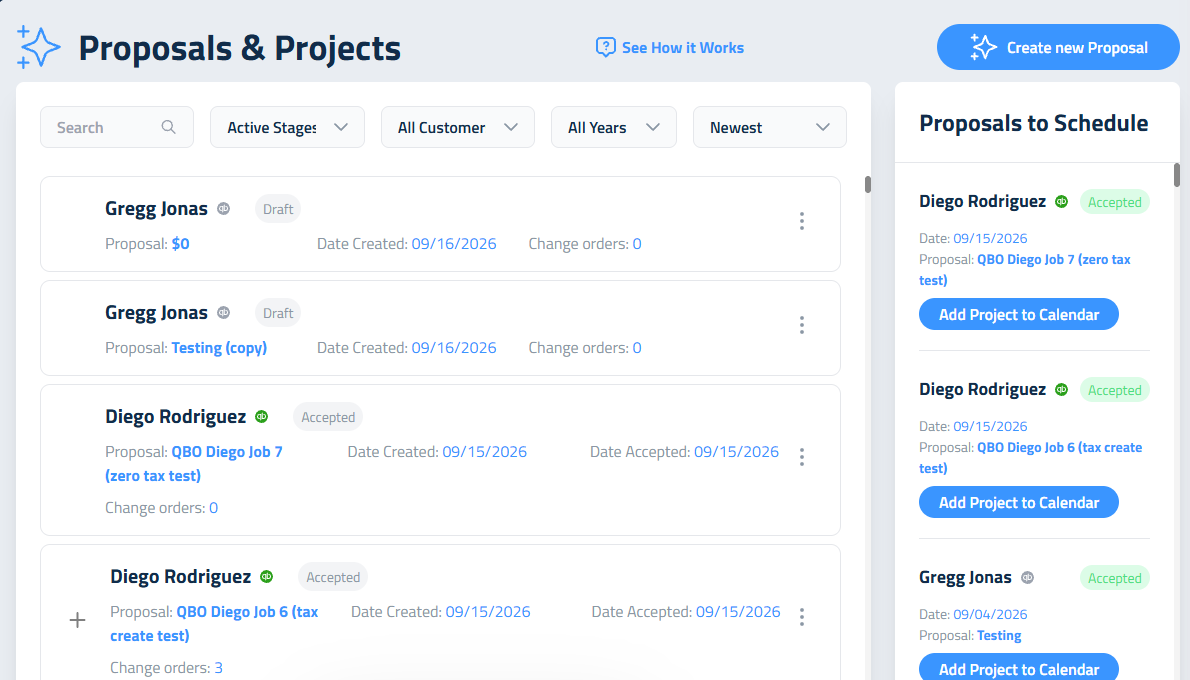
At the top of the screen, you’ll find a search bar where you can type in a client’s name or other unique information to locate a specific proposal. To the right of that is the "Filter by Status" dropdown, which lets you sort proposals based on where they are in the sales journey:
- Draft: Proposals you're still working on and haven’t sent yet. These are editable and flexible as you finalize measurements, materials, and packages. In draft mode, you will see the date the draft was created.
- Sent: Proposals that have been sent to the client but not yet opened. These are locked from editing but can still be resent or printed. You will see the date the proposal was sent to the client.
- Viewed: Proposals the client has opened but hasn’t accepted yet, with the number of opens shown beside the status, like Viewed (3). This status helps you gauge engagement.
- Accepted: Proposals the client has signed off on with the date of acceptance noted; these move automatically to the "Proposals to Schedule" list, signaling that it's time to begin planning the work. You will see the date the client accepted the proposal.
- Rejected: The proposal has been rejected by the client with the date of rejection noted.
When the page first opens, the dropdown is set to Active Stages, which shows every proposal except rejected ones, so jobs you've lost don't crowd your list. To look back at them, choose Rejected from the dropdown.
You can also filter proposals by client name using the Customer dropdown. This shows your full client list, which is especially useful for repeat clients or managing multiple jobs under the same name. You can scroll through the list or type a name here to quickly find a client.
The year filter allows you to see proposals created in a specific year. If something seems to be missing, check that this filter isn’t limiting your view. Next to that, you can choose to sort proposals from newest to oldest or vice versa, depending on your workflow preferences. This is especially helpful when reviewing activity across seasons or comparing sales trends.
Each proposal in the list has a three-dot menu to the right, and the options that appear depend on the current status of that proposal. This menu provides fast access to core actions.
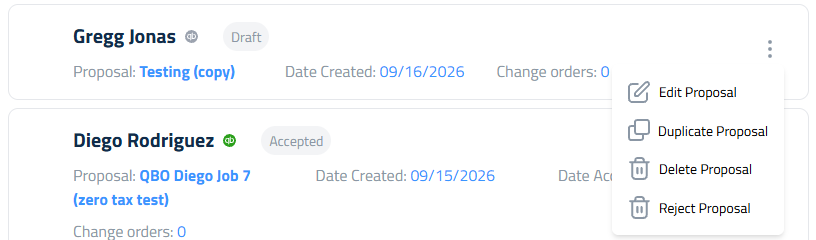
If the Proposal is in Draft you will see:
- Edit Proposal: Make changes before the proposal is sent, including pricing, templates, and packages.
- Duplicate Proposal: Create a copy of the proposal, useful for similar projects, seasonal re-quotes, or showing clients multiple options. The copy starts with no sales rep, so pick one before you send it.
- Delete Proposal: Permanently removes the proposal. This action cannot be undone, so use it only when absolutely certain the proposal is no longer needed.
- Reject Proposal: Mark the proposal as rejected when the client passes on the job, even if you never sent it. It moves out of your Active Stages view and keeps the date it was rejected.
A rejected proposal keeps the Edit Proposal and Delete Proposal options, so you can rework it if the client comes back.
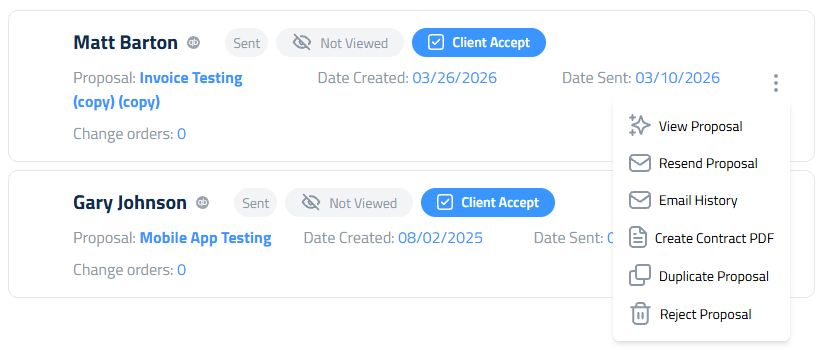
If the Proposal Has Been Sent or Viewed you will see:
- View Proposal: Open the proposal the way your client sees it.
- Duplicate Proposal: Create a copy to reuse for a similar job.
- Create Contract PDF: Generate a clean, printable version for in-person presentations, mail-outs, or backup.
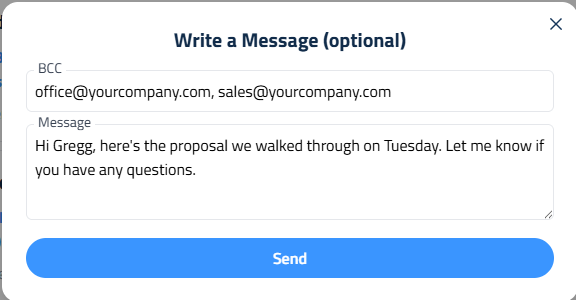
- Resend Proposal: Quickly resend the proposal email if the client misplaced it or needs a reminder. This maintains the same proposal link and access. You can add BCC addresses when you resend, the same as when you first send.
- Email History: See every email that has gone out for this proposal (covered below).
- Reject Proposal: Mark the proposal as rejected if the client turns it down.
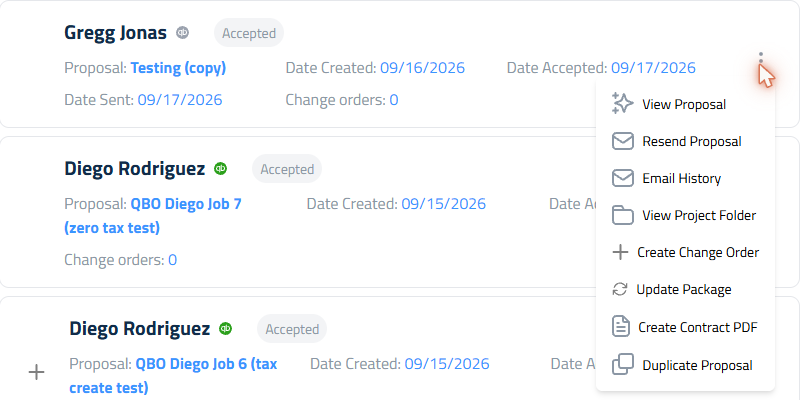
If the Proposal Has Been Accepted you will see View Proposal, Resend Proposal, Email History, Create Contract PDF, and Duplicate Proposal, plus:
- View Project Folder: Access all project-related files like photos, videos, or documents attached during takeoff or proposal creation.
- Create Change Order: Add new work, upgrades, or changes after the client has signed. This maintains proposal integrity while adapting to evolving project scope.
- Update Package: opens the client’s view of the packages so you can move them to a higher tier yourself. Elevation Advisor creates a package-update change order for the difference and leaves the original record intact.
Seeing When Your Client Opens It
Guessing whether a client has looked at your proposal is a waste of a good week. The list tells you.
When your client opens a proposal, the status changes to Viewed with the number of opens beside it, like Viewed (3). Hover that status to see the whole story, or tap it on a phone. Accepted proposals keep their history too, so you can look back at what the client did before signing.
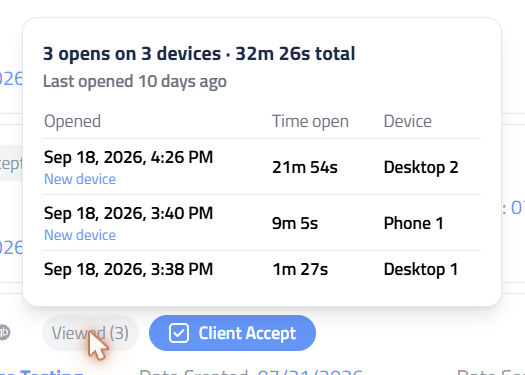
The panel opens with a summary: how many opens on how many devices, the total time your proposal was on screen, how long after sending it was first opened, and when it was last opened. On an accepted proposal, that last line tells you how long after the first open they signed.
Under the summary, every open is listed:
- Opened: the date and time, in your own timezone.
- Time open: how long the proposal was in front of them, shown as "Under 5s", "45s", "3m 20s", or "1h 5m". "Not recorded" means the browser closed before it could report the time.
- Device: each browser gets a steady name, like Desktop 1 or Phone 2, so you can tell the same person coming back from someone new looking. Tags call out a New device or a client coming Back after 3 days.
What it tells you in practice:
- No opens at all, two days after sending. The email is sitting in a spam folder. Call them, then use Resend Proposal.
- A long open on a desktop. Somebody is reading the scope, not skimming the price. That is your moment to call.
- A new device showing up. A spouse, a partner, or a business partner has joined the decision. Ask who else you should be talking to.
- Several short opens over days. They are circling back to the number. That usually means a package conversation, not a discount.
Email History
"I never got it" is the most expensive sentence in a sales conversation. Email History settles it.
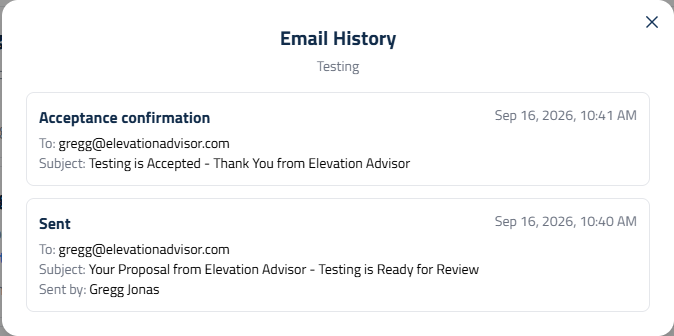
Open the three-dot menu on any proposal that has been Sent, Viewed, or Accepted and choose Email History. A window opens with a record of every email Elevation Advisor has sent for that proposal, newest first. Each entry shows:
- What it was: Sent for the original, Resent when you sent it again, or Acceptance confirmation for the thank you email that goes out after the client signs
- When it went out: the date and time, in your own timezone
- To: the client's email address
- BCC: anyone else copied on it
- Subject: the exact subject line the client saw
- Sent by: which member of your team sent it
- Message: the personal note included with the email, if there was one
Now when a client says the proposal never arrived, you can tell them it went to that address on Tuesday at 4:12 PM, and who on your team sent it. Usually that's the end of the conversation, and the proposal turns up in their spam folder a minute later.
These tools ensure you're never locked out of managing a proposal as it moves forward, while still preserving the integrity of what the client has already seen or signed. They also provide a seamless workflow from lead to close to production.
Once you're familiar with these tools, you're ready to keep proposals organized and actionable.
Updated on: 10/28/2026
Thank you!