How to Create a Proposal
When we designed Elevation Advisor, we focused on keeping things simple to help users avoid mistakes and oversights. For this reason, the system guides you to focus on one task at a time through our proposal wizard.
Step 1: Start a New Proposal
Open the menu in the upper left corner and click Proposal, then Create New Proposal in the top right.
Step 2: Fill Out Project Details (Takeoffs Page)
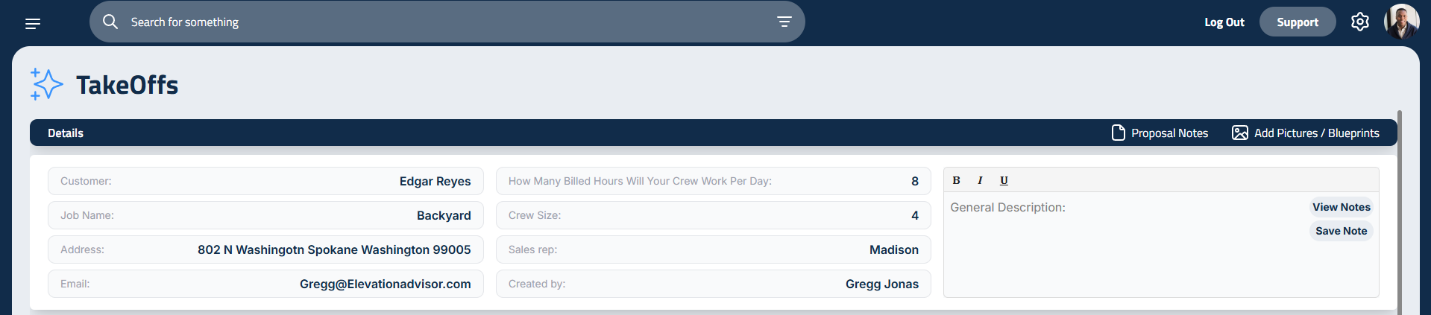
The Take Offs page first asks you to enter the basics of your project. Under the blue header labeled Details, begin by clicking Customer in the first column and selecting the customer this proposal is for from your list. If this customer is not in your database, click Add Customer and fill in their name, phone number, email, and address(es). Beneath the customer’s name, enter the name you’ll be giving this project. You may do multiple projects for the same customer, so this name will help distinguish it. The address should be filled in for you. If they have more than one address, you can click the Address box and that will open a drop-down menu to choose from.
Step 3: Crew and Time Settings
In the second column, How Many Billed Hours Will Your Crew Work Per Day: should already be filled for you based on the work you did to set up Profit Genie. Keep in mind, this number is based on the total hours you said you work each day minus your unbilled hours. This number is what is used to determine how long a project will take so make sure your daily hours are accurate. Once you’ve finished with crew hours, also enter your crew size for this project and optionally list the Sales Rep. The Created By box will be automatically populate with the name attached to the account creating the proposal.
Step 4: Add General Notes and Images
On the right of these columns is a text box marked General Description. You can use this box to make general notes that apply to the project like adding a gate code, noting dogs in the property, or anything your crews may need to know.
Beside the Proposal Notes button is Add Pictures. To upload images, click and select the image file from your device to add it to your proposal database.
Updated on: 11/14/2025
Thank you!