Project Folders
To manage files for a specific project, click View Project Folder. Inside, you’ll find default folders, Photos and Documents, ready to use. You can also create your own folders by clicking Add Folder. Rename, move, or delete folders anytime using the three-dot menu next to each one.
Common uses for folders include:
- Organizing design files and revisions
- Storing site photos for crew reference
- Keeping inspection reports or permits accessible
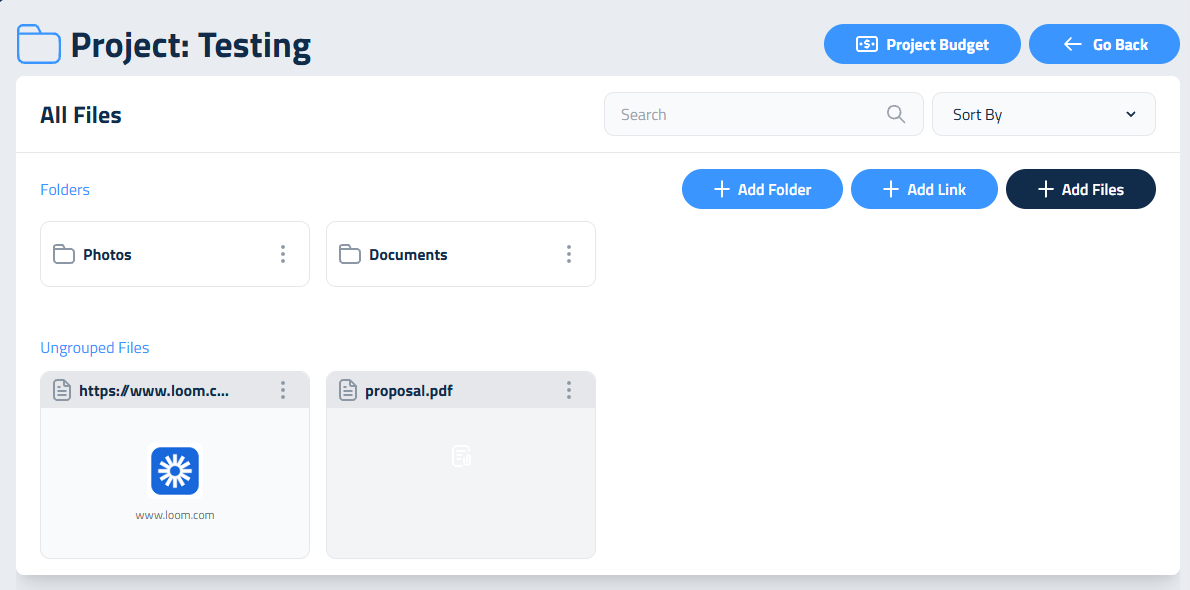
Uploading files is simple.
- Click Add Files to upload from your device.
- If you’re inside a folder, the files will go directly into it. If not, they’ll appear under Ungrouped Files, where you can organize them later.
- You can also drag and drop files into folders
- You can move folders themselves by selecting Move to Ungrouped, then dragging them where needed.
Saving video and web links
Not everything lives in a file. A walkthrough video, a shared Google Drive folder, or a supplier's product page can go in the project folder too:
- Click Add Link, paste the full web address (for example, a YouTube or Loom link), and press Enter or click Add Link again.
- Like files, the link goes into the folder you have open.
- Click the link any time to open it in a new browser tab.
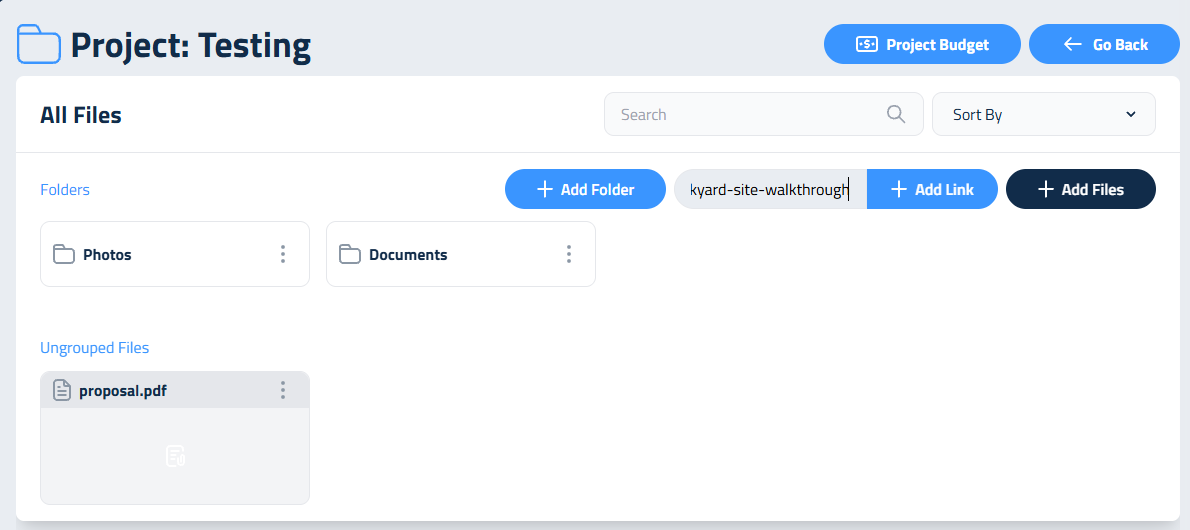
Need to check materials while you're looking at files? Click Project Budget at the top of the folder to jump to that job's Project Budget.
Whether you’re renaming, downloading, or organizing files, all the tools you need are right there in the three-dot menu for quick access.
Updated on: 09/17/2026
Thank you!