How to Use Crew Time Tracking
The Elevation Advisor mobile app is where your crew clocks in, tracks time on each job, and clocks out at the end of the day. It's built for the field: big buttons, very little typing, and it keeps working when you lose signal.
This is more than punching a clock. Every hour you record becomes two things: your paycheck, and the labor cost of the job you worked on. When your time is right, you get paid right and the office knows what each job really cost. When it's wrong, both are off.
This guide walks you through a normal workday from start to finish. Then it shows you how to fix a missed clock-in or clock-out, and how to check your hours for the week. If you're a foreman, there's a section at the end just for you.
Let's take it one step at a time.
How the Two Clocks Work
The app uses two kinds of clocks. Once you understand the difference, everything else is easy.
- Shop Clock: Your workday. You start it when you begin work and stop it when you're done for the day. This is the time you get paid for.
- Job Timer: The time you spend on one project. It runs inside your shop clock. You can work several jobs in a day, one at a time.
Time on your shop clock that isn't on a job, like loading the truck or driving between jobs, is still paid. It just isn't charged to a job.
Before Your First Day
- Get the app. Download the Elevation Advisor app from the App Store (iPhone) or Google Play (Android).
- Sign in. Your office sends you an invite email. Open the app, tap Log in, and sign in with that email address. If you forget your password, tap Forgot Password? on the sign-in screen. If your invite has expired, ask your office to send a new one.
- Allow location. When the app asks, allow it to use your location. The app records where you are at the moment you start or stop a clock. It does not track you while you work.
Step 1: Clock In for the Day
When you start work, open the app. You'll see Shop Clock In with a big play button.
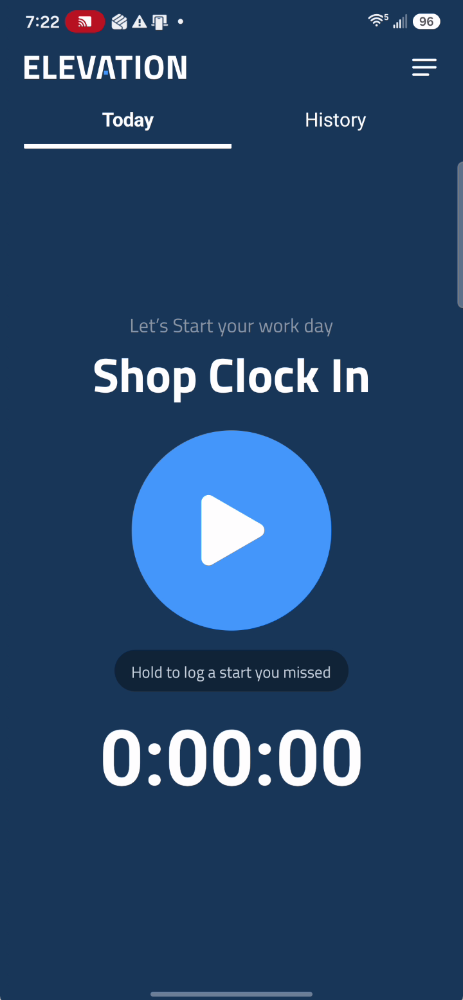
Tap the play button. Your shop clock starts the moment you tap, even if you don't have signal. The Clocked In bar at the bottom of the screen shows how long you've been on the clock.
Step 2: Start a Job
Once you're clocked in, the app shows your job list.
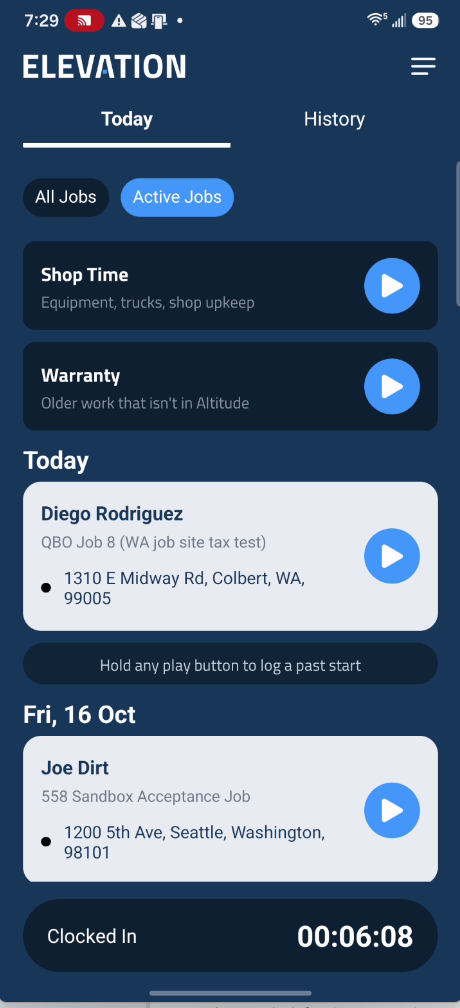
At the top of the list are two tabs:
- Active Jobs: The jobs on today's schedule. The list opens here.
- All Jobs: Every scheduled job, grouped by date, with a search box. Use it when the job you're on isn't on today's schedule.
Each job card shows the client's name in large type, the project name under it, and the address. Tap the address to get directions. Tap the card itself to see the job details, like the address, phone number, and start date.
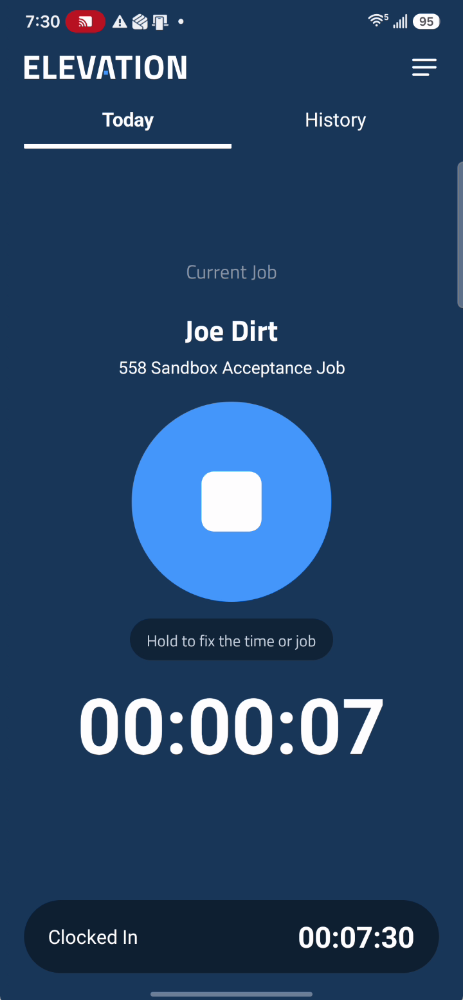
To start the job timer, tap the play button on the job's card, or tap Start Timer in the job details. The screen changes to Current Job, with the job's name and a timer counting up. Your shop clock keeps running in the bar at the bottom.
Can't find your job? Switch to All Jobs and type the client or project name in Search projects or customers. Search also finds:
- Jobs that were sold but never put on the calendar. They show under Not Scheduled.
- Jobs that are already finished. They're listed under Finished, at the bottom of All Jobs.
If the job still isn't there, tell your foreman.
Step 3: Stop a Job and Move to the Next
When you finish a job or leave for the next one, tap the stop button on the Current Job screen. The Unpaid time off this job sheet opens.
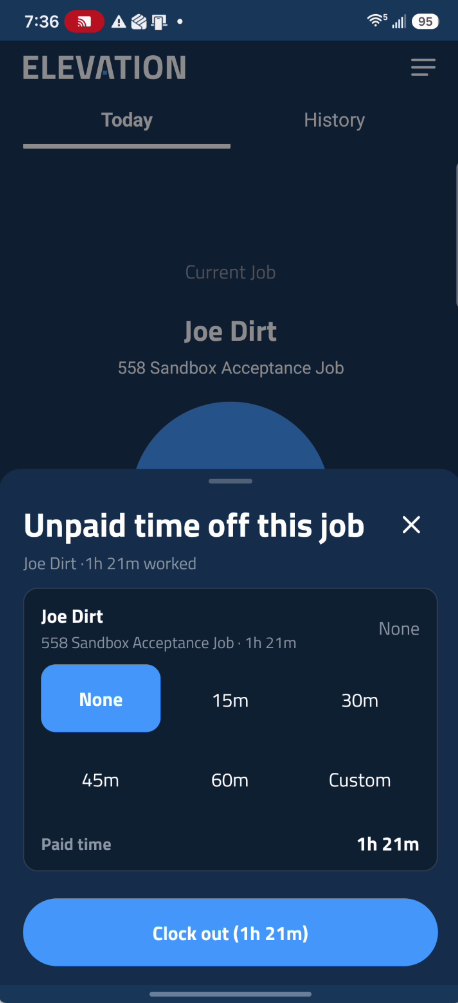
- If you didn't take an unpaid break on this job, leave it on None.
- If you did, pick how long: 15m, 30m, 45m, 60m, or Custom to set a different amount. Paid time shows what's left.
Tap the Clock out button at the bottom of the sheet. This only stops the job. Your shop clock keeps running, and you're back at the job list, ready to start the next one.
Step 4: Shop Time and Warranty Work
Not every hour is spent on a customer's job. Two rows are pinned at the top of your job list for that.
Shop Time: Use it for work at the shop, like equipment repairs, truck maintenance, and shop upkeep. Shop Time is never billed to a customer. Starting it, instead of leaving the job timer off, lets the office see where that time went.
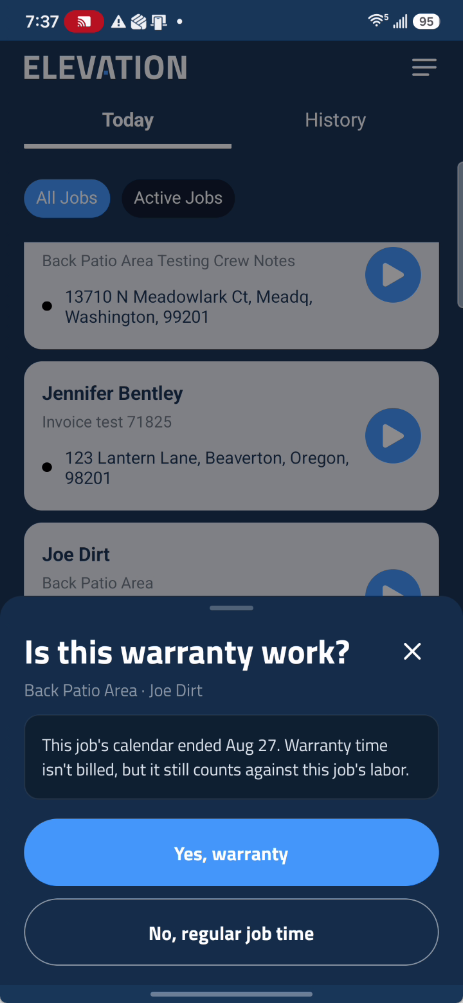
Warranty work on a finished job: When you go back to fix something on a job that's already finished, find it under All Jobs (search for it, or scroll down to Finished) and tap play. The app asks Is this warranty work?
- Tap Yes, warranty if you're fixing or replacing work that was already done.
- Tap No, regular job time if it's new work.
Warranty time isn't billed, but it still counts against that job's labor, so the office sees what the job really cost.
Warranty for older work that isn't in the app: Tap play on the pinned Warranty row. Search for the customer, tap their name, then tap Start warranty.
Some warranty visits are put on the calendar ahead of time. Those jobs show a Warranty tag on their card, and the app won't ask the question.
Step 5: Clock Out for the Day
When you're done for the day, tap the Clocked In bar at the bottom of the screen. The Unpaid time sheet opens, with a row for your shop clock and a row for each job you worked today.
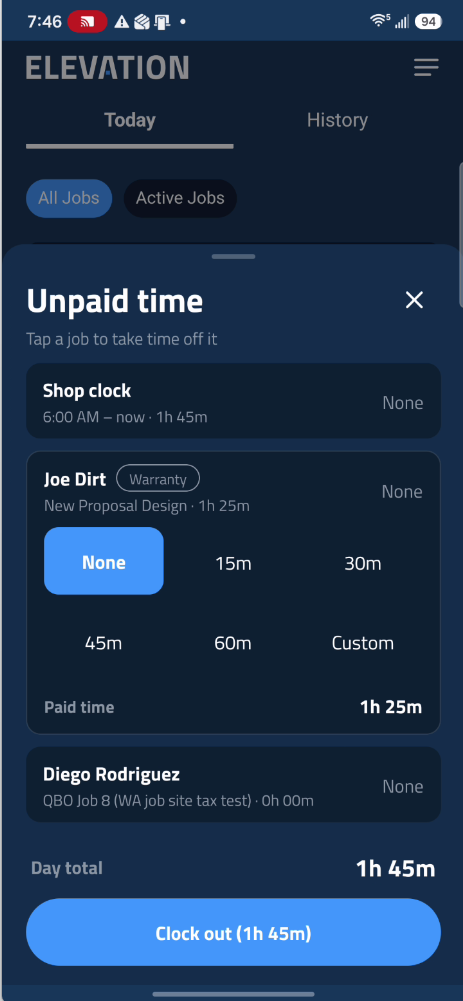
- Tap a row to open it.
- Pick the unpaid time you took during that stretch, like lunch: None, 15m, 30m, 45m, 60m, or Custom.
- Check the Day total at the bottom. If you took time off, it shows your total before and after.
- Tap Clock out. The button shows the paid time you're about to save.
If a job timer is still running, clocking out stops it for you. When you're done, you'll see You're clocked out with your paid time for the day.
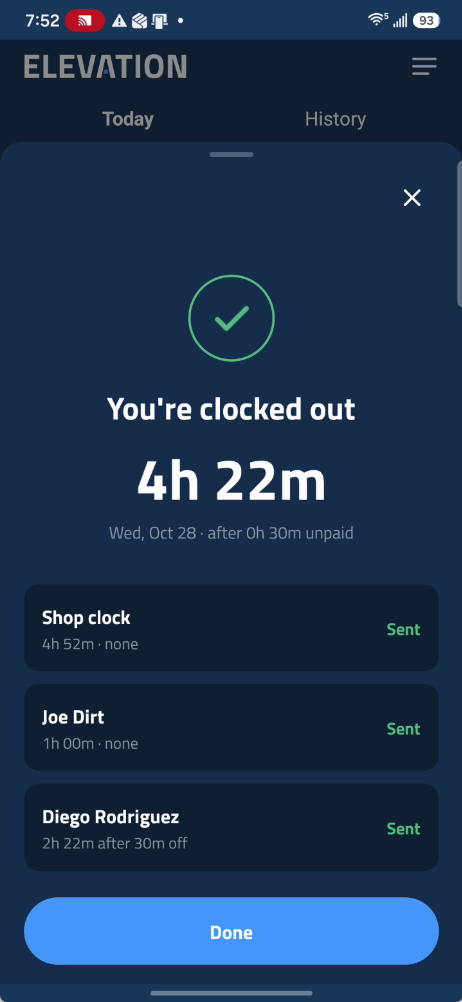
You can't take all of the time off a row. At least 15 minutes always stays paid, and unpaid time comes off in 15-minute steps. So a job needs 30 minutes before you can take 15 off, and 45 minutes before you can take 30 off. Choices that are too long are grayed out.
Working Without Signal
You don't need signal to use the app. Clock in, start and stop jobs, and clock out like always. Everything is saved on your phone and sends itself when you're back in range.
- If you clock out with no signal, the app tells you your entries are saved on this phone and will send themselves. Tap Done, or Try sending now once you have signal.
- If the app can't reach the office when you open it, you'll see Couldn't load your time. The app shows what's on your phone, and clocking in still works. Tap Retry when you have signal.
- Don't re-enter time that's waiting to send. It will get there on its own.
Time that reaches the office late shows a Synced late note on their side. That's normal after a stretch out of range.
Once in a while a change can't be saved, for example a clock-in that overlaps time already on your timesheet. You'll see a red banner that says so, with the reason. Tap Retry to send it again, or Discard to remove it from your phone. If you discard time you really worked, ask your foreman to enter it.
Fixing Mistakes
Everyone forgets to tap a button sometimes. You don't need to call the office. The app has a fix for each mistake, and most fixes start by holding a button down instead of tapping it. Look for the small hints under the buttons.
What happened | What to do |
|---|---|
Forgot to clock in when you started work | Hold the Shop Clock In play button |
Forgot to start a job timer | Hold the job's play button |
Never clocked in, and the day is over | Hold the Shop Clock In play button and add an end time |
Started a job late | Stop the job, then hold its play button |
Forgot to stop a job | Hold the stop button on the Current Job screen |
Went home and forgot to clock out | Hold the Clocked In bar |
Forgot to clock out yesterday | Tap Fix time on the banner |
Picked the wrong job | Hold the stop button on the Current Job screen |
An entry in History says Fix | Tap the entry |
A time that's already saved is wrong | Edit it in the TimeSheet report |
Fixing a Missed Clock-In
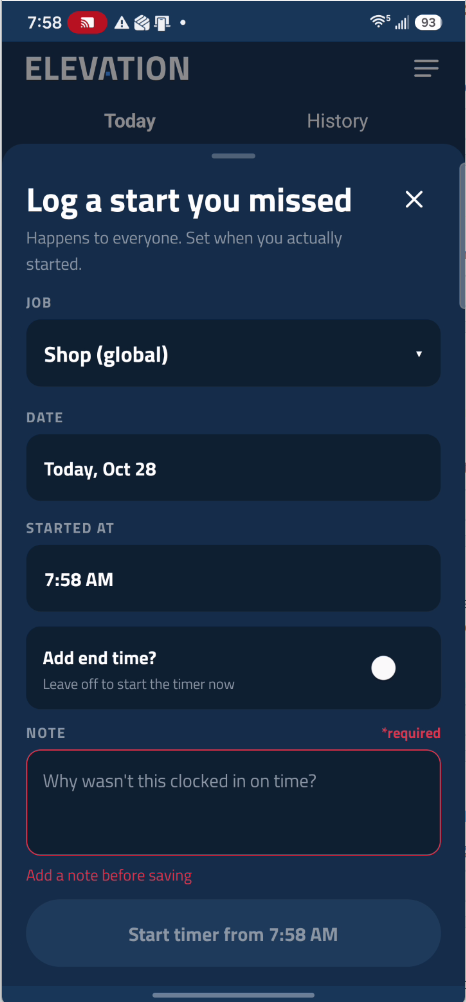
Hold any play button until Log a start you missed opens. It's the same screen whether you missed your shop clock-in or a job start.
You forgot to clock in when you started work
- On the Shop Clock In screen, hold the play button.
- Tap the start time and set when you actually started. The date is today unless you change it.
- Leave Add end time? off.
- Type a short note, like "Forgot to clock in at the shop." The note is required.
- Tap Start timer from. The button shows the time you picked.
Your shop clock is now running from that time, just as if you'd tapped it on time.
You forgot to start a job timer
- Make sure you're clocked in for the day. If you aren't, fix that first.
- On the job list, hold the job's play button.
- Set the time you started on the job.
- Leave Add end time? off if you're still on the job. Turn it on and set the end if you've already left it.
- Type a note and tap the button at the bottom.
You never clocked in, and the day is already over
- On the Shop Clock In screen, hold the play button.
- Set the Date, then the time you started.
- Turn on Add end time? and set when you finished.
- Type a note and tap Save entry. This saves your shift for that day.
- To add a job you worked that day, hold the play button again and tap the job at the top of the sheet to pick it. Set its start and end, type a note, and tap Save entry. Do this for each job.
You started a job late
If a job's timer is running but you started it late, stop the job first. Then hold that job's play button, turn on Add end time?, and save the stretch you missed. Start the job again if you're still working.
A few rules keep your timesheet clean:
- A job can't start before your shop clock. If you forgot both, log the shop clock first, then the job.
- Shop clock entries can't overlap each other.
- If a timer is already running, the app sets an end time for you so the two don't overlap.
Fixing a Missed Clock-Out
You forgot to stop a job, and you're still clocked in
- On the Current Job screen, hold the stop button. Fix this clock-out opens.
- Started is locked, because it's already recorded. Tap Ended and set when you really finished the job.
- Add a note about what happened.
- Tap Save fix. The job stops at the time you set, and your shop clock keeps running.
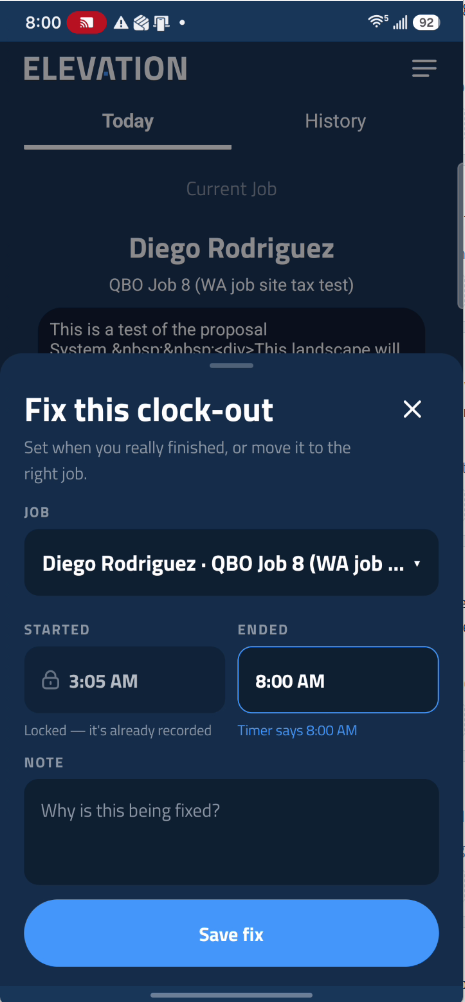
You went home and forgot to clock out
If you notice later that same day, while the app still shows you clocked in:
- If a job timer is still running, fix it first, as shown above.
- Hold the Clocked In bar at the bottom of the screen. Fix your shop clock-out opens.
- Tap Ended and set when you finished for the day.
- Tap Save fix. You're clocked out at the time you set.
You forgot to clock out yesterday
If your shop clock or a job timer is still running at midnight, the app stops it at 11:59 PM. The next time you open the app, you'll see Previous session ran to midnight.
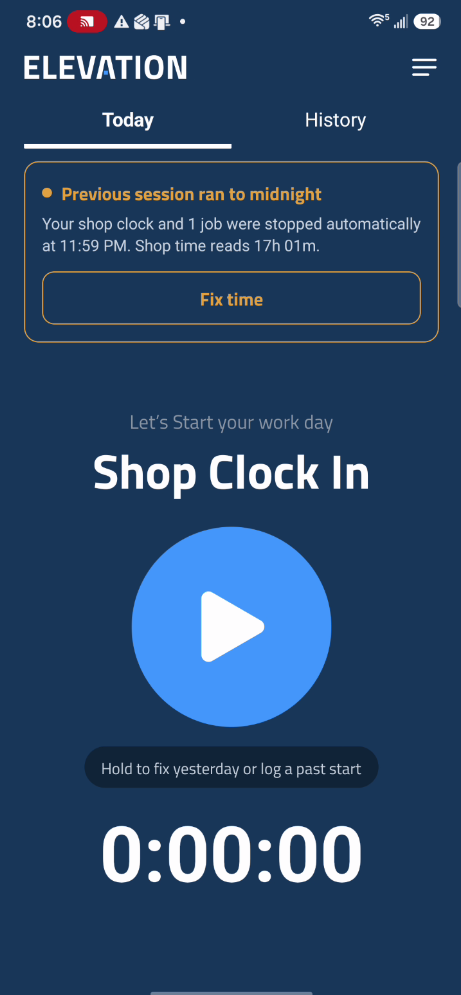
- Tap Fix time.
- Tap Ended and set when you really finished.
- Pick any unpaid time you took that day.
- Tap Save yesterday.
If the banner is still there afterward, a job from that day still needs its real end time. Tap Fix time again, or find the job in History and tap it.
An older entry that never got clocked out
Open the History tab. Any entry that never got a real end time is marked Fix. Tap it, set when you finished, and tap Save fix.
Picked the Wrong Job
While the job is running, hold the stop button. In Fix this clock-out, tap the job at the top and choose the right one. The time moves to that job, and the wrong job keeps none of it. Set Ended, add a note, and tap Move and save.
Saving stops the timer. If you're still working, start the right job again from the job list.
Checking Your Hours
There are two places to see your hours: the History tab for a quick look at each day, and the TimeSheet report for your full week.
The History Tab
The History tab, next to Today at the top of the screen, shows your time by day, newest first.
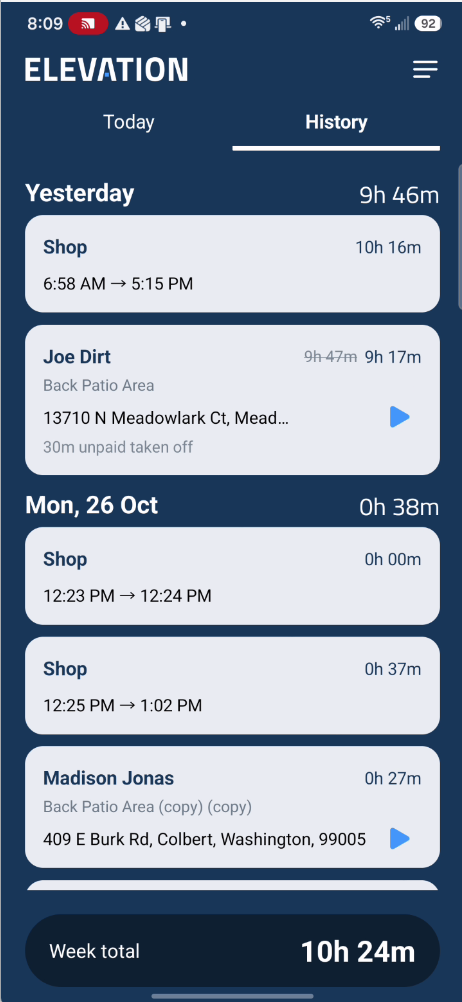
- Each day shows your paid time for that day.
- Week total, at the bottom, adds up this week, starting Monday.
- When unpaid time was taken off an entry, you'll see the time before and after.
- An entry marked Fix never got a real end time. Tap it to fix it. A banner at the top tells you how many need fixing.
- Tap a job entry to see its details, including the start and stop times and any note.
- Pull down on the list to refresh it.
Delete, at the bottom of an entry's details, removes the entry. Only use it for an entry you made by mistake.
Your Weekly Hours in the TimeSheet Report
The TimeSheet report is the same report the office uses for payroll, so it's the best place to check your week.
- Tap the menu.
- Tap Reporting, then TimeSheet.
The report opens on Weekly Hours for the current week, Monday through Sunday. You'll only see your own time.
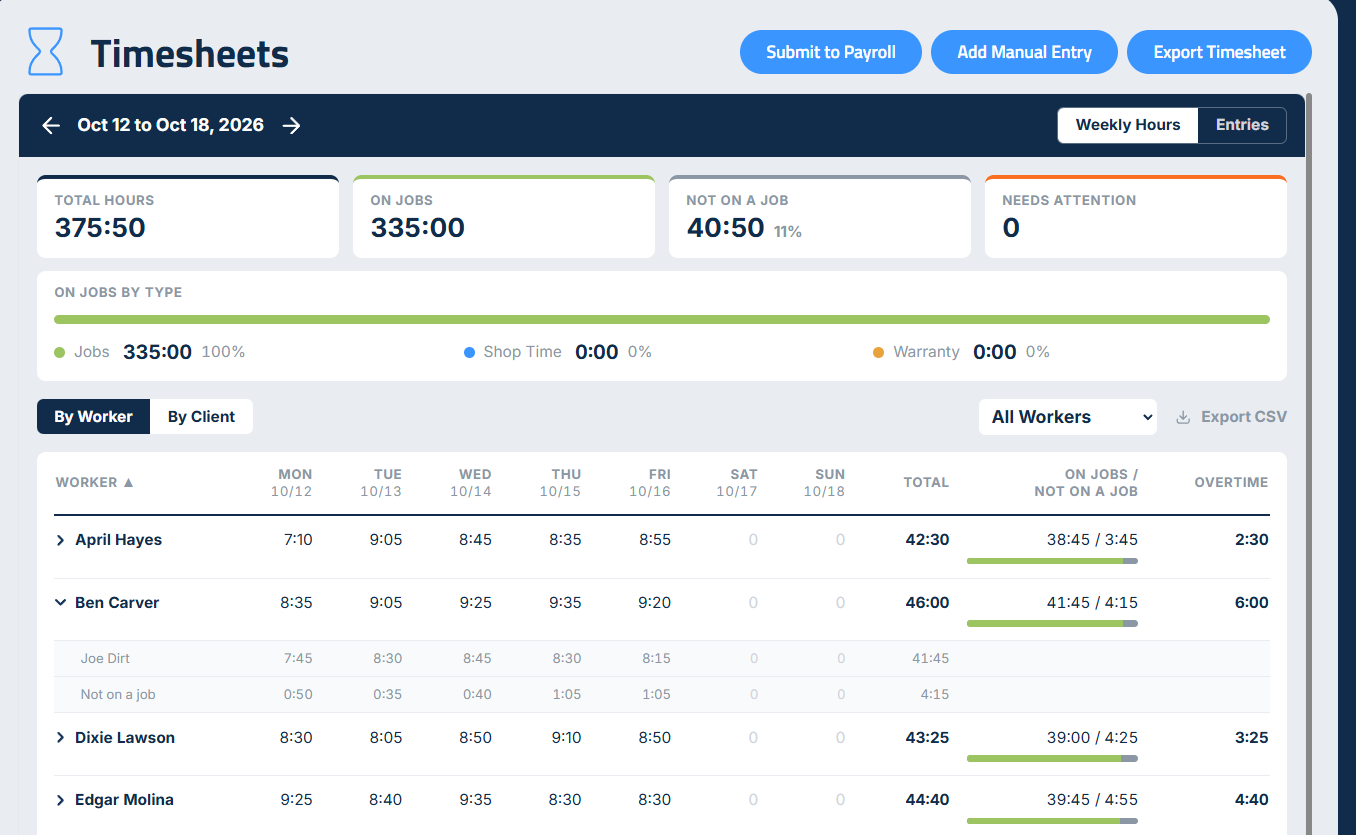
At the top, four cards sum up your week:
- Total hours: Your paid hours for the week, after unpaid time is taken out.
- On jobs: Hours clocked to a job.
- Not on a job: Hours you were clocked in, but not on any job.
- Needs attention: Anything in your week that needs fixing.
Under the cards, On jobs by type splits your job hours into regular jobs, Shop Time, and Warranty.
Below that is your week: your total hours and your overtime, with a green and gray bar that shows how much of your time was on jobs. Tap it to see your hours for each day and for each job.
- Overtime is every hour over 40 in the week.
- A red on pace for tag means you're headed past 40 hours this week if you keep working your average day.
- Hours show as hours and minutes, so 7:45 means 7 hours and 45 minutes.
- A flag like Missed clock-out or Over 14 hours means something needs fixing.
- Tap a day's hours to see the clock records behind them, on the Entries tab.
- Use the arrows on the dark bar at the top to look at past weeks.
Fixing Time in the TimeSheet Report
Some mistakes can't be fixed from the Today screen, like a clock-out you tapped 20 minutes late, or a day from earlier in the week. Fix those in the TimeSheet report.
- Open the menu and tap Reporting, then TimeSheet.
- Tap Entries at the top.
- Find the day and tap your name to open it.
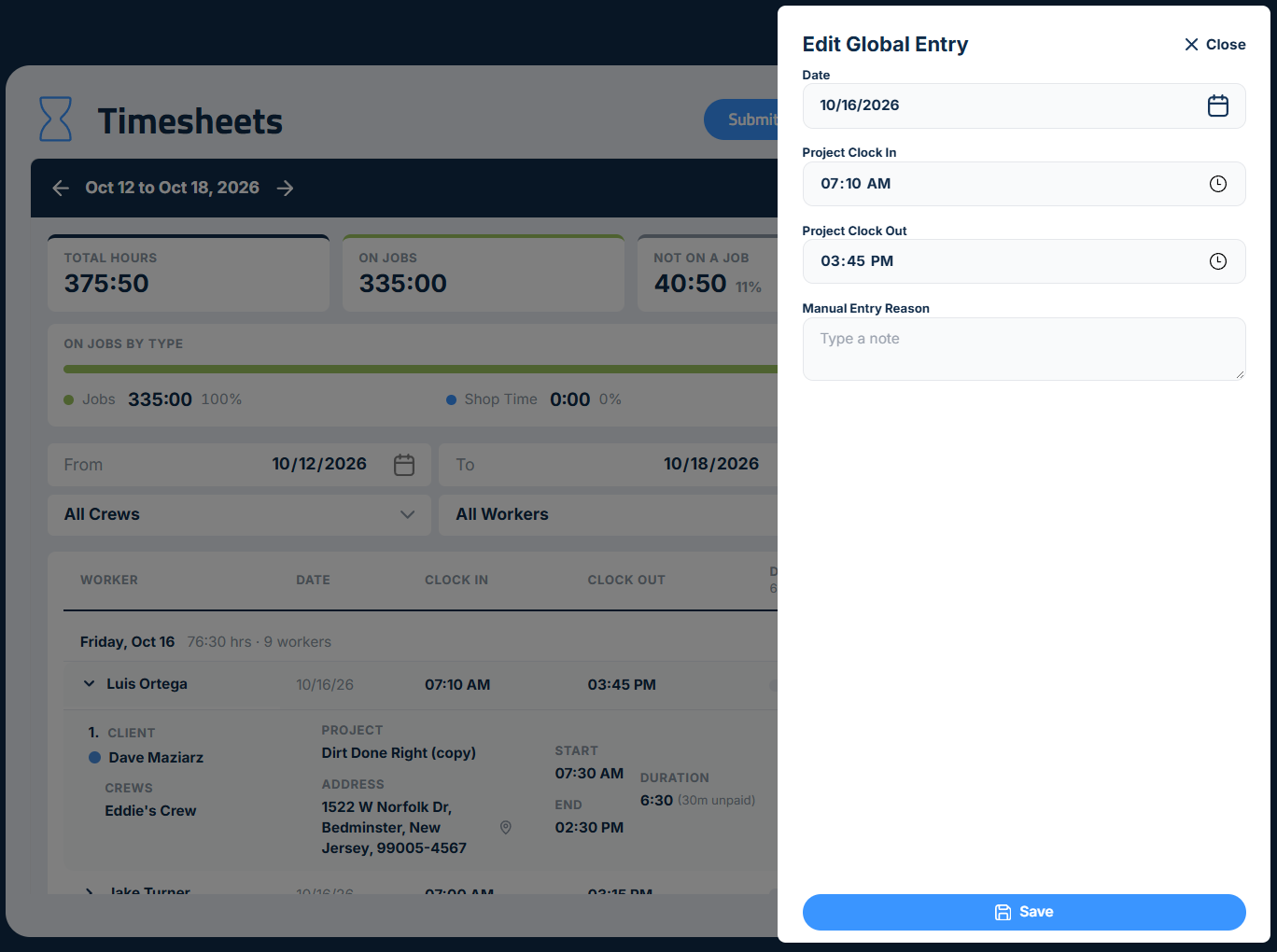
- Tap Edit Shop Clock to change when you clocked in or out for the day. The form that opens is called Edit Global Entry. To change a job, tap Edit Timesheet under that job.
- Set the right times.
- Type a Manual Entry Reason. It's required, so there's a record of why the time changed.
- Tap Save.
Worked time you never clocked at all? Tap Add Manual Entry at the top of the report. Fill in every field, including the crew, the project, and your start and end times. Type a reason and tap Save. The entry won't save until every field is filled in.
Time already sent to payroll is locked. If you try to change it, the app tells you it was already sent to payroll. Ask the office to correct it.
You can only be clocked in once. If you see Clock-in didn't go through, read the reason. Most often you're already clocked in, sometimes on another phone.
For Foremen
You track your own time the same way your crew does. You also keep an eye on theirs.
Check your crew's time. In the app, open the menu and tap Reporting, then TimeSheet. On a computer, go to Reporting > Timesheets. You'll see your own time and your field crew's time for the week. How to Use Timesheets covers the page in detail.
Look at Needs Attention every day. It lists the records that are usually mistakes:
- Missed clock-out: A clock that never stopped.
- Over 14 hours: Usually a clock-out time that's wrong.
- Synced late: Time that reached the office late, most often from a phone that was out of signal. Check that the times look right.
Fix it while it's fresh. Your crew can fix most mistakes on their own phone, so start by asking them. If you need to fix it yourself, use the edit icon on a crew member's row to change their shop clock, or on a job record to change that job. Every change asks for a reason, so there's a record of why the time changed.
Add time that was never clocked. Add Manual Entry records time for you. To add time for someone on your crew, ask an Admin.
Watch Not on a Job. This is paid time that isn't on any job. A little is normal. A lot usually means job timers aren't being started, which makes your jobs look cheaper than they really were. To learn more, see The Hidden Cost of Unbillable Labor.
Daily Checklist
- Clock in when you start work.
- Start a job timer when you start on a job. Use Shop Time for shop work.
- Stop the job before you leave for the next one.
- Take off unpaid breaks when you stop a job or clock out.
- Clock out before you leave for the day.
- Check History for anything marked Fix.
- Before the week is over, check your hours in Reporting > TimeSheet.
Updated on: 10/28/2026
Thank you!