Working with Templates
Templates in Elevation Advisor are one of the fastest ways to build proposals without sacrificing accuracy or control. They give you a strong starting point for any section, whether you're building beds, patios, or custom features, and help you create polished, professional proposals in record time.
Why Templates Matter
Templates are all about working smarter. Instead of rebuilding the same section from scratch every time, you can save a version you like and reuse it with just a few clicks. This means:
- Lightning-fast proposals: Drop in a fully built section instantly
- Improved accuracy: Preloaded materials, labor, and equipment reduce the chance of errors
- Consistent pricing: Standardized install times and costs across your team
- Complete flexibility: Every template is editable once added, adjust anything you need
Whether you're a solo operator or managing a growing team, templates help you scale your process while keeping quality high.
Real-World Examples
Templates are especially useful for the types of work you repeat often, but they’re also powerful for handling variation. For example:
- Beds with Bark Mulch
- Beds with Rock Mulch
- Paver Patio – 2-Person Crew
- Paver Patio – 3-Person Crew
You can even create templates that include only the basic materials, like soil or base course, so your team can add custom materials later. Or, you can leave in measurements if you want to use the template for a recurring job type. It’s completely up to you.
How to Create a Template
To create a template from a section:
- Scroll to the bottom of any section
- Click Save As Template
- Give it a clear, descriptive name (e.g., “Beds with Rock - 3 Crew”)
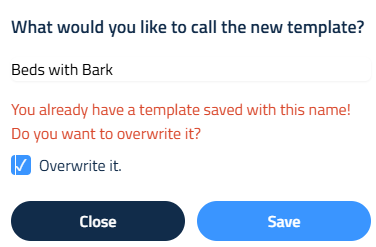
If the name you are using for your template is the same as an existing template, Elevation Advisor will prompt you with a warning before overwriting the original.
Template Folders
If you have many templates, you may want to use our Folders feature to keep them organized. Instead of a long list of all your templates, you can create separate dropdown menus by category. This is especially helpful if you offer many variations on different landscape features you build. For example, you may have a Fire Pits folder, a Walkways folder, a Patios folder, etc.
To create a folder, click the blue Add Folder button and name your folder. To add existing templates to your folder, drag and drop the templates from their dropdown menus into the new folder. Your folders will be saved for use on future proposals.
How to Add a Template to Your Proposal
When building a proposal, you can access your saved templates in the template library.
Dropdown Arrows on Section Buttons and Folders
- If your template was built using a standard section layout (like Beds or Patios), it will appear as a dropdown under that section
- This lets you quickly choose between different versions of the same section type
- Folders work the same way, giving you drop down access to anything you added to the folder in the past
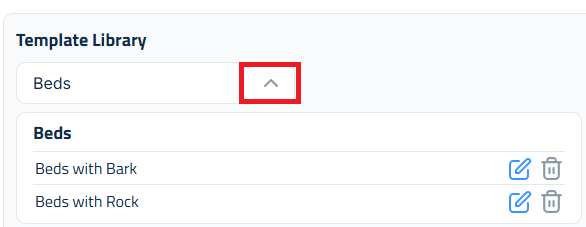
Once inserted, templates behave like any other section, you can edit materials, adjust labor, change equipment, or rewrite the description. You’re never locked in.
Once you’ve created a template, you can edit, save, or delete it directly from the Template Library Sidebar.
Editing an existing template:
- Open any proposal and click the Edit button to the right of a Landscape Work Area.
- This opens the Template Library Sidebar, where all saved templates are listed.
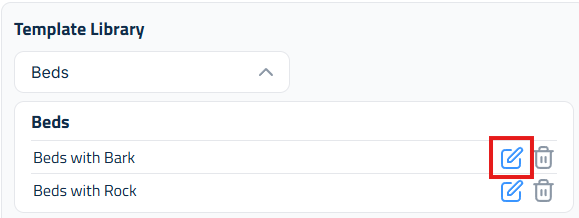
- Click the Edit button next to the template you want to update.
- The Template Editor will appear. Make any necessary changes to materials, labor, equipment, or notes.
There are two save options for Templates:
- Save and Add to Proposal: This updates the template and inserts it into the current proposal.
- Save Without Adding: Updates the template but keeps your current proposal unchanged.
Choose the option that fits your workflow.
How to Delete a Template
To remove a template from your library:
- Open the Template Library Sidebar by clicking the Edit button next to any Landscape Work Area.
- Locate the template you want to delete.
- Click the Trash Can icon next to the template name.
Templates give you the best of both worlds: a fast, consistent starting point and the freedom to customize every detail. Whether you're building your first proposal or your hundredth, they help you move faster, stay accurate, and deliver a better experience for your clients.
Updated on: 01/09/2026
Thank you!