Accounting Quick Guide
You keep the money straight. Everyone else creates the numbers; you're the one who has to make them add up, get them billed, get them paid, and get them into the books without a week of cleanup at month end.
Three jobs are really yours in Elevation Advisor: billing the work, paying the crew, and keeping QuickBooks in step. The rest you can read.
Set Yourself Up in Your First Hour
- Sign in and set your password, then check your name, email and time zone under the gear icon. The time zone matters more than it sounds: timesheets and invoice dates follow it.
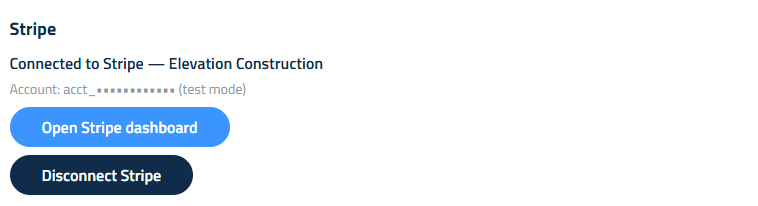
- Open Settings, then Account & Profile, then Integrations, and check that Stripe is connected. That’s what lets clients pay online, and it’s what puts a payment link on the invoices you send.
- Ask whoever set the company up whether the QuickBooks sync is switched on, and watch the first billing run land in your books before you rely on it.
- Open the Dashboard and look at the Command Center. You’ll come back to it every week.
Billing
A job reaches you already priced and signed. What you decide is the timing.
Open Projects, find the job, and click Invoice Client. Check the down payment and the number of payments, then click Start Invoicing. From then on each payment becomes a draft invoice on its due date.
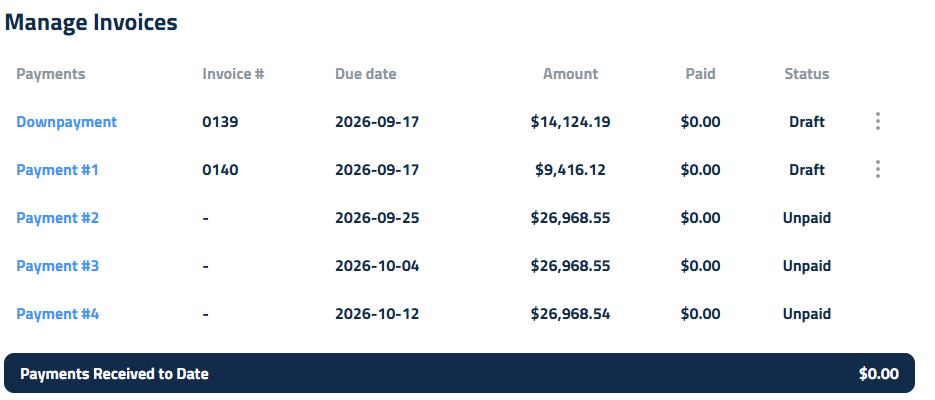
Here's the part people get wrong: drafts don't send themselves. Nothing reaches your client until you open the invoice and click Send Invoice. Build that into your week, whether that's Monday mornings or the first of the month, and the cash keeps moving.
When money arrives, record it against the invoice with Add Payment. Partial payments are fine; the balance keeps tracking. Recorded a payment in error? The trash icon puts the invoice back the way it was.
Change orders take care of themselves. An approved change order adds its down payment as its own invoice and re-spreads the balance across the payments still to come. You don't recalculate anything by hand.
Payroll
Timesheets shows every employee's time. Your week looks like this: review the days, chase the gaps, then Export Timesheet for your payroll provider and Submit to Payroll to lock the period.

Watch for the usual suspects: a missing clock-out that leaves a 14 hour day, a day with no entry at all, time recorded against the wrong project. Foremen can fix their own crew's entries, so send it back to them rather than guessing.
Once time is submitted it's locked. That's the point of it, so make the review real.
QuickBooks
The sync is yours to watch, not to babysit. Check the sync log after a billing run and after payroll. Two things are worth a look every time: customers that didn't match an existing QuickBooks customer, and invoices that failed to post. Both are quicker to fix the day they happen.
Profit Genie and the Numbers Behind the Price
Profit Genie is where the company's labor rates, expenses, equipment and overhead live, and it's what every proposal price is built on. You own most of those inputs already, so you're usually the one who notices first when a rate is stale.
If wages changed, if insurance went up, if a machine was bought or sold, update it here. Prices quoted after that will be right; prices quoted before it won't be, and that's worth a conversation with whoever is selling.
Your Week
- Send the invoices that are due, they don't send themselves
- Record payments received
- Review timesheets, then export and submit payroll
- Check the QuickBooks sync log for failures and unmatched customers
- Look at the Command Center for jobs running over
Updated on: 10/31/2026
Thank you!