How to Set Up Labor
Labor is one of the most misunderstood parts of your setup. Getting this right means your proposals will reflect the true cost of your team’s time. Your pricing will be grounded in reality, not guesswork.
This section walks you through how to enter employer taxes, field employees, and overhead employees. Each step builds on the last. Together they form the foundation for your fully loaded labor rate.
Let’s take it one step at a time.
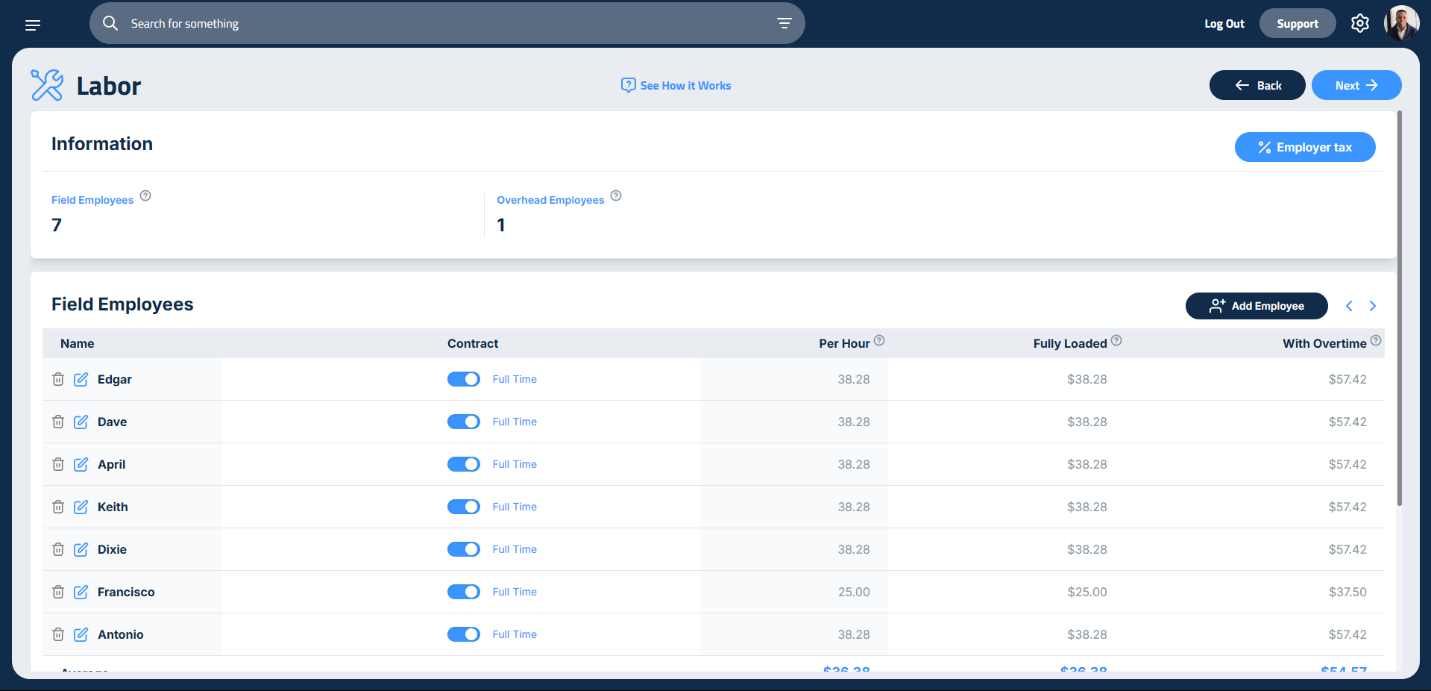
Step 1: Enter Employer Taxes
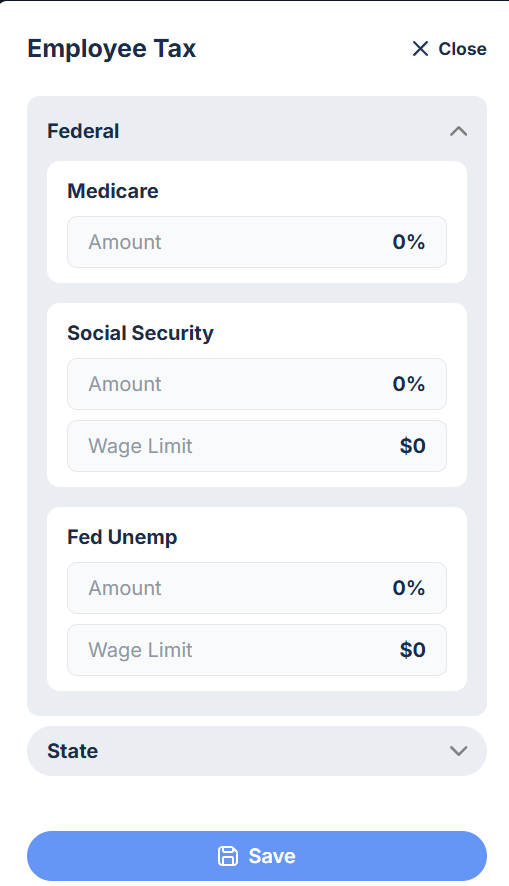
When you land on the Labor page, the first thing you’ll do is click the Employer Tax button in the top right corner. This opens a dedicated sidebar where you’ll enter your federal and state employer taxes.
Start with the Federal Tax section:
- Federal Medicare Tax: Payroll tax funding Medicare health insurance. You withhold and match employee contributions on all wages. If you’re self-employed, you pay the full tax on all net earnings.
- Social Security Tax: Payroll tax funding retirement, disability, and survivor benefits. You withhold and match employee contributions on wages up to an annual wage limit. Self-employed owners pay the full tax on net earnings up to the cap.
- Federal Unemployment Tax (FUTA): Employer-paid tax funding unemployment benefits. You pay tax on each employee’s wages up to a yearly limit. There’s no withholding, and self-employed owners are exempt.
Then move to the State Tax section:
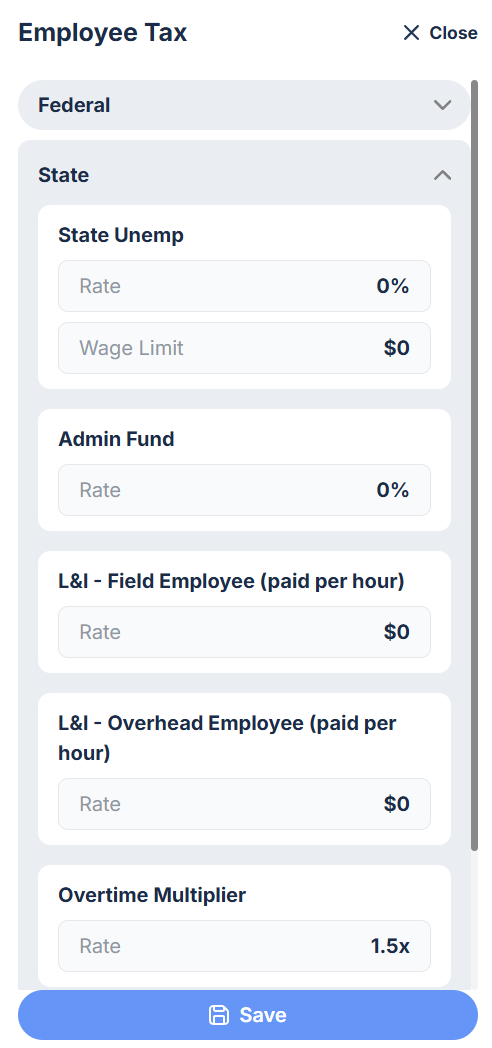
State Unemployment Tax (SUTA): A state-level payroll tax funding unemployment benefits. You pay a state-specific rate on wages up to a defined wage base. This varies by industry and claim history. Self-employed owners are exempt.
- Administrative Fund: A state-specific tax or allocation, often tied to unemployment insurance. You may pay a small percentage of taxable wages to support program administration. This is typically included in SUTA or listed as a separate assessment.
- Labor and Industries (L&I) Tax for Field Employees: A state-specific tax (e.g., workers’ comp) covering workplace injuries for field workers. Rates are based on employee risk classification and wages. Field roles usually have higher rates due to increased hazard exposure.
- L&I Tax for Overhead Employees: Similar to the above, but for office or administrative staff. These roles are lower risk, so rates are typically lower.
Once everything is entered, click Save.
Step 2: Add Field Employees
Now it’s time to enter your field team. These are the people who generate income directly by working on jobs.
If you came here from setup with Genie, the page already has a row for each field worker you counted. Double-click Employee #1, type the name and press Enter, then do the same for the Per Hour column, and keep going down the list.
Starting from an empty page? Click Add Employee next to the Field Employees header, enter the name, then the per-hour rate.
Need more rows? Click Add Employee next to the Field Employees header.
Step 3: Add Overhead Employees
Overhead employees are the people who support your business but don’t work directly in the field. Think office staff, managers, salespeople, and yes, you again.
To add them:
- Click Add Employee next to the Overhead header.
- Enter their name.
- Choose their contract type:
- If hourly, enter their hourly rate before taxes.
- If salaried, select Salary, then choose Monthly or Annual, and enter the amount.
All salaried overhead employees will be converted to an hourly charge on the main Labor page.
Updated on: 10/31/2026
Thank you!