How to Add Clients
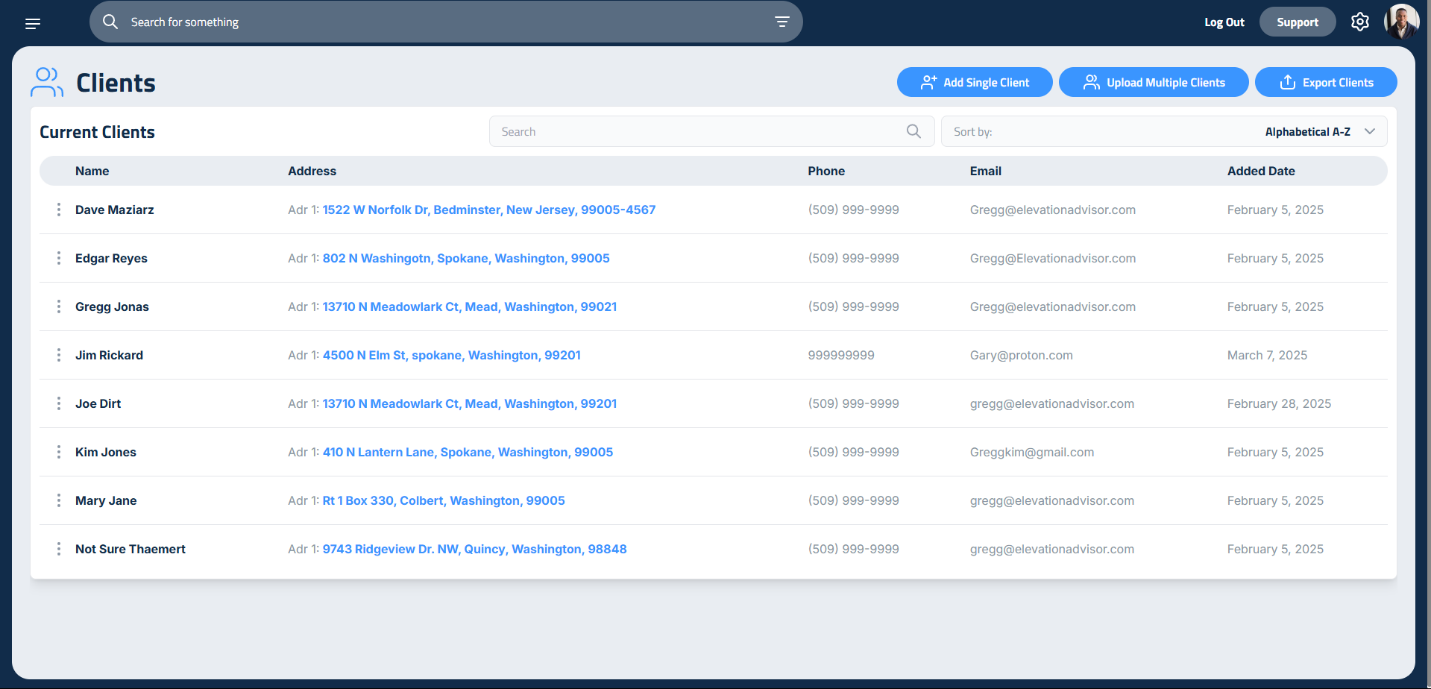
Your Client Catalog is the foundation of your sales process. It stores all your client information in one place so you can quickly build proposals, track communication, and stay organized.
Whether you’re adding a single homeowner or importing a full list of past clients, Elevation Advisor makes it easy.
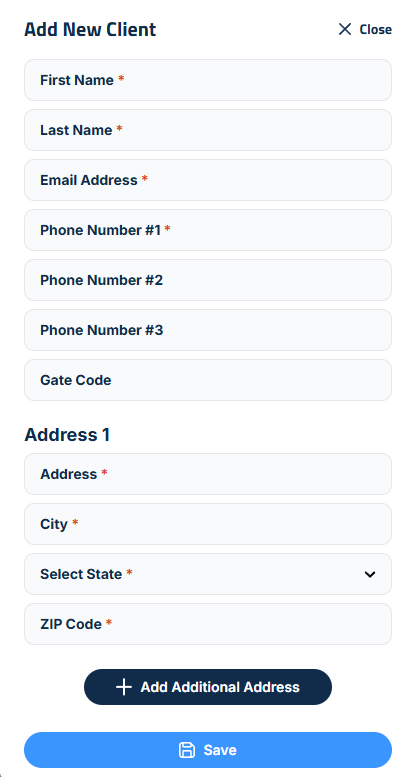
Client Catalog setup, showing the interface for adding a single client’s details.
To add a client manually:
- Click the Add Single Client button.
- A sidebar will open where you’ll enter the client’s details:
- First and Last Name
- Email Address
- Phone Numbers: If desired, enter who the phone numbers belongs to in the given field. For example, if you are managing multiple phone numbers for a client (like a married couple), you can tag each phone number with a name.
- Address: Enter the primary address under Address 1.
- If the client has more than one address, click Add Address to include additional locations.
Once everything is filled out, click Save to add the client to your catalog.
Step 2: Bulk Import Clients
If you have a list of clients in a spreadsheet, use the bulk import feature to save time:
- Click Upload Multiple Clients.
- Click Download CSV Template to get a formatted spreadsheet.
- Fill it out with your client data in Excel.
- Upload the completed file back into Elevation Advisor.
Managing Your Client Catalog
- To export your client list, click Export Clients. This downloads your catalog as a CSV file for use in Excel or other tools.
- To find a client, use the Search bar or sort them alphabetically using the Sort By dropdown.
- To edit or delete a client:
- Click the three dots next to their name.
- Select the appropriate option.
Updating a Client After a Proposal Is Accepted
Once a client signs, the proposal is locked so the contract can't change. But people change phone numbers, fix a typo in their email, or get married. You can still update a client's name, email, and phone on a signed proposal:
- Edit the client in your Client Catalog first (three dots next to their name, then Edit Client), and save the new details.
- Go to the Proposals page, open the accepted proposal with View Proposal, and click the Customer field.
- The Update client info sidebar opens. Pick the client to copy their current name, email, and phone onto the proposal.
- Review the changes in the confirmation window and confirm.
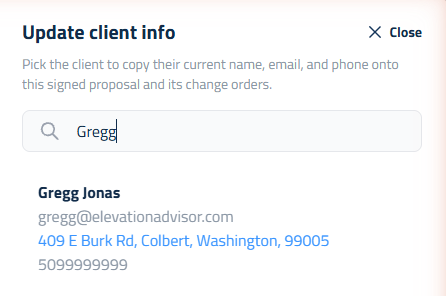
Everything else on the signed proposal stays locked. The update also carries over to that proposal's change orders.
Updated on: 10/31/2026
Thank you!