Client Sign-Off: Seamless, On-Site, and On Your Terms
Title: Client Sign-Off: Seamless, On-Site, and On Your Terms
Keywords: clients, payment, proposals, sales tax, change order, package
Client Sign-Off: Seamless, On-Site, and On Your Terms
Elevation Advisor makes it easy to get a proposal signed, whether your client is at home with the email, sitting across the kitchen table from you, or already said yes over the phone. There are three ways to close the deal.
1. Your client signs from the email
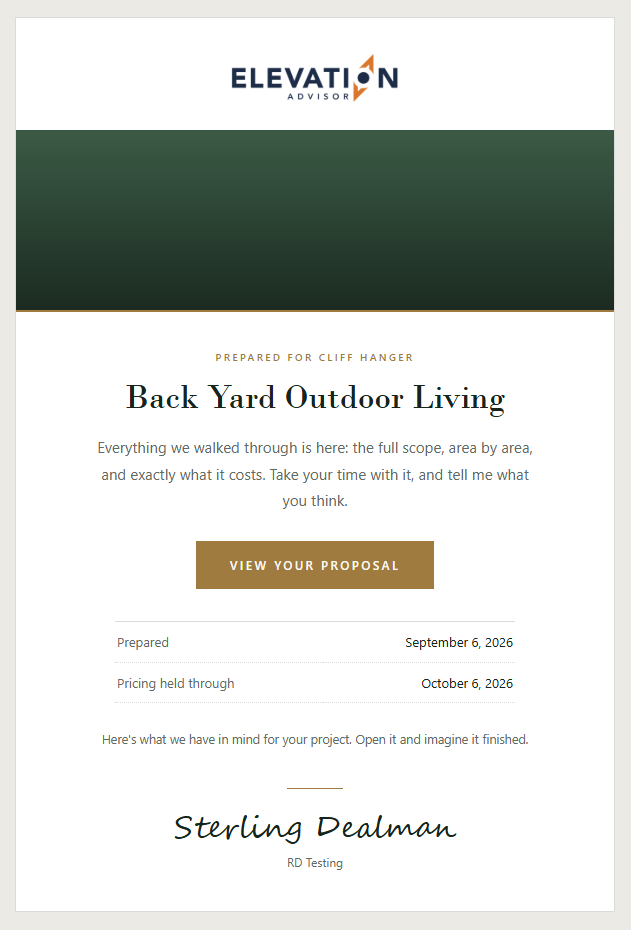
When you click Send on the proposal, your client gets an email with a View your proposal button. It opens the same proposal you prepared, with your photos, your note, and the package options side by side. See Preparing and Sending Your Proposal.
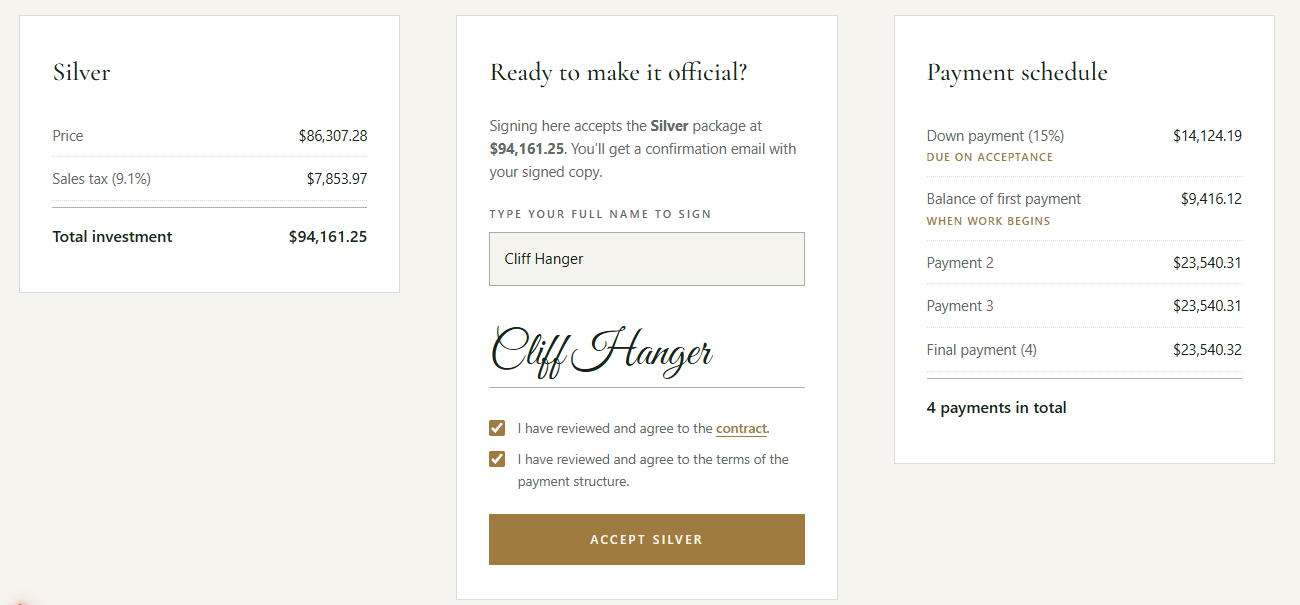
Nothing is chosen for them. Your client clicks Select this option on the package they want, and the page fills in the price, sales tax, total, and payment schedule for that package. Then they sign in the Ready to make it official? box:
- Type their full name. It becomes their signature.
- Check the two boxes agreeing to the contract and to the payment structure.
- Click Accept with the package name on the button.
2. You present it in person
Presenting face to face is still the best way to close. Send the proposal first, then go to the Proposals page and click Client Accept next to it. That opens your client's view of the proposal on your screen, so they can pick a package and sign right there with you. They still get the confirmation email afterward.

3. They already said yes
Won the job over the phone or at the kitchen table, and don't want to send a proposal they'd have to click through? Open the proposal, click Select this option on the package they chose, then click Accept for client at the top. Type your client's name, check the box, and confirm. The proposal is accepted exactly as if they had signed it, but no emails go out, on the way in or out. Because there's no signature from your client, use this only when you have their go-ahead.
What happens after they accept
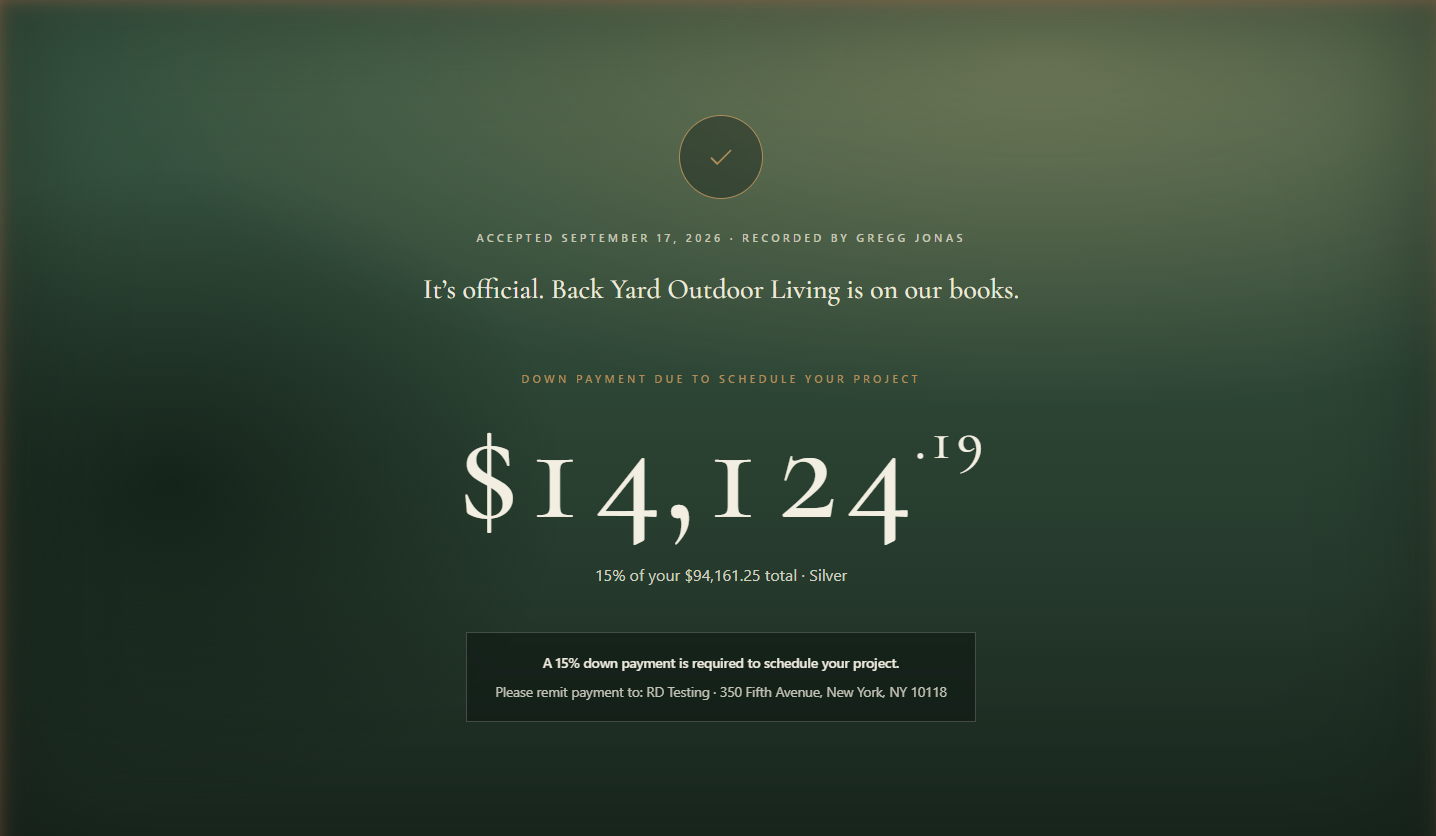
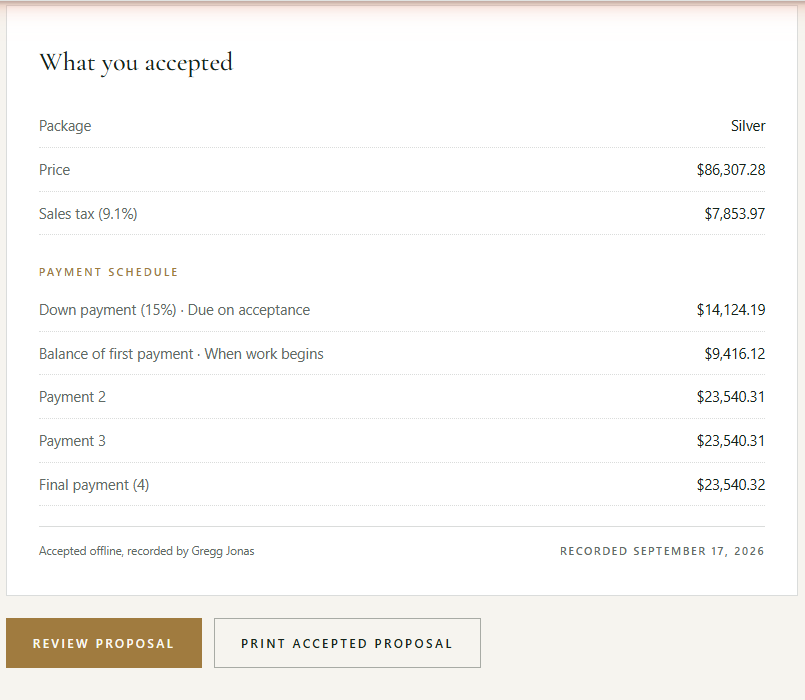
Your client lands on a confirmation page that says the job is on your books, shows the down payment due to schedule the project and where to send it, and lists exactly what they accepted: the package, price, tax, payment schedule, and their signature. They can review or print the signed proposal from there.
At the same time:
- Your client gets a confirmation email with a link to their signed proposal.
- You get a notice that they said yes.
- A signed PDF is created automatically.
- The job moves into Proposals to Schedule, and its budget and invoicing are ready.
- The accept date is recorded on the proposal.
The confirmation email your client receives looks like this:
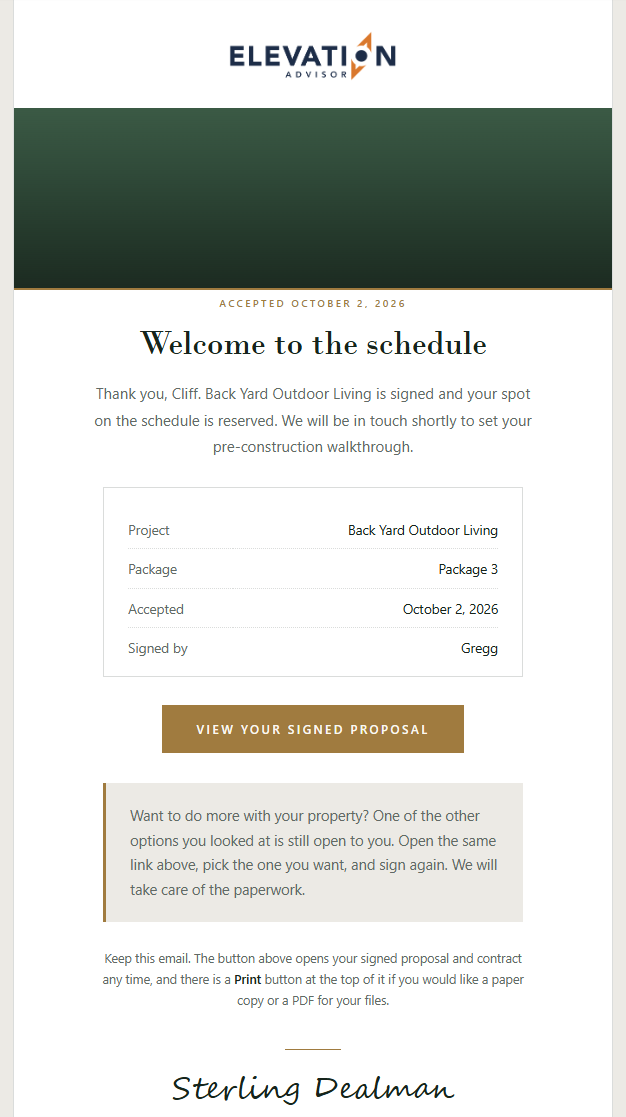
It shows the project, the package, the accepted date, and who signed. A View your signed proposal button opens the signed proposal and contract at any time, and the Print button at the top of it makes a paper copy or a PDF. The email also reminds your client that the other options they looked at are still open, so they can pick one and sign again if they want to do more.
Updated on: 10/02/2026
Thank you!