Foreman/Project Manager Quick Guide
You run the work. The office sold the job and priced it; from the moment it hits the schedule it's yours. Elevation Advisor gives you three things that matter on a job site: the budget your crew is working against, the schedule, and the time record that becomes payroll and job cost.
Here's the part worth taking seriously. Every hour your crew records lands against the hours that were sold. That's how the company finds out whether the price was right, and it's how you find out on Tuesday that a section is running long, instead of finding out at the end of the job when there's nothing to be done about it.
Set Yourself Up Once
- Open your invitation on a computer and set your password there, then install the phone app and sign in with the same details. A first-time password can't be set from the app.
- Open Projects and find a job you're running. Click View Project Budget and look at it before you need it.
- Open Crews and check who's listed under you. The people you see on Timesheets are the field crew, so if somebody's missing, get them added.
Your Day
Start with the budget, not the schedule. Open the project budget and look at the sections your crew is on today: the hours allotted, the materials, the description of services. That tells you what "done" looks like and what you have to work with.
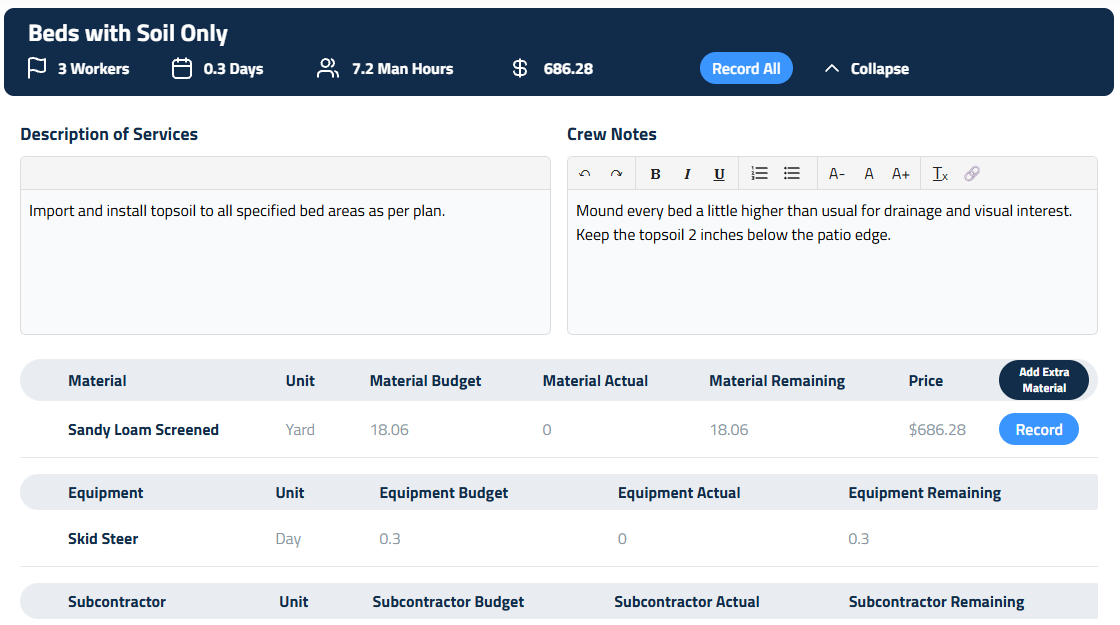
Watch the hours as they land. Timesheets shows you your own time and your field crew's. If a section that was sold at 12 hours is at 16 by lunch on day one, that's the moment to call the office. Nobody minds a heads-up. Everybody minds a surprise.
Fix time the same week. You can edit or delete your crew's entries. Somebody forgot to clock out and has a 14 hour day sitting there? Open the entry, correct it, move on. One caution: Add Manual Entry records against you, not the crew member you have in mind. To correct someone else's day, edit their existing entry rather than adding a new one, and if there's no entry at all to edit, ask the office to add it.
Keep the job's paperwork in the job. Photos, delivery tickets, site notes, they belong on the project, in the folder, where the office and the next person can find them. A photo on your phone helps nobody when there's a dispute in March.
Record material use. The budget tracks what was allowed against what got used. Keeping that current is what makes next year's prices better than this year's guesses.
What You Can Reach
- Projects: full access, including budgets, folders, and files
- Smart Calendar: view what's scheduled
- Timesheets: your own time plus your field crew's, with editing
- Crews: who's on your team
- Dashboard: the Command Center view of how jobs are tracking
- Proposals: read only, so you can see what was sold
What You Can't Do, and Why
You can't export timesheets or submit payroll. The office does that, and it's deliberate: payroll has one owner.
You won't see pricing, labor rates, expenses, invoices, or Profit Genie. You see hours and materials against the budget, which is what you need to run the work. If you think a job was priced wrong, say so; that conversation belongs with whoever priced it.
Your timesheet view shows your field crew only, not office staff and not other foremen.
Your Checklist
- Budget opened before the crew starts a new section
- Crew time complete and corrected the same week
- Overruns flagged to the office while there's still time to react
- Materials and quantities recorded as they're used
- Photos, tickets, and notes filed on the project
- Schedule changes passed to the office, not just handled quietly
Updated on: 10/31/2026
Thank you!