Members (Users and Roles)
Everyone on your team gets their own login, and each login has one role. The role decides what that person can see and change in Elevation Advisor. Pick the smallest role that lets someone do their job; you can always change it later.
The Seven Roles
- Owner/Admin: everything, including Profit Genie, Expenses, the Members tab and your Elevation Advisor billing. Give this to the owner and anyone who sets your pricing.
- Manager: runs the business day to day. Everything except Profit Genie, Expenses and the Members tab.
- Estimator/Sales: builds and sends proposals, schedules work, and handles invoicing. No Profit Genie, Expenses, Labor or company settings.
- Sales: like Estimator/Sales, but proposals and the Smart Calendar are view only. Good for someone who presents proposals your estimator built.
- Accounting: invoicing, Expenses, Labor, and everyone's timesheets, including export. Proposals and the Smart Calendar are view only.
- Foreman/PM: runs crews in the field. Sees projects without the dollar figures, views the calendar, and enters and edits time for their crew.
- Field: clocks their own time and sees the Smart Calendar and project folders.
When someone signs in, they start on the page they use most: Proposals for Owner/Admin, Manager, Estimator/Sales, Sales and Accounting; Projects for Foreman/PM; and the Smart Calendar for Field.
What Each Role Can Do
Area | Owner/Admin | Manager | Estimator/Sales | Sales | Accounting | Foreman/PM | Field |
|---|---|---|---|---|---|---|---|
Dashboard (Command Center) | ✅ | ✅ | ✅ | ✅ | ✅ | No PMM figures | |
Labor Performance and Materials Overage | ✅ | ✅ | |||||
Proposals | ✅ | ✅ | ✅ | View Only | View Only | View Only | |
Projects | ✅ | ✅ | ✅ | ✅ | ✅ | No Budget $ | No Budget $ * |
Invoicing | ✅ | ✅ | ✅ | ✅ | ✅ | ||
Smart Calendar | ✅ | ✅ | ✅ | View Only | View Only | View Only | View Only |
Profit Genie | ✅ | ✅ | |||||
Expenses | ✅ | ✅ | |||||
Labor | ✅ | ✅ | ✅ | ||||
Materials | ✅ | ✅ | ✅ | ✅ | ✅ | ||
Equipment | ✅ | ✅ | ✅ | ✅ | ✅ | View Only | |
Subcontractors | ✅ | ✅ | ✅ | ✅ | ✅ | View Only | |
Clients | ✅ | ✅ | ✅ | ✅ | ✅ | View Only | |
Timesheets | Everyone, edit, export | Everyone, edit, export | Own time | Own time | Everyone, export | Own + Field crew, edit | Own time |
Settings | Everything | All but Members | Own login | Own login | Own login | Own login | Own login |
Reading the table |
- ✅ means full access. View Only means they can open it but not change it. A blank means it's locked; locked items show a lock icon in the menu.
- No Budget $: they can open project budgets and folders, but the dollar figures are hidden.
- * Field gets to project budgets and folders by clicking a job on the Smart Calendar. The Projects menu itself stays locked.
- No PMM figures: Foreman/PM sees the Command Center, but not your PMM numbers. See the next section.
- Own + Field crew: Foreman/PM sees their own time plus everyone with the Field role.
- Own login: they can change their own password, email, name and language in Settings, and nothing else there. Their photo and job title are set by an Owner/Admin on the Members tab. See Account Settings for what's in each section.
Who Sees What on the Command Center
The Command Center is what opens when you click Dashboard. It shows how the business is doing: revenue sold, active jobs, your proposal pipeline, invoicing, how full each crew's calendar is, and how each active job is tracking against its budget. Owner/Admins and Managers also get two detailed reports, Labor Performance and Materials Overage, as tabs at the top of the page.
Command Center | Owner/Admin | Manager | Estimator/Sales | Sales | Accounting | Foreman/PM | Field |
|---|---|---|---|---|---|---|---|
Command Center page | ✅ | ✅ | ✅ | ✅ | ✅ | ✅ | |
Daily PMM tile | ✅ | ✅ | ✅ | ✅ | ✅ | ||
Refresh data button | ✅ | ✅ | ✅ | ✅ | ✅ | ||
Labor Performance report | ✅ | ✅ | |||||
Materials Overage report | ✅ | ✅ |
- Daily PMM tile: shows your YTD Daily PMM once you have completed jobs, and your Profit Genie Daily PMM Target until then. Foreman/PM doesn't get this tile at all, and none of your PMM numbers are sent to their screen.
- Labor Performance shows each employee's hours, overtime and labor cost. Pay rates can be worked out from those numbers, so it's limited to Owner/Admin and Manager.
- Materials Overage shows budget, actual spend and overage by project and by item.
- Refresh data: the Command Center updates itself every few minutes. This button updates it right away.
- Field sees the standard Dashboard instead of the Command Center.
Adding People and Changing Roles
To add someone: click the gear icon, open Invite Users in Account & Profile, fill in their name, email and role, and click Send Invite. Owner/Admins and Managers can do this. They'll get an email with a temporary password and set their own password the first time they sign in.
To change someone's role: only an Owner/Admin can do this.
- Click the gear icon, then the Members tab.
- Click the three dots next to their name and choose Edit Member.
- Switch on the new role and click Save.
If they don't see the change right away, have them refresh the page or sign out and back in.
For step-by-step detail on inviting, re-sending an invite and removing someone, see Account Settings.
The Members Tab (Owner/Admin Only)
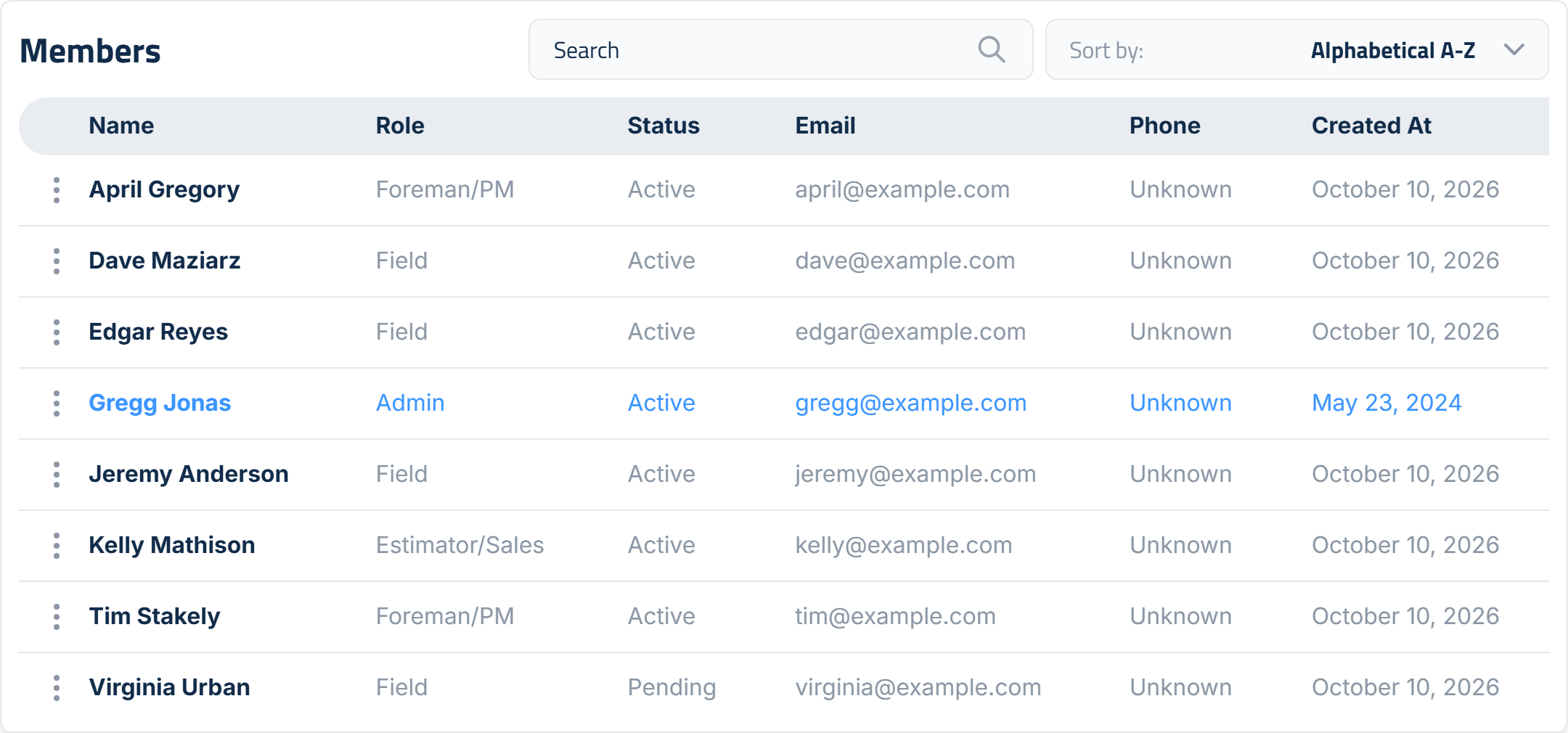
The Members tab lists everyone in your company with their Name, Role, Status, Email, Phone and Created At date. Use Search to find someone, or sort A-Z or Z-A.
Pending means they've been invited but haven't signed in yet. They switch to Active after their first sign-in.
Member Profiles
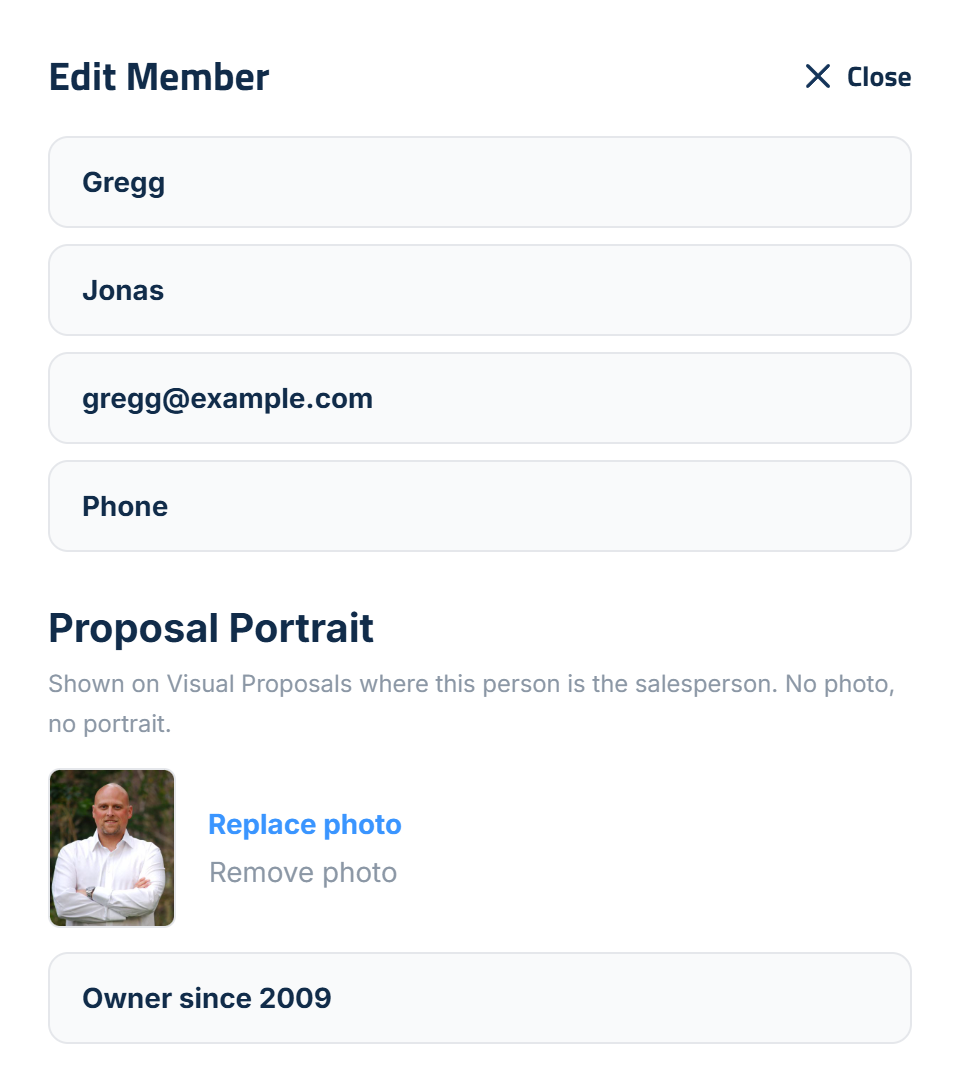
Every member has a profile: first name, last name, email, phone, and a proposal portrait, which is a photo and a job title. An Owner/Admin edits it on the Members tab: click the three dots next to the person's name and choose Edit Member, then Save.
- Photo and Job Title: when someone is picked as a proposal's Sales rep, their photo, name and job title show beside the personal note on the proposal your client sees. No photo means no portrait, never a name on its own.
- Who can change it: only Owner/Admins set photos and job titles, including their own from their own row. Anyone else who wants their photo on proposals asks an Owner/Admin.
- Email can't be changed on the Members tab. Each person changes their own email, name and password in Account & Profile.
- Changes reach open proposals right away. A new photo or job title shows on every proposal that isn't accepted yet. Accepted proposals keep the portrait the client signed with.
Adding a Photo and Job Title
- Click the gear icon, then the Members tab.
- Click the three dots next to the person's name and choose Edit Member.
- Under Proposal Portrait, click Add photo (or Replace photo) and pick an image up to 20 MB. A head-and-shoulders photo works best.
- Type their Job Title the way you'd want a client to read it, for example "Owner, 20 years in the field".
- Click Save.
Remove photo takes the photo off.
Role Quick Guides
Each role has its own quick guide with day-one setup, a daily routine, and what that role can't do and why. Send the right one to each new person you invite:
- Owner and Admin Quick Guide
- Manager Quick Guide
- Estimator/Sales Quick Guide
- Sales Quick Guide
- Accounting Quick Guide
- Foreman/Project Manager Quick Guide
- Field Quick Guide
Updated on: 10/31/2026
Thank you!