How to Add Subcontractors
Subcontractors are a vital part of many landscape businesses. Whether you’re hiring a specialist for irrigation, concrete, lighting, or other services, Elevation Advisor makes it easy to organize and price their work inside your proposals.
Let’s walk through how to set up your subcontractor catalog so you can quote jobs quickly and accurately.
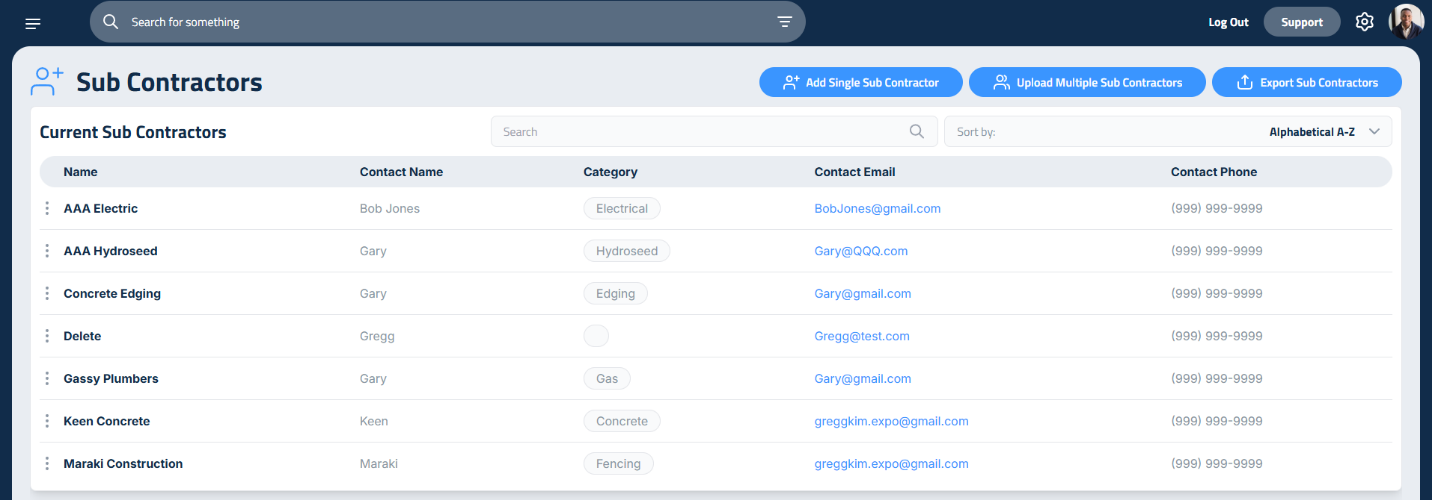
Step 1: Add a Single Subcontractor
1. Click the Add Single Subcontractor button.
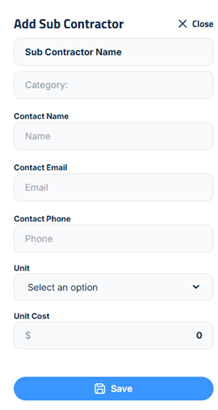
2. A sidebar will open where you’ll enter all the key details:
- Company Name: Enter the name of the contracting company.
- Category: Type a name and press Enter to create a new category, or select an existing one from the dropdown. Categories are saved for future use.
- Contact Info: Enter the subcontractor’s contact name, email address, and phone number.
- Unit of Measurement: Use the Unit dropdown to select how their service is measured (e.g., per square foot, per hour).
- Unit Cost: Enter the price per unit.
Once everything is filled out, click Save to add the subcontractor to your catalog.
Step 2: Bulk Import Subcontractors
If you work with a large number of subcontractors, save time using the bulk import feature:
- Download the CSV template.
- Fill it out with your subcontractor information.
- Save the file.
- Click Upload Multiple Subcontractors and select your completed CSV file to import it into Elevation Advisor.
You can also export your subcontractor catalog at any time:
Updated on: 06/26/2026
Thank you!