Owner and Admin Quick Guide
This is your company, and this is the account that can change anything in it. Rates, roles, integrations, pricing targets, who sees what. Nobody else can undo what you set here, which is the point and also the reason to set it deliberately.
If you're the one who bought Elevation Advisor, start here and work down the page in order. An afternoon spent on setup saves a season of arguing with numbers you don't trust.
Get the Foundation Right
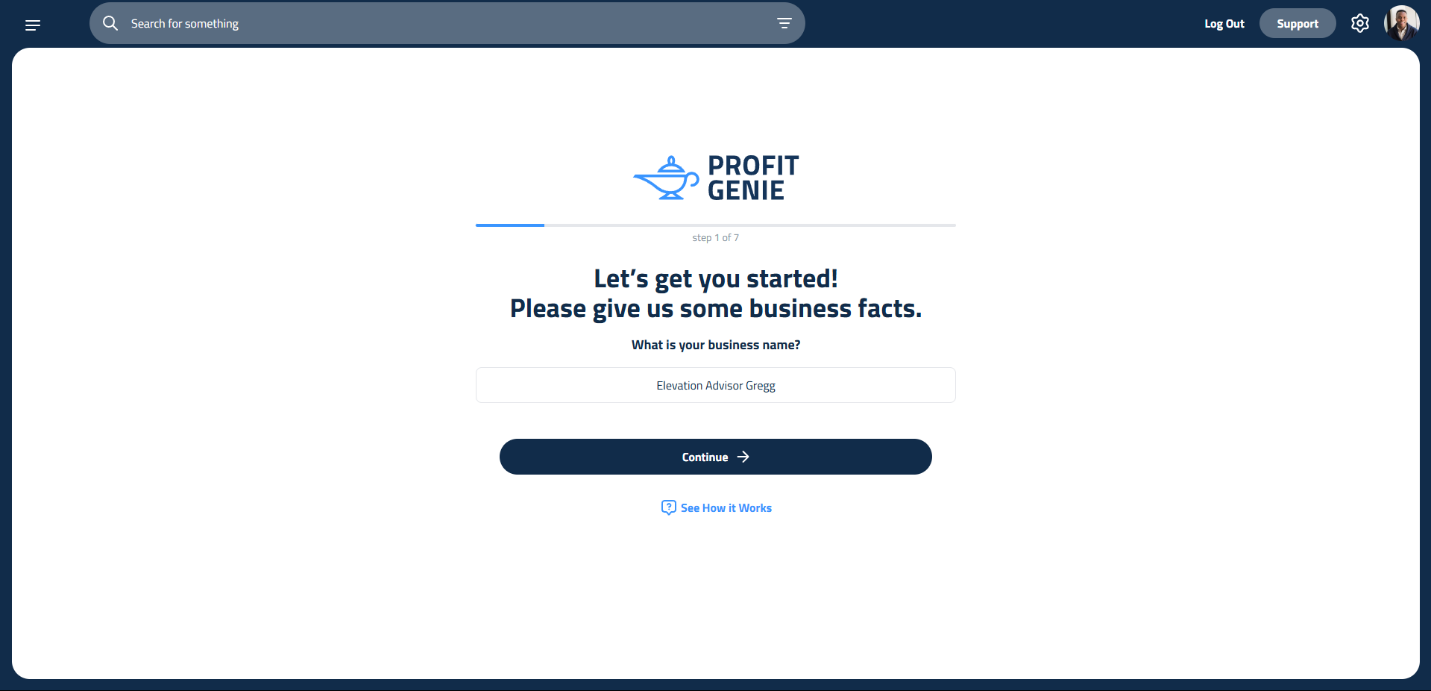
Profit Genie first. Before anyone prices a job, this is where you tell the software what it actually costs to run your company: wages and burden, equipment, overhead, unbilled labor, and the profit you intend to make. Every price the software produces is built on these numbers. Put in real figures, even the uncomfortable ones. A price built on optimistic overhead is how companies stay busy and broke.
Then your catalog. Materials, labor items, equipment and subcontractors. This is what your estimators pick from, so the better it is, the faster and more consistent their proposals are.
Then templates. Sections your crews build over and over, saved once and reused. Templates are the difference between a proposal taking an hour and taking a day.
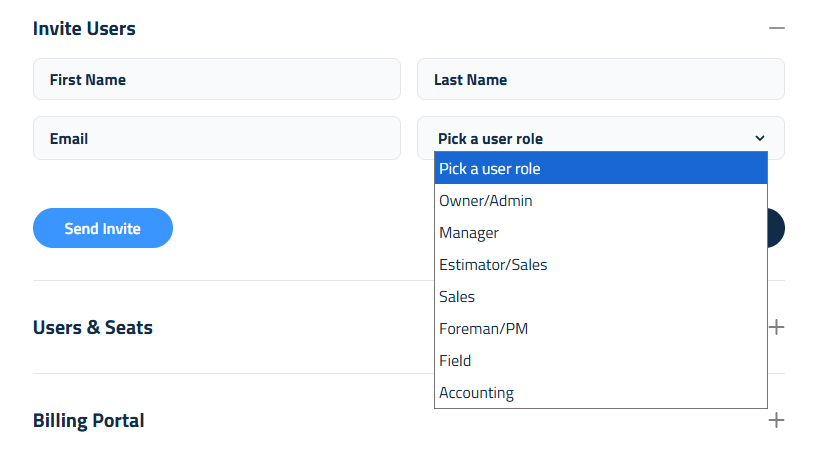
Then your people. Settings, Account & Profile, Invite Users. Give each person the narrowest role that lets them do their job, because roles decide what people can see:
- Manager: everything day to day, including reports and payroll
- Estimator/Sales: builds and sends proposals, no company cost settings
- Sales: presents proposals and owns the client, view only on the proposal itself
- Accounting: invoicing, payroll, QuickBooks
- Foreman/PM: projects, budgets, and the crew's time
- Field: their own time and the schedule
Then your integrations. Settings, Account & Profile, Integrations. Connect Stripe here if you want clients paying online. QuickBooks is set up separately, so talk to us before your first billing run.
What Only You Can Do
- Change Profit Genie targets and lock them
- Add and remove users, change roles, manage seats and billing
- Connect or disconnect Stripe
- Change company details, PDF footers, holidays and time zone
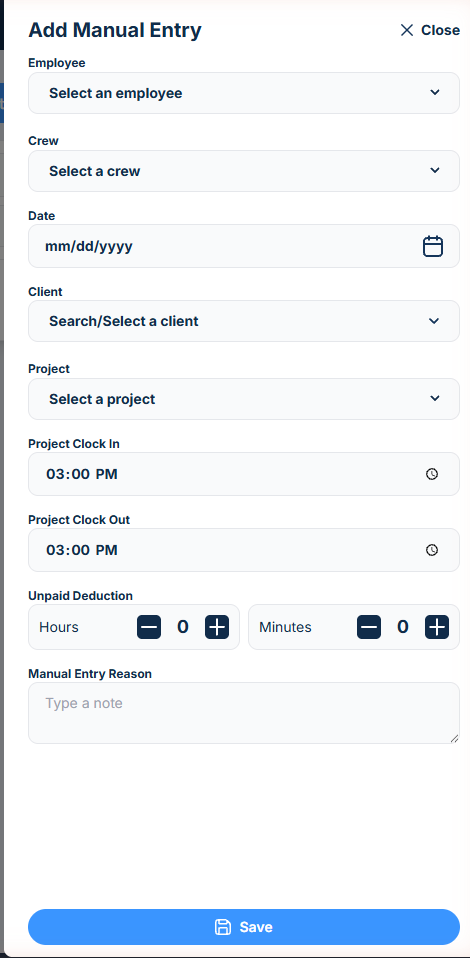
- Add a manual timesheet entry against another employee
That last one matters more than it looks. When somebody's day is missing entirely, you're the one who can put it back.
Your Rhythm
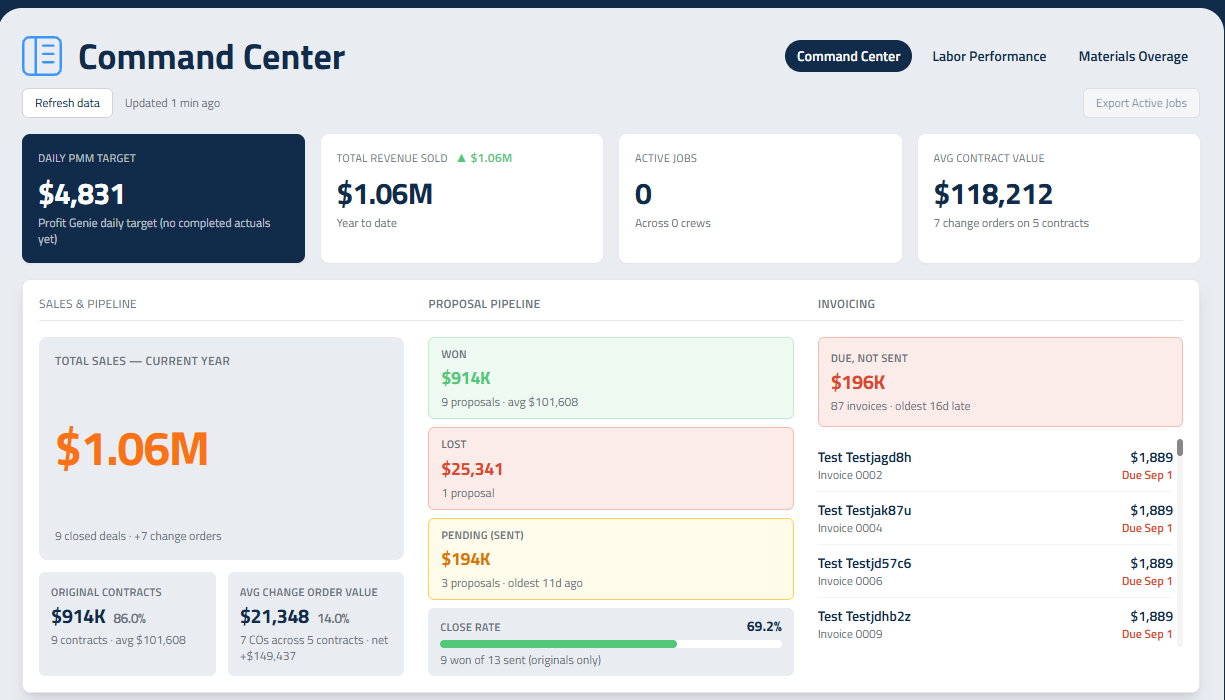
Weekly: open the Dashboard and look at the Command Center. Jobs running over show up there before they show up in your bank account. Check that invoices due have actually been sent, because drafts sit quietly until somebody sends them.
Every payroll: make sure time was reviewed, exported and submitted, and that nothing is sitting unapproved.
Quarterly, or whenever costs move: revisit Profit Genie. Wages went up, insurance renewed, you bought a machine. If those changes aren't in here, every proposal you send is priced on last year's company.
Your Checklist
- Profit Genie filled in with real numbers and locked
- Catalog and templates built out before estimators start
- Everyone on the narrowest role that fits their job
- Stripe connected if you want clients paying online
- Command Center reviewed weekly
- Profit Genie revisited whenever costs change
Updated on: 10/31/2026
Thank you!