Filling Out Profit Genie Wizard
The first time you select Profit Genie from the menu, you’ll be taken to a seven-step set-up wizard. To begin, click Start Your Journey.
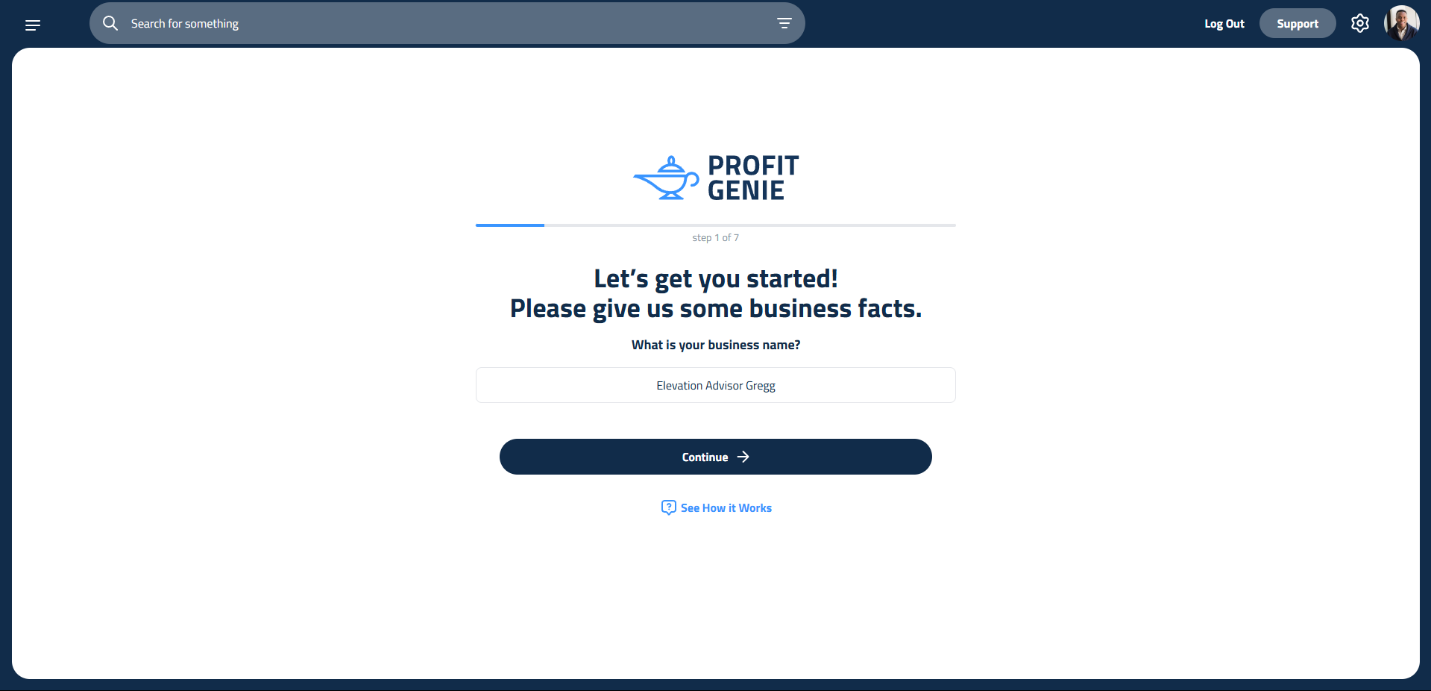
Step 1: Company Name
Enter your company name and click Continue.
Step 2: Full-Time Field Employees
Input the number of full-time field employees, those who work directly in the field or on crews generating income.
Do not include office staff, managers, or salespeople. These roles will be added later under Overhead Employees.
Step 3: Part-Time Field Employees
Enter the number of part-time field employees who generate income in the field.
If none, enter 0.
Step 4: Workdays Per Week
Specify how many days per week your company typically works.
Example: If you work four 10-hour days and a 4-hour Friday, enter 5, not 4.5.
Step 5: Daily Work Hours
Enter your average daily work hours, including overtime.
Example: If your team works 44 hours over 5 days, input 8.8 hours/day.
Step 6: Construction Season Dates
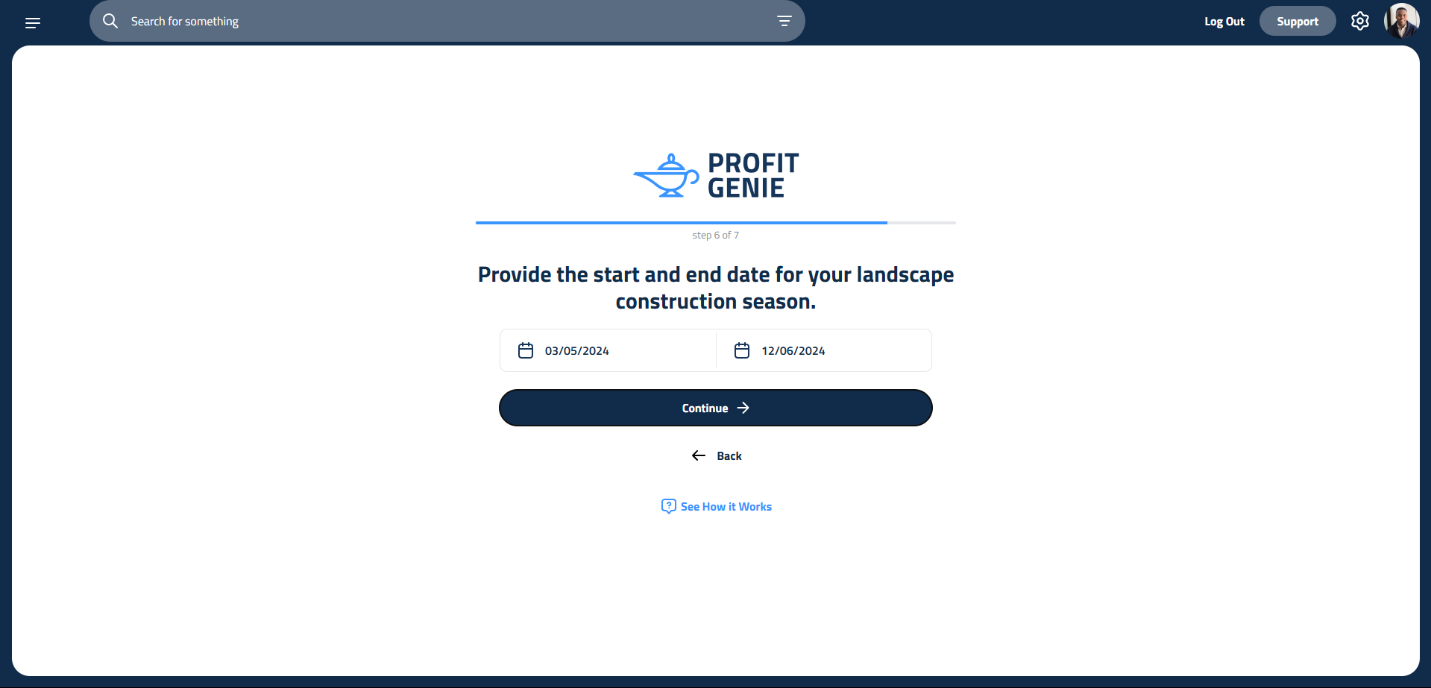
Set your start and end dates for the active construction season. This helps Profit Genie calculate how much revenue you need to generate during active months to cover off-season expenses.
Step 7: Holidays
Enter the number of single-day holidays your company observes annually.
Include days like Memorial Day, July 4th, etc.
You can increase this number if you offer extended time off around holidays.
Once all steps are complete, you can move on to the next section to setup your equipment.
To watch an informational video about this process, click here!
Updated on: 10/31/2026
Thank you!