How to Use the Supplier Catalog
The Supplier Catalog keeps every yard, nursery and store you buy from in one place, with the phone number, email, address and contact person for each. When your crew orders on a Project Budget, they see the supplier's phone and address, can tap to call or get directions, and order emails go straight to the right inbox.
You don't start from scratch. Every supplier already on your materials or past orders is on the list the first time you open it, so all you add is their details.
Getting to the Supplier Catalog
Click Catalog in the menu, then Suppliers.
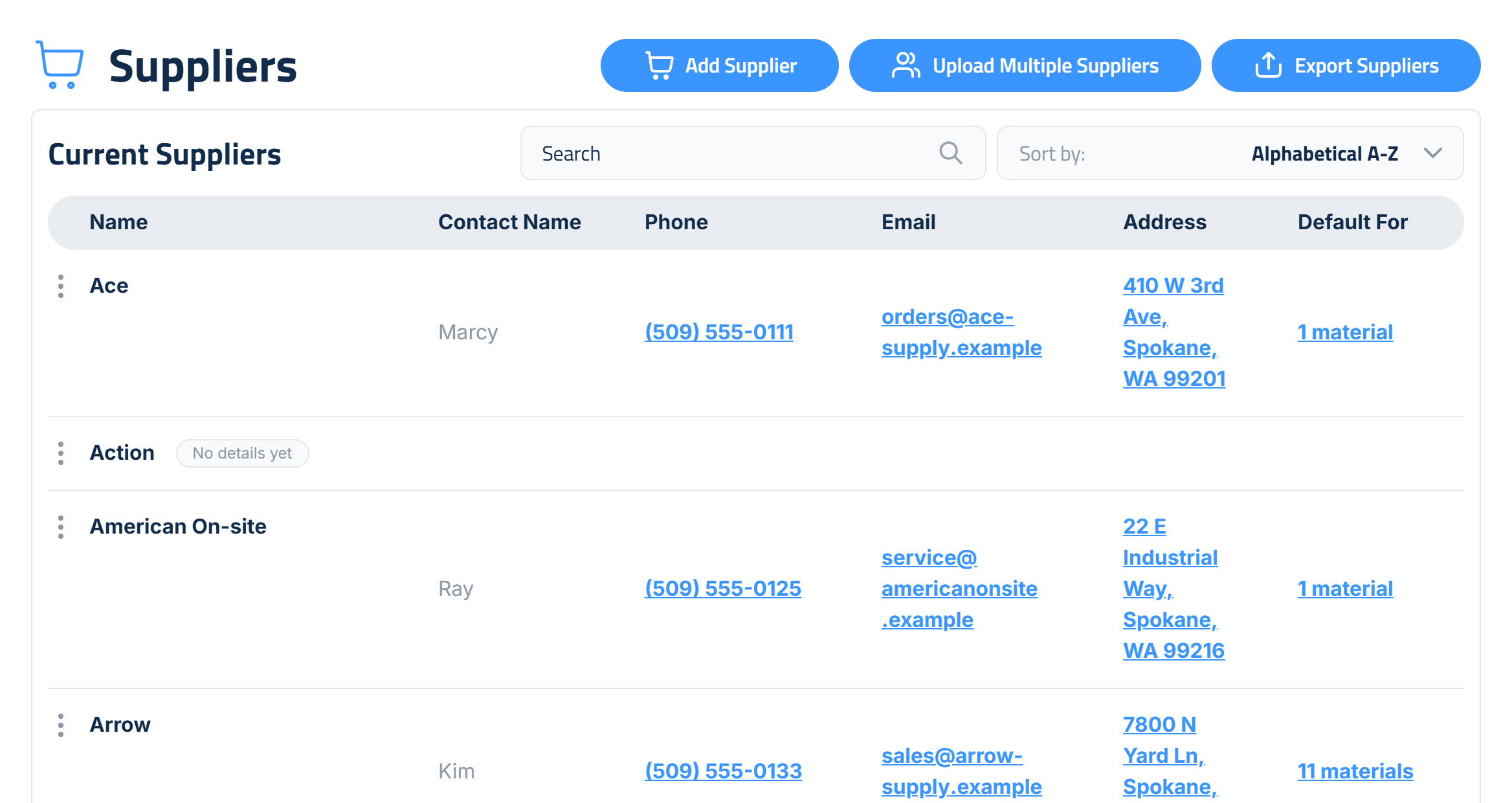
Your Supplier List
Each row shows the supplier's Name, Contact Name, Phone, Email, Address and Default For:
- Phone, Email and Address are links. Click a phone number to call, an email to start a message, or an address to open it in Google Maps.
- No details yet tags a supplier that's on your materials or past orders but has no saved phone, email or address. Add them any time (see below).
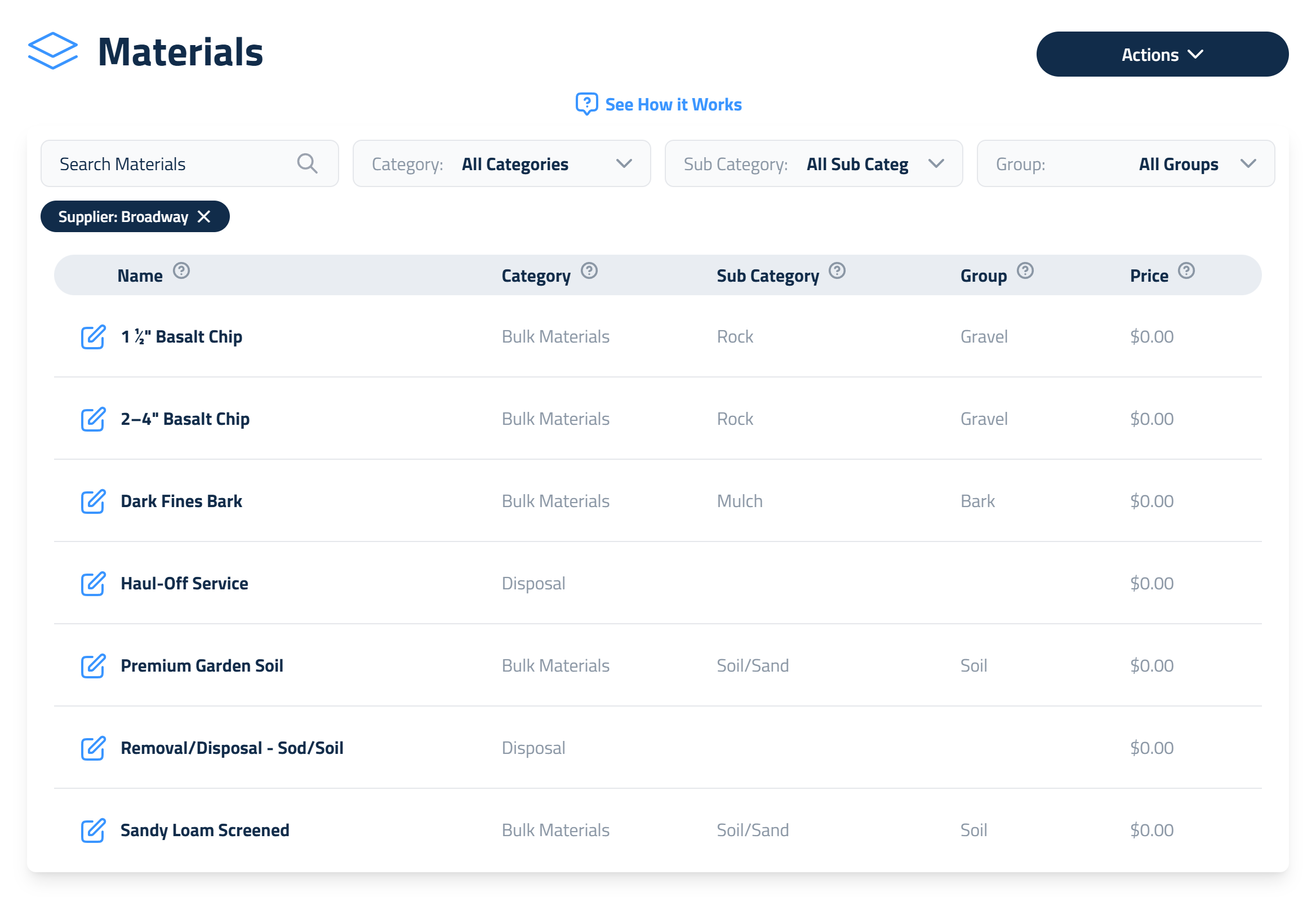
- Default For shows how many materials use this supplier as their default. Click it to open your Materials catalog showing only those materials. Click the ✕ on the Supplier chip above the list to see all your materials again.
Use Search to find a supplier by name, contact, phone, email or address, and Sort by to flip the order. On a phone, tap a supplier to see its details.
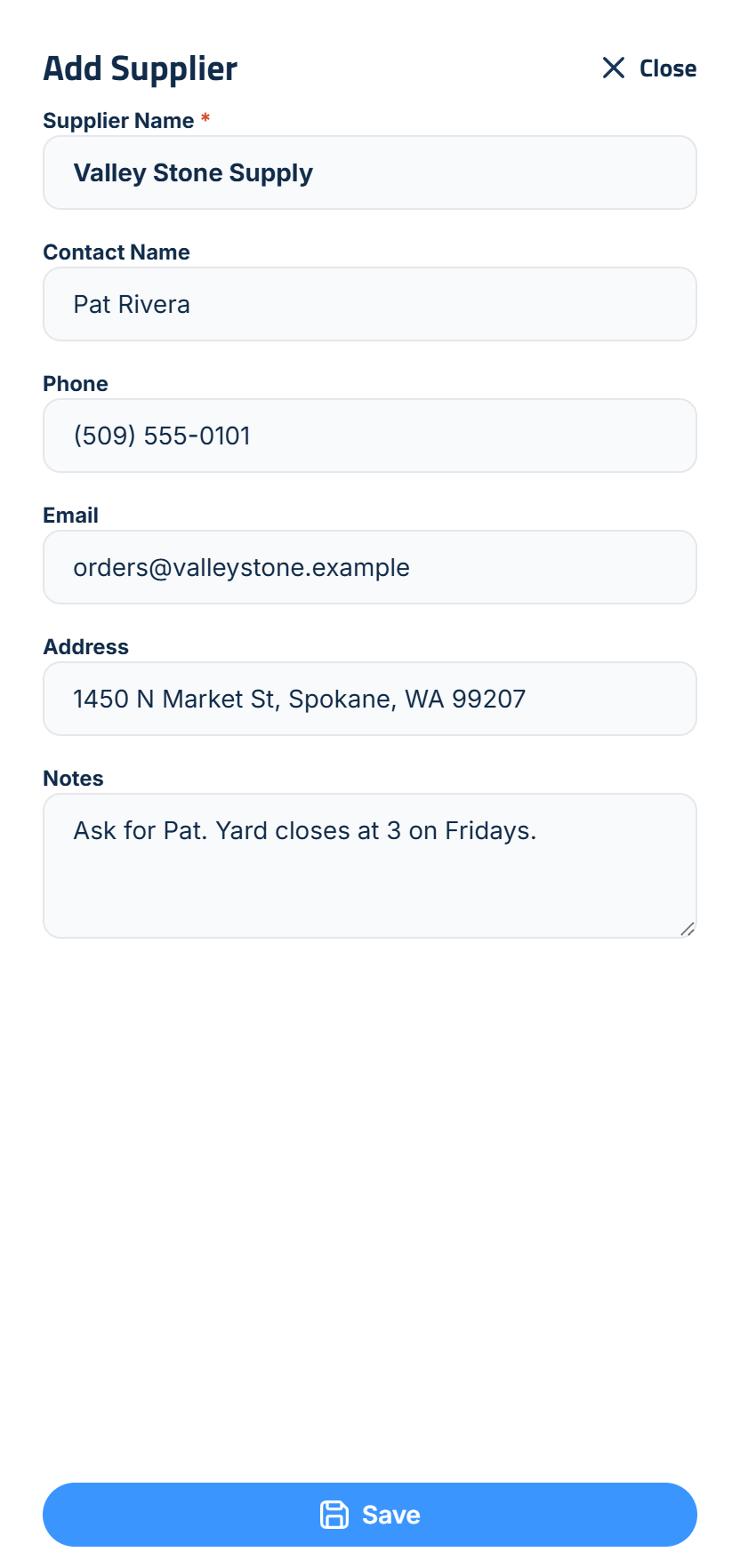
Adding a Supplier
- Click Add Supplier.
- Enter the Supplier Name. Everything else is optional: Contact Name, Phone, Email, Address and Notes. Phone numbers format as you type, like (509) 555-0101.
- Click Save.
To add details to a supplier tagged No details yet, click the three-dot menu next to its name and choose Add Details.
Editing a Supplier
Click the three-dot menu next to a supplier and choose Edit Supplier. Change any detail and click Save.
If you rename a supplier, every material that uses it is renamed too, so nothing has to be fixed by hand.
Uploading Suppliers from a Spreadsheet
If you already keep your suppliers in a spreadsheet, upload them all at once:
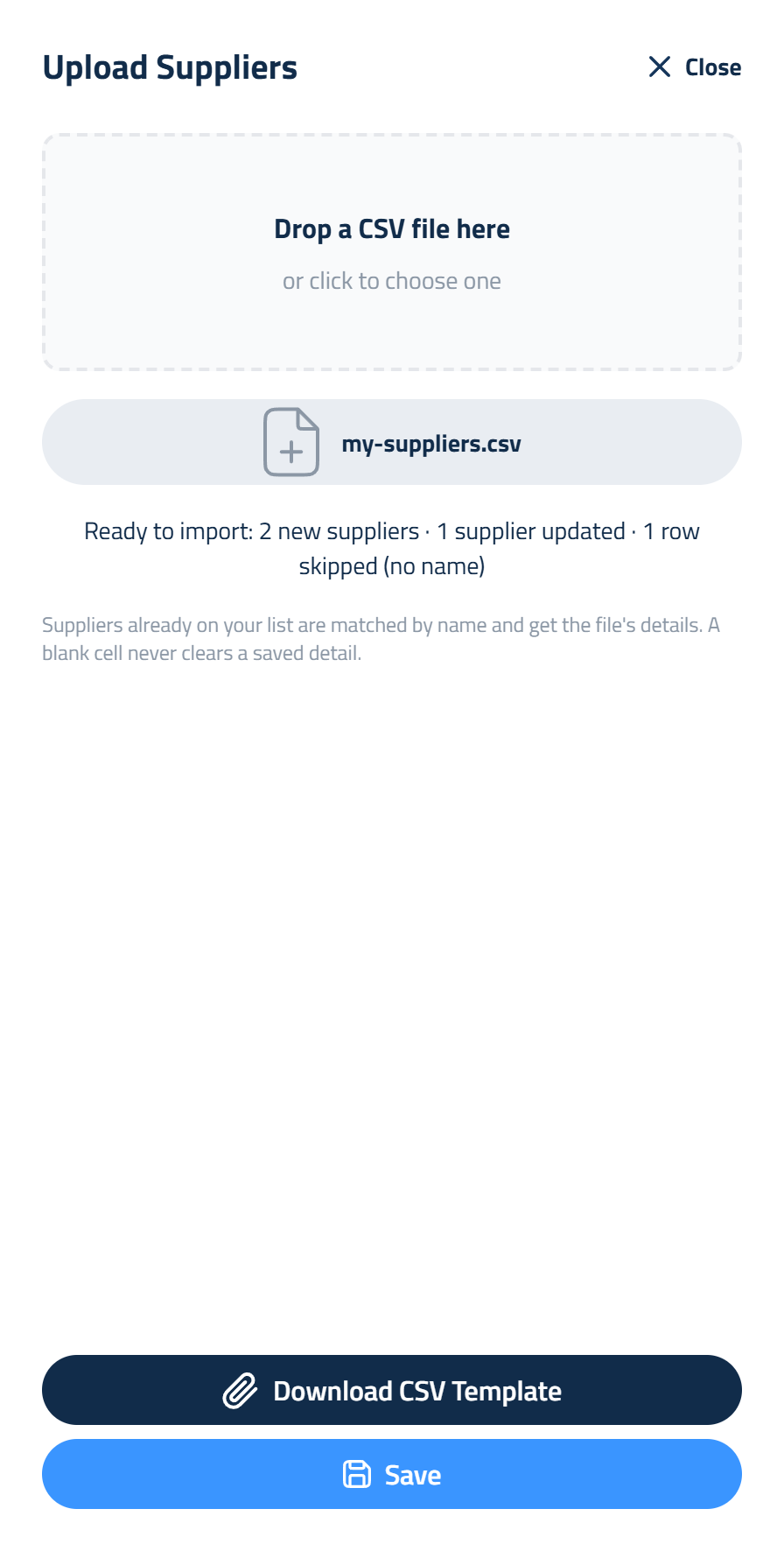
- Click Upload Multiple Suppliers.
- Click Download CSV Template. It has the columns Name, Contact Name, Phone, Email, Address and Notes, with one example row. Only Name is required.
- Fill it in and save it as a CSV file.
- Drop the file on the upload box, or click it to choose the file.
- Check the preview, for example "Ready to import: 12 new suppliers · 5 suppliers updated", then click Save.
A few things to know:
- Suppliers already on your list are matched by name, ignoring capital letters, and get the file's details. A blank cell never clears a detail you already saved.
- A name that appears twice in the file is counted once.
- Rows without a name are skipped and counted in the preview.
- 10-digit phone numbers are formatted for you.
- Up to 1,000 suppliers per file.
Exporting Your Suppliers
Click Export Suppliers to download your whole list as a CSV file, in the same columns as the template. It's the easiest way to update a lot of suppliers at once: export, make your changes, and upload the file again.
Merging Duplicate Suppliers
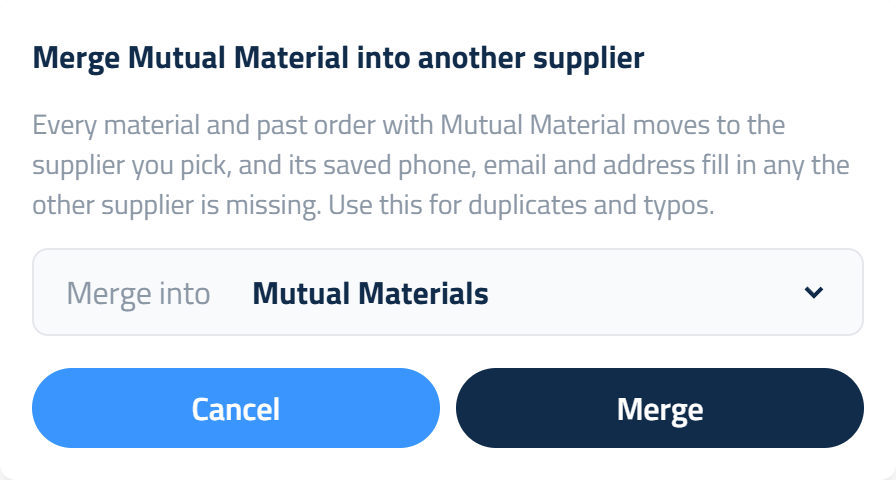
Over the years a supplier can end up on your materials under two names, like "Broadway" and a typo, "Broaway". Merge them into one:
- Click the three-dot menu next to the name you want to get rid of and choose Merge Into Another Supplier.
- Pick the supplier to keep in Merge into.
- Click Merge.
Every material and past order with the old name moves to the supplier you kept. If the old one had a phone, email or address that the one you kept is missing, those details move over too. The old name then comes off your list.
Removing a Supplier
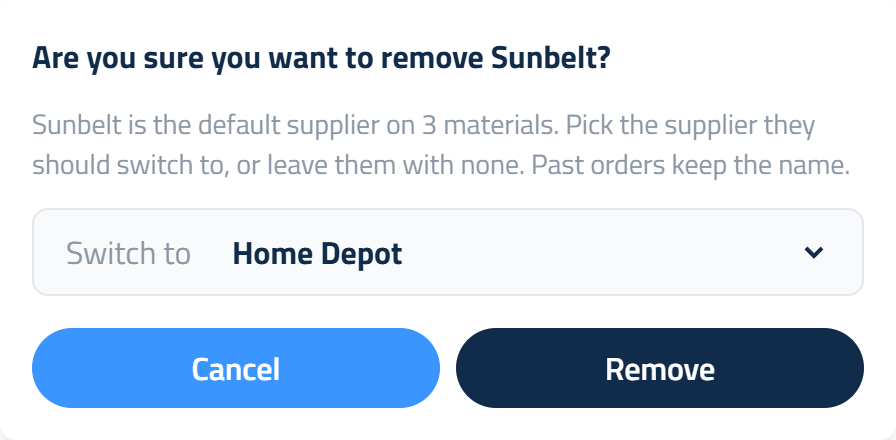
- Click the three-dot menu next to the supplier and choose Remove Supplier.
- If materials use it as their default supplier, pick the supplier they should switch to in Switch to, or leave No supplier.
- Click Remove.
The supplier comes off your list and off any materials that mention it. Past orders keep its name, because they're a record of what happened, but that doesn't bring it back onto the list. If you add or upload the same supplier again later, it comes back.
Setting a Material's Default Supplier
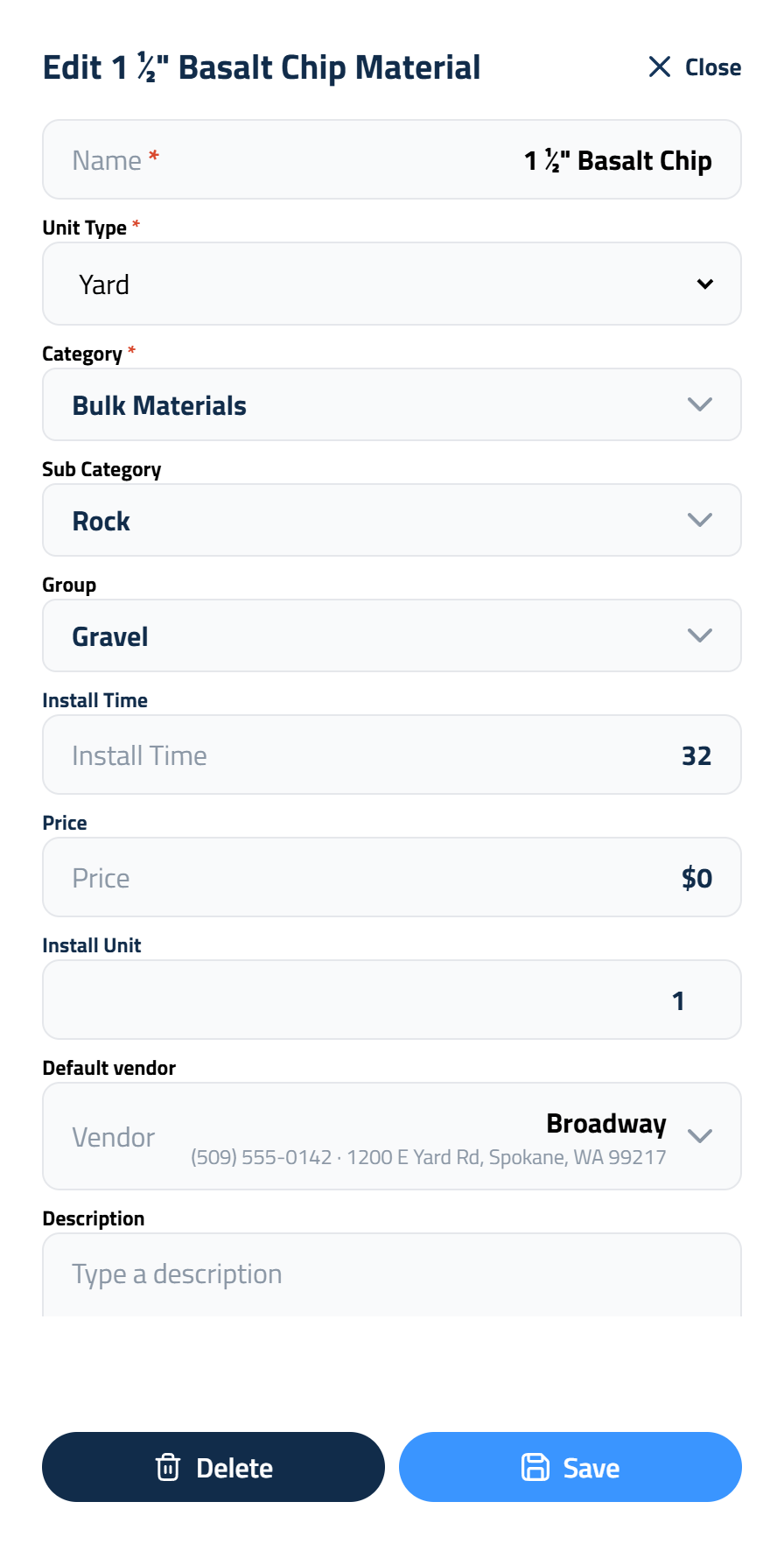
Each material in your Materials catalog has one default supplier. When your crew records an order, it's picked for them, and they can choose any other supplier if they bought the material somewhere else.
To set it, open a material with Add Single Product or its edit button, click Default vendor and pick a supplier from the list. Start typing to search, or type a new name and click + Add to add a supplier on the spot.
Who Can Do What
- Owners, admins, managers, estimators, sales and accounting can do everything on this page.
- Foreman/PM can view, add and edit suppliers, but can't upload, export, merge or remove them.
- Field can view the list.
Updated on: 10/31/2026
Thank you!