How to Use Timesheet Reporting
The Timesheets page shows every hour your crew clocks, so you can check the week before payroll, catch mistakes early, and see how much paid time actually lands on jobs. Open it from the sidebar under Reporting > Timesheets.
The page has two tabs that look at the same time records:
- Weekly Hours shows each person's paid hours for the week, day by day, with overtime and anything that needs fixing. It is the tab the page opens on.
- Entries shows the clock records themselves, grouped by day, so you can see exactly when someone clocked in and out and fix a record.
Both tabs follow the same week and show the same totals at the top, so you can move between them without the numbers changing.
Shop Clock and Job Clocks
Your crew uses two kinds of clocks in the mobile app:
- The shop clock is the clock-in for the workday. It runs from the moment someone starts their day until they finish it.
- A job clock runs while someone works on a specific project. A person can work several jobs in one day, one at a time, while their shop clock keeps running.
The time between job clocks, such as loading the truck, a supply run, or yard work, shows up on Timesheets as Not on a job. It is paid time that no job's labor covers. A little of it is normal. A lot of it is either overhead worth looking at or a crew that forgot to start the job timer, which makes the job look cheaper than it really was. To learn more about this kind of time and how to reduce it, see The Hidden Cost of Unbillable Labor.
Who Sees What
Role | What they see on Timesheets | Can they edit entries? |
|---|---|---|
Admin, Manager | Everyone's time | Yes, anyone's |
Accounting | Everyone's time | Only their own |
Foreman/PM | Their own time and their field crew's time | Their own and their field crew's |
Field | Their own time | Only their own |
Export Timesheet is available to Admin, Manager, and Accounting.
Choosing a Week
The dark bar at the top of the page shows the week you're looking at, Monday through Sunday. Use the arrows to move back or forward a week. The page opens on the current week.
Under the bar, four cards sum up the time:
- Total Hours: paid hours, after unpaid time such as lunch is taken out.
- On Jobs: hours clocked to a project.
- Not on a Job: clocked in, but not on any project, with its share of the total.
- Needs Attention: how many people have at least one record to check.
On the Weekly Hours tab the cards cover the whole week. On the Entries tab they cover whatever rows your filters leave, so they always match the list below them.
Weekly Hours
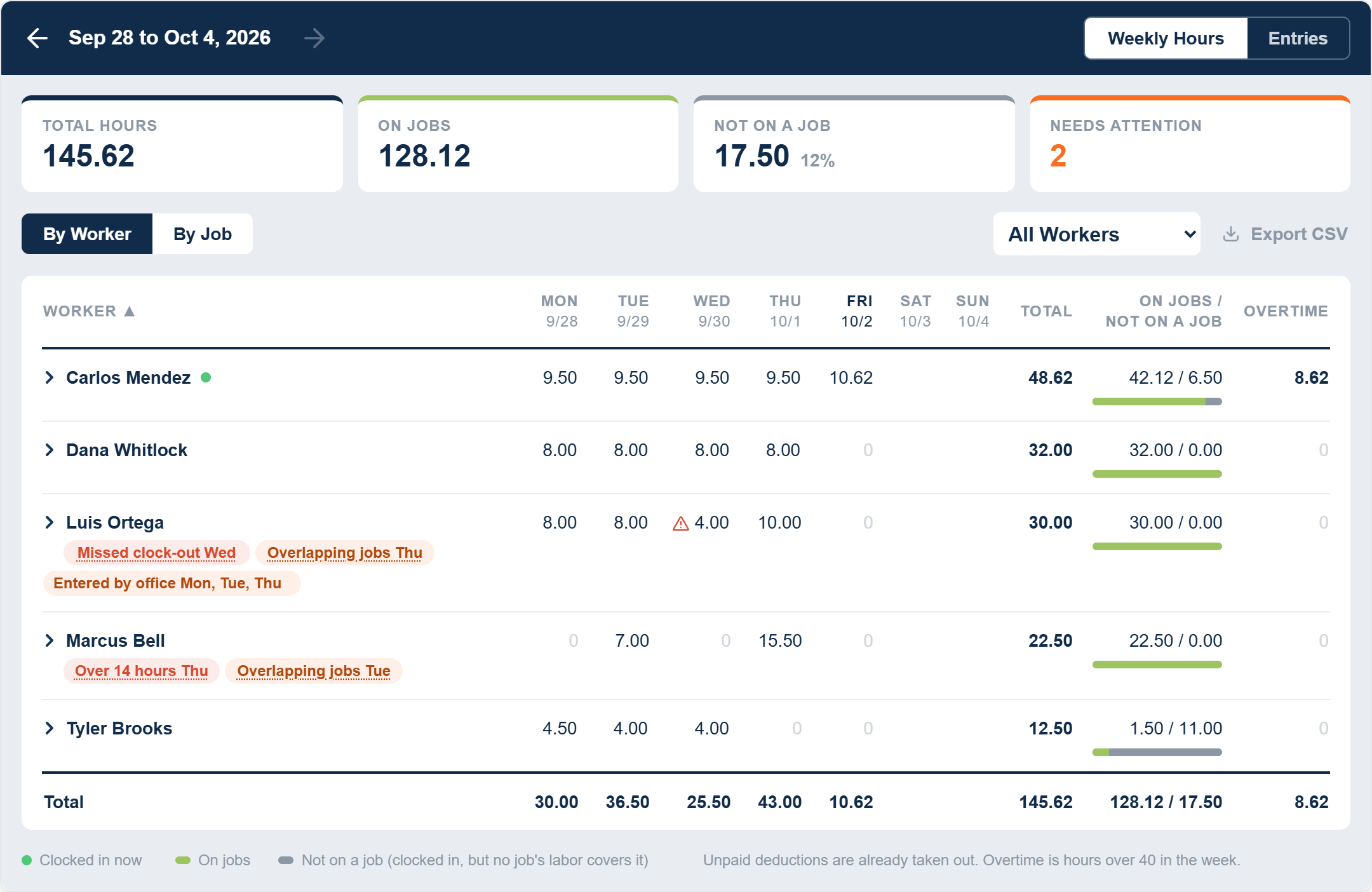
Each row is one person. You'll see their paid hours for each day, the week's Total, how much of it was On jobs / Not on a job (the green and gray bar shows the split), and Overtime, which is every hour over 40 in the week. A green dot next to a name means that person is clocked in right now.
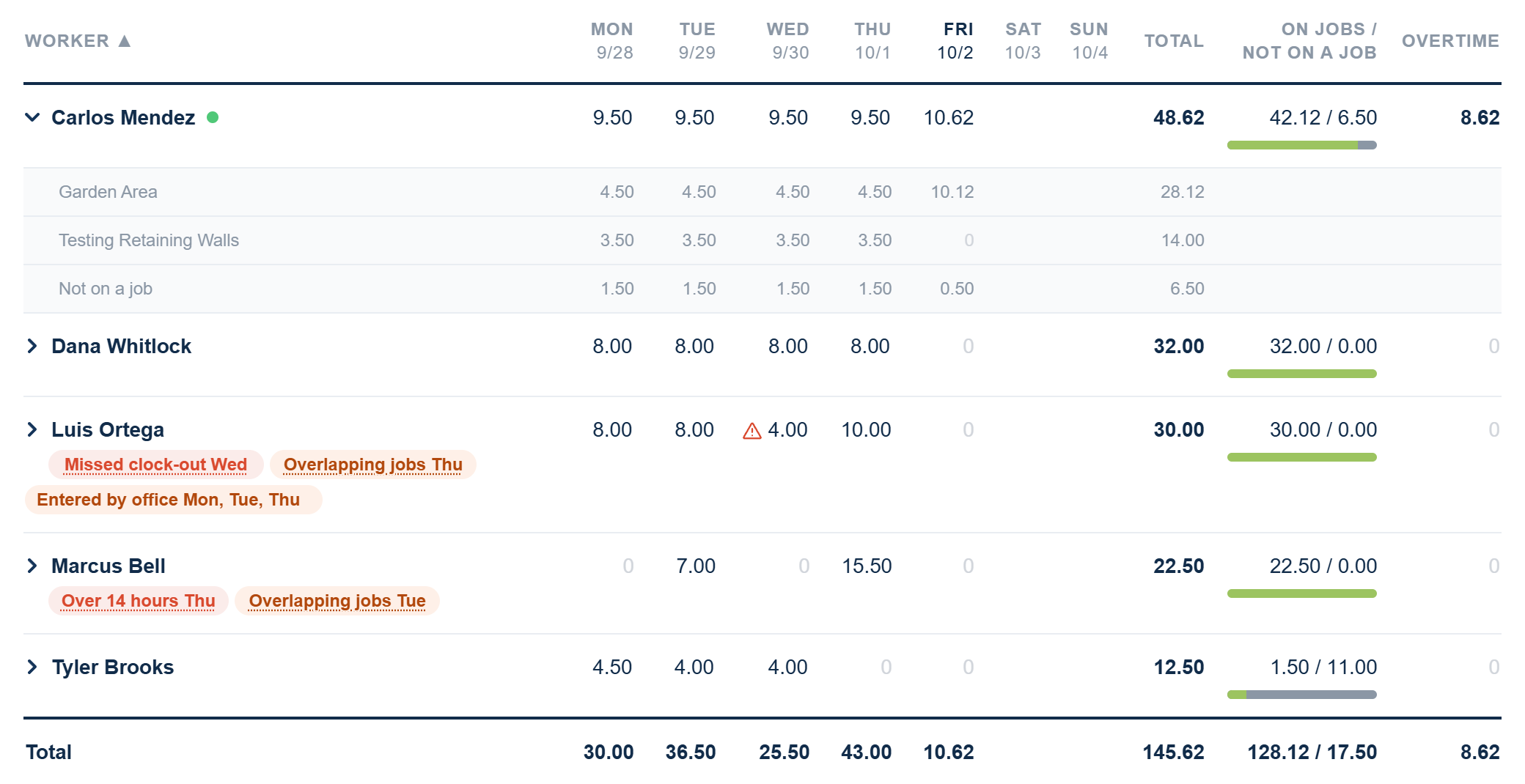
See the jobs behind a person's week. Click their row to open a line for each project they worked, plus their time not on a job.
See one day's clock records. Click any day's hours to jump to the Entries tab, filtered to that person and that day.
Spot overtime before it happens. When someone is on track to pass 40 hours, a red on pace for 48 hrs tag appears under their overtime. It assumes they keep working their average day for this week through Friday, so you have time to adjust the schedule before the overtime is paid.
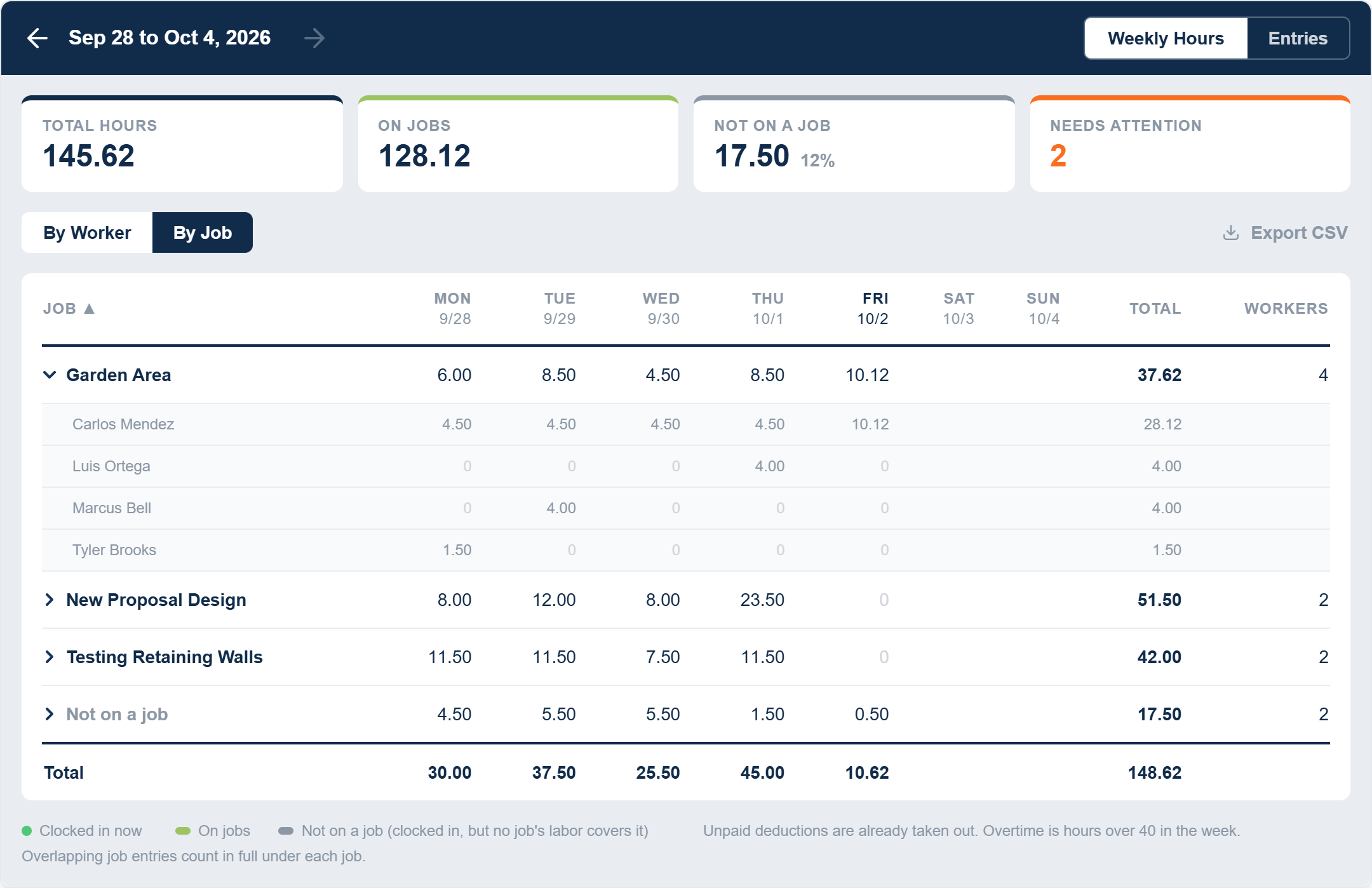
Switch to By Job. The By Job button turns the table around: one row per project, with the hours worked on it each day and how many people worked it. Click a project to see who worked it. Click a project name to open the project.
Sort, filter, and export. Click the Worker, Total, On Jobs / Not on a Job, or Overtime column title to sort; click it again to flip the order. Choose Needs Attention in the All Workers menu to list only the people with something to check. Export CSV downloads the week as a spreadsheet with one row per person: each day's hours, the total, on jobs, not on a job, regular hours, overtime, and any flags.
What Needs Attention
Timesheets flags records that are usually mistakes, so you can fix them before payroll. Hover a flag to see why it appeared. If you can edit entries, click the flag to open the record behind it.
Flag | What it means |
|---|---|
Missed clock-out | A clock was started but never stopped. Its hours are left out of every total until someone sets the clock-out time. A clock started today is not flagged; it shows as clocked in. |
Over 14 hours | More than 14 paid hours in one day. Usually a clock-out time that's wrong. |
Overlapping jobs | Two job records cover the same time. The mobile app runs one job at a time, so this was typed in by hand. The total only counts the time once. |
Job time over shift | The job records add up to more than the shop clock. Job time belongs inside the shop clock, so a job record overlaps it or runs outside it. |
Synced late | A clock-in or clock-out reached the office more than 5 minutes after the phone recorded it, usually because the phone had no signal, or the phone's clock was running ahead. The hours are as the phone recorded them. Hover the flag to see both times, and check any that look wrong. |
Entered by office | Someone other than the worker entered or changed this time. Nothing is wrong; it's there so you know the record didn't come from the worker's phone. |
Entries
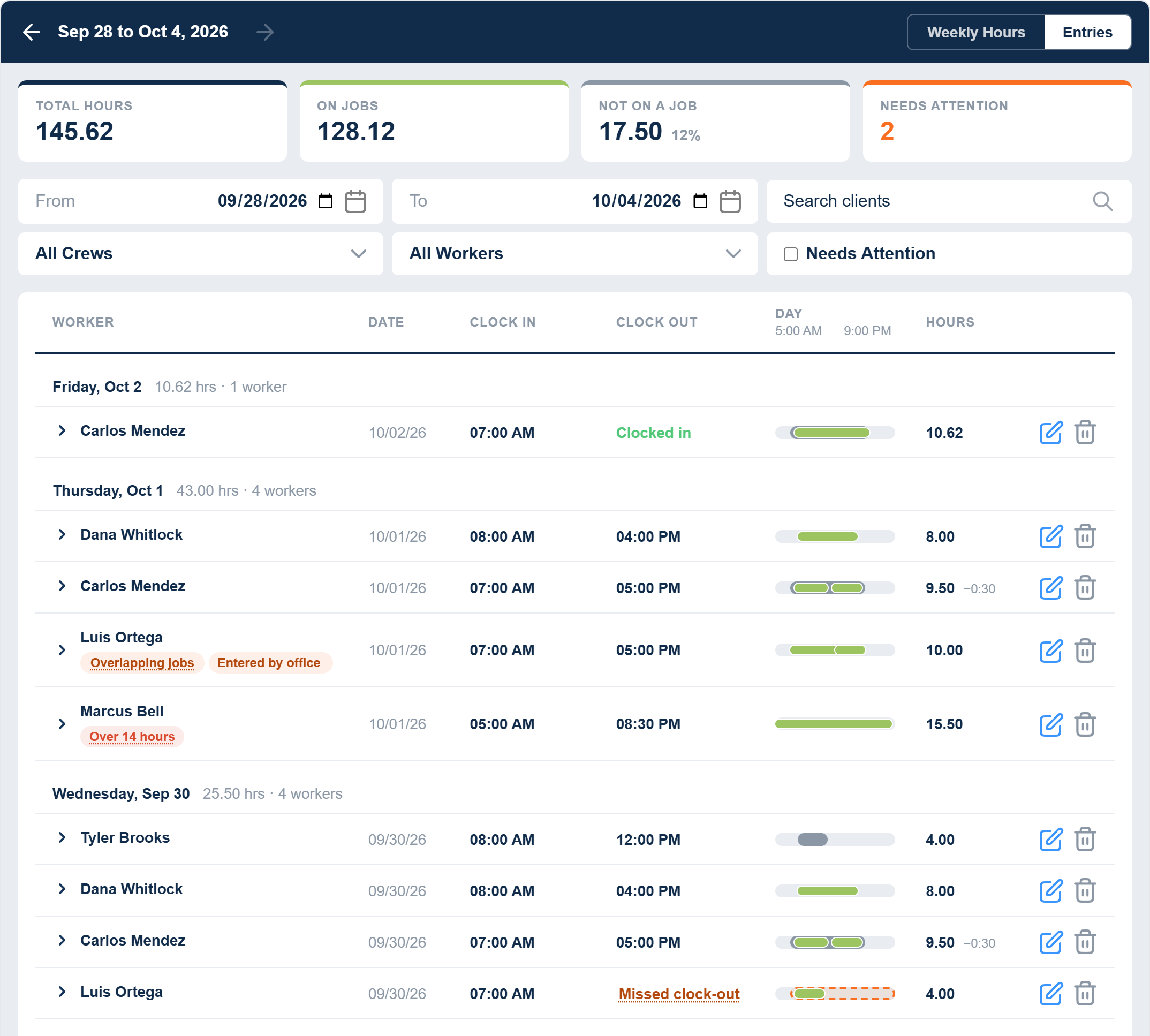
The Entries tab lists the clock records for the selected week, newest day first. Each day has a heading with its total hours and how many people worked. Each row is one person's day:
- Clock In and Clock Out: when the shop clock started and stopped. If the person only clocked jobs that day, these are the first job start and the last job end. Clocked in means the clock is running now. Missed clock-out means it never stopped; click it to set the time.
- Day: a bar that shows the day at a glance. Gray is the shop clock, green is time on a job, and a dashed orange outline is a clock that never stopped. Hover any part to see the job and times.
- Hours: paid hours for that day, worked out the same way as Weekly Hours. A small figure such as -0:30 next to it is unpaid time, like lunch, that has already been taken out.
Use the boxes above the list to narrow it down: From and To dates, Search clients, All Crews, All Workers, and Needs Attention. Changing the dates replaces the week with your own range. Use the Back to link in the dark bar to return to the week.
See the jobs in a day. Click the arrow next to a name to open that day's job records. Each one shows the project, crew, client, address, start and end times, duration, and notes.
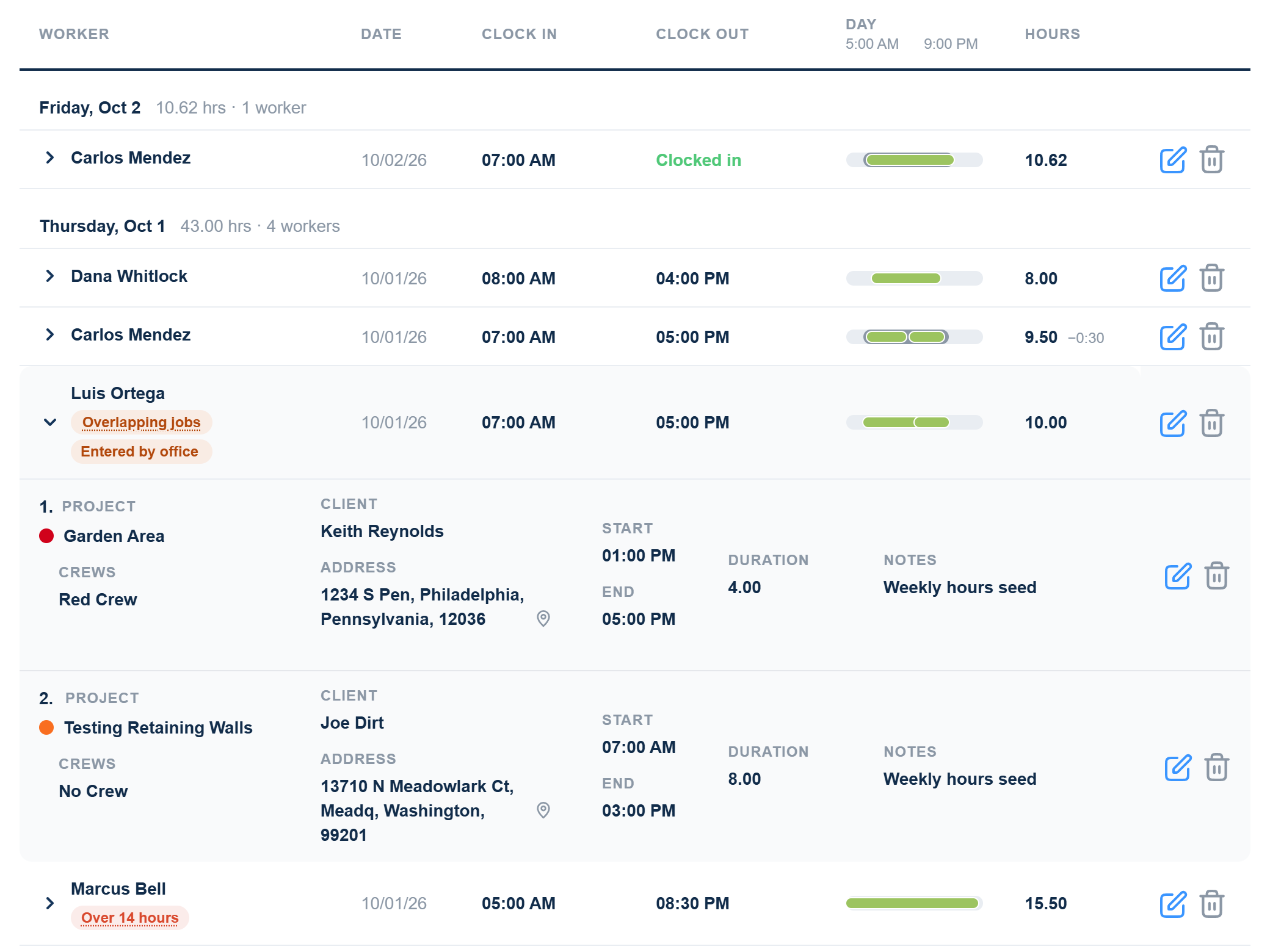
See where someone clocked in or out. A small pin next to a time means the phone recorded a location. Hover it, then click it to see the spot on a map. The pins on a person's row show where the shop clock started and stopped. The pins on a job record show where that job was clocked. No pin means no location was recorded, which is normal for time entered by hand.
All times are shown in your company's time zone.
Editing or Deleting a Record
Admins and Managers can change anyone's record. Foremen can change their own and their field crew's. Everyone else can change only their own. Use the edit icon on a person's row to change their shop clock, or the edit icon on a job record to change that job. You can also click a flag or a Missed clock-out link to open the record that needs fixing.
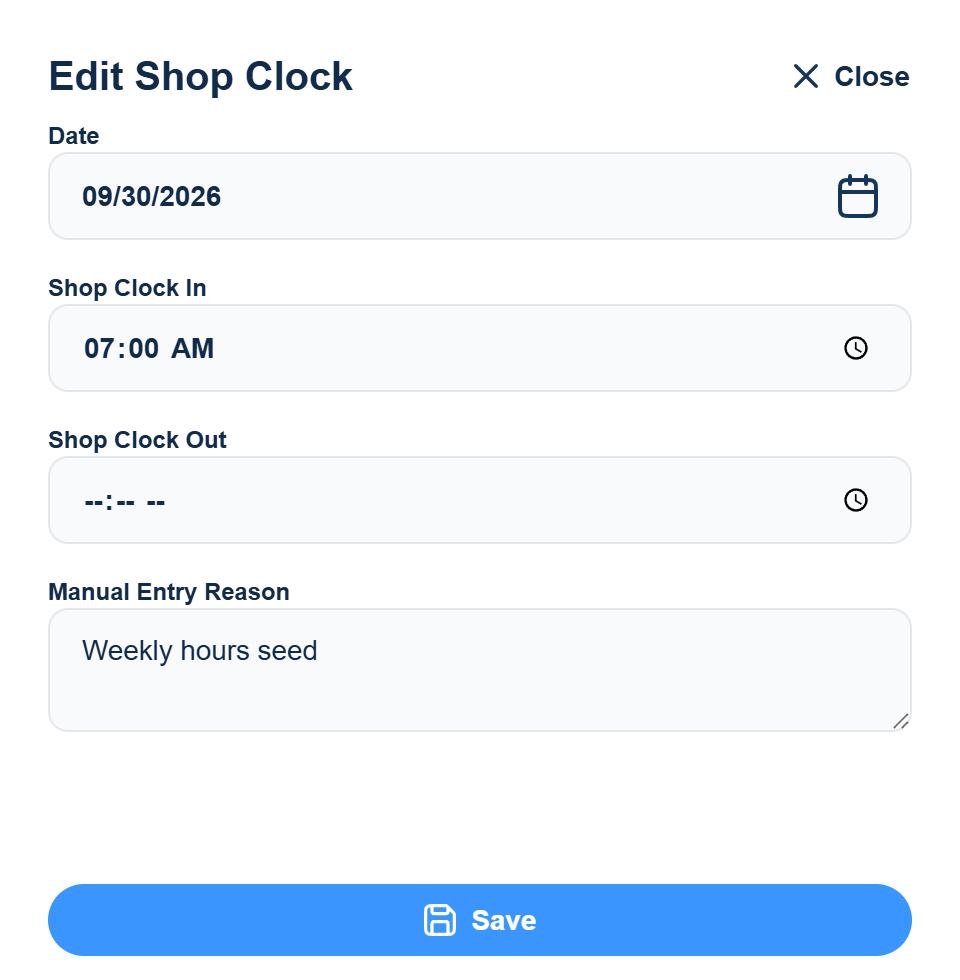
When you edit a job record you can change the crew, the date, the clock-in and clock-out times, and the unpaid time (hours and minutes) to take out. When you edit a shop clock you can change the date and its clock-in and clock-out times. Every edit asks for a Manual Entry Reason, so there is a record of why the time was changed.
Use the trash icon to delete a record. Deleting a shop clock also deletes the job records inside it.
Adding Time and Exporting

Add Manual Entry, at the top of the page, creates a record from scratch: the person (Admins can pick anyone; everyone else records their own time), crew, date, client, project, clock-in and clock-out times, unpaid time, and the reason. Use it when someone forgot to clock in or worked without their phone.
Export Timesheet downloads time records as a spreadsheet for payroll or your records.
How Hours Are Counted
- Overlapping time counts once. The shop clock runs while job clocks run inside it, so a day is the time someone was on any clock, never the shop clock plus the jobs added together. The same goes for two job records that overlap.
- Unpaid time comes off. Lunch and other breaks recorded on a clock are taken out before any total is shown.
- A clock that never stopped counts as zero until someone sets its clock-out time. This keeps a forgotten clock from adding a day's worth of fake hours and overtime.
- A clock running today counts up to now. Clocked-in hours update about once a minute while the page is open.
- Overtime is every hour over 40 in the Monday to Sunday week.
- Days follow your company's time zone. A record belongs to the day it started, even if it runs past midnight.
Time Tracking on the Mobile App
Your crew clocks in and out, and starts and stops job clocks, in the Elevation Advisor mobile app. Everything they record shows up here as soon as you reload the page.
For a step-by-step guide your crew can follow, including how to fix a missed clock-in or clock-out and how to check their weekly hours, see How to Use Crew Time Tracking.
Updated on: 10/28/2026
Thank you!